Academic years
This is the year the rest of the school lives in. At Meadowbrook College we named ours 2025/2026. Build it in the wizard. Do not activate it until the term dates are real.
What you need first
- A school-admin sign-in
- Start Date and End Date for the year
- Term dates that sit inside those year dates
Steps
1. Open Academic Years
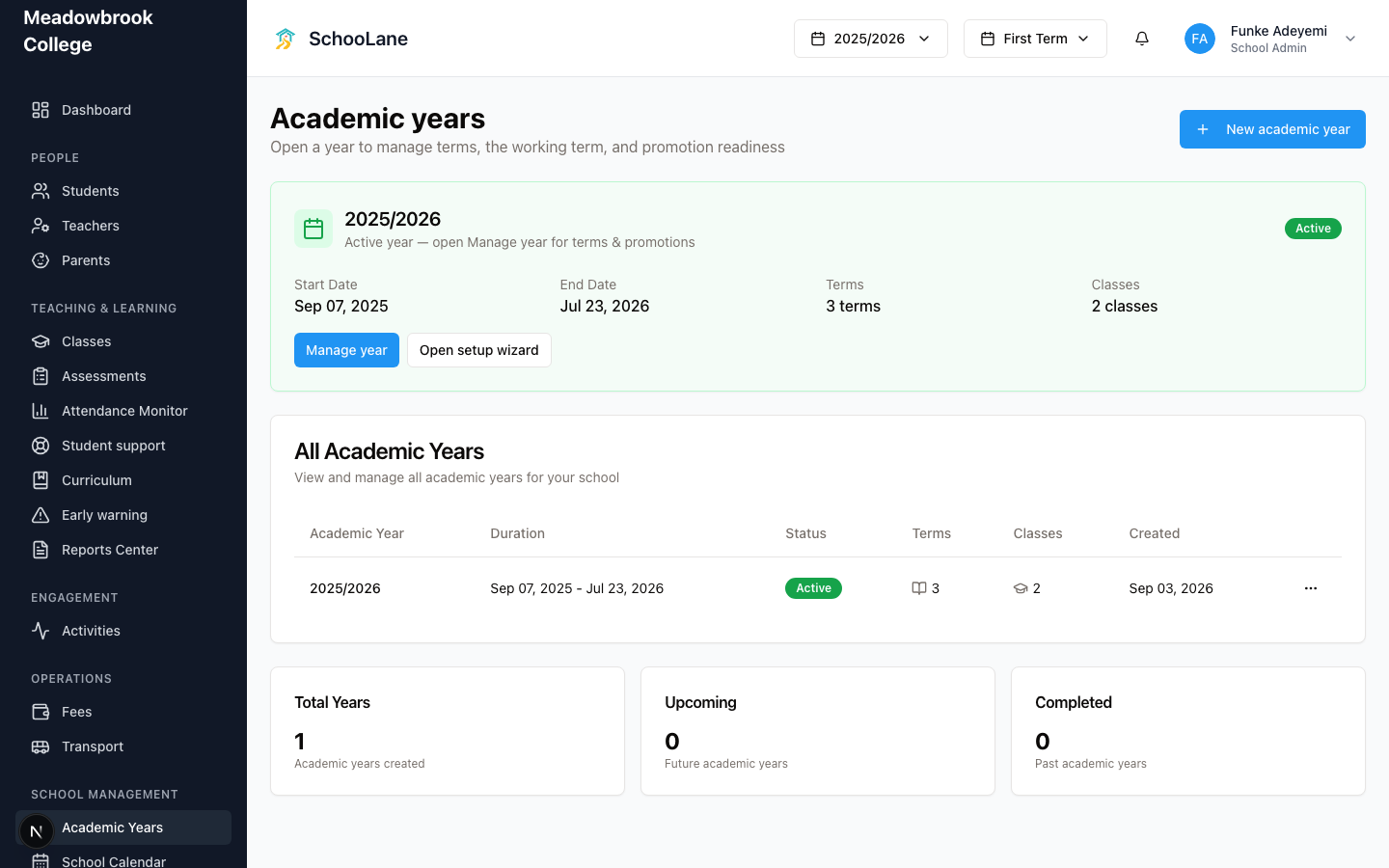
Under School management, press Academic Years. The page title is Academic years.
2. Start a new year
Press New academic year. You land on Academic Year Setup.

3. Fill Basic Information
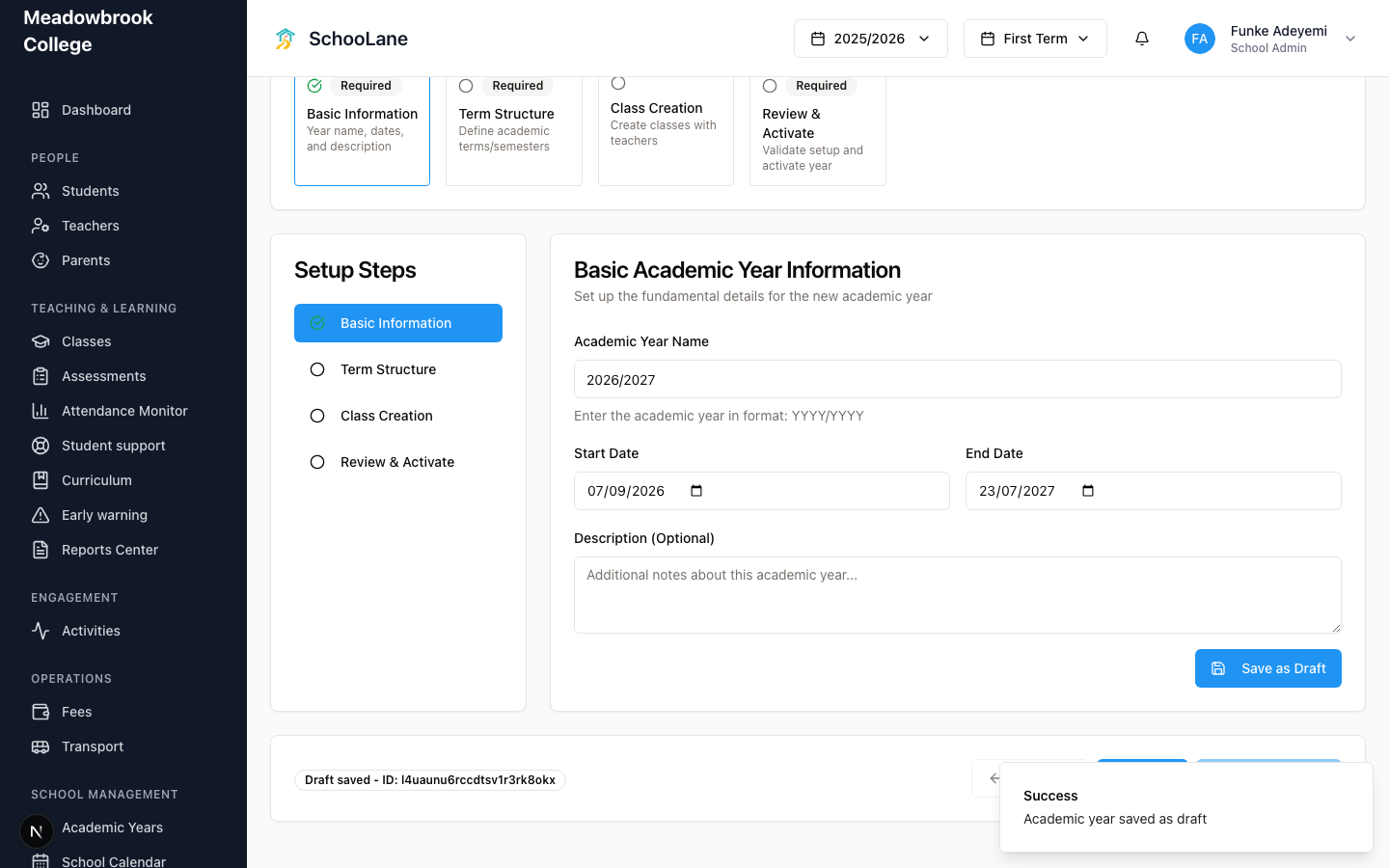
The first step is Basic Information. Type the Academic Year Name as 2025/2026 (year slash year). Set Start Date and End Date. Description (Optional) can wait. Press Save as Draft.
Guessing dates here is how you spend August fixing reports. Use the real calendar.
4. Add terms, then classes if you want
On Term Structure, add First Term, Second Term, and Third Term. Each one needs a Term Name, Term Order, Start Date, and End Date. Tick Promotion term (final term) on Third Term only.
Class Creation can wait. The wizard itself says you can skip it and make classes later from Classes. Skip it if the roster is still moving.
5. Review, then activate
On Review & Activate, read Setup Summary. Under Select Current Term, pick First Term if that is where staff should work now. Press Activate Academic Year.
Do not activate a year until the term dates are real. A draft year bothers nobody. An active year with fake dates bothers everyone.
6. Come back later
On the year card, press Manage year for terms and promotions. Press Open setup wizard if you want those same four steps again.
What done looks like
- The year card for 2025/2026 shows a green Active badge.
- The card lists term count and class count.
- The year switcher at the top reads 2025/2026.
- Teachers can work. You still own this page. They never see it.
Empty and error states
- Years exist but none is active: a yellow note says No active academic year. Please activate an academic year to enable full system functionality.
- A term date outside the year: the form rejects it. Pull the date back in.
- Teachers do not see Academic Years. If the menu is missing, you are not a school admin.
Common mistakes
- Activating on Review & Activate while First Term still says “TBC”. Leave it as a draft.
- Leaving Select Current Term empty. Activation needs a current term.
- Closing the wizard after Basic Information without Save as Draft. You will type 2025/2026 twice.
- Building 2026/2027 in September because you felt organised. Stay on 2025/2026 until this year actually ends.