Staff app
The phone app. Not the website. Same Meadowbrook email. Five tabs at the bottom.
What you need first
- The SchooLane staff app on your phone, or the web preview your school sent
- The same email you use on the website
- A class assigned to you if you teach
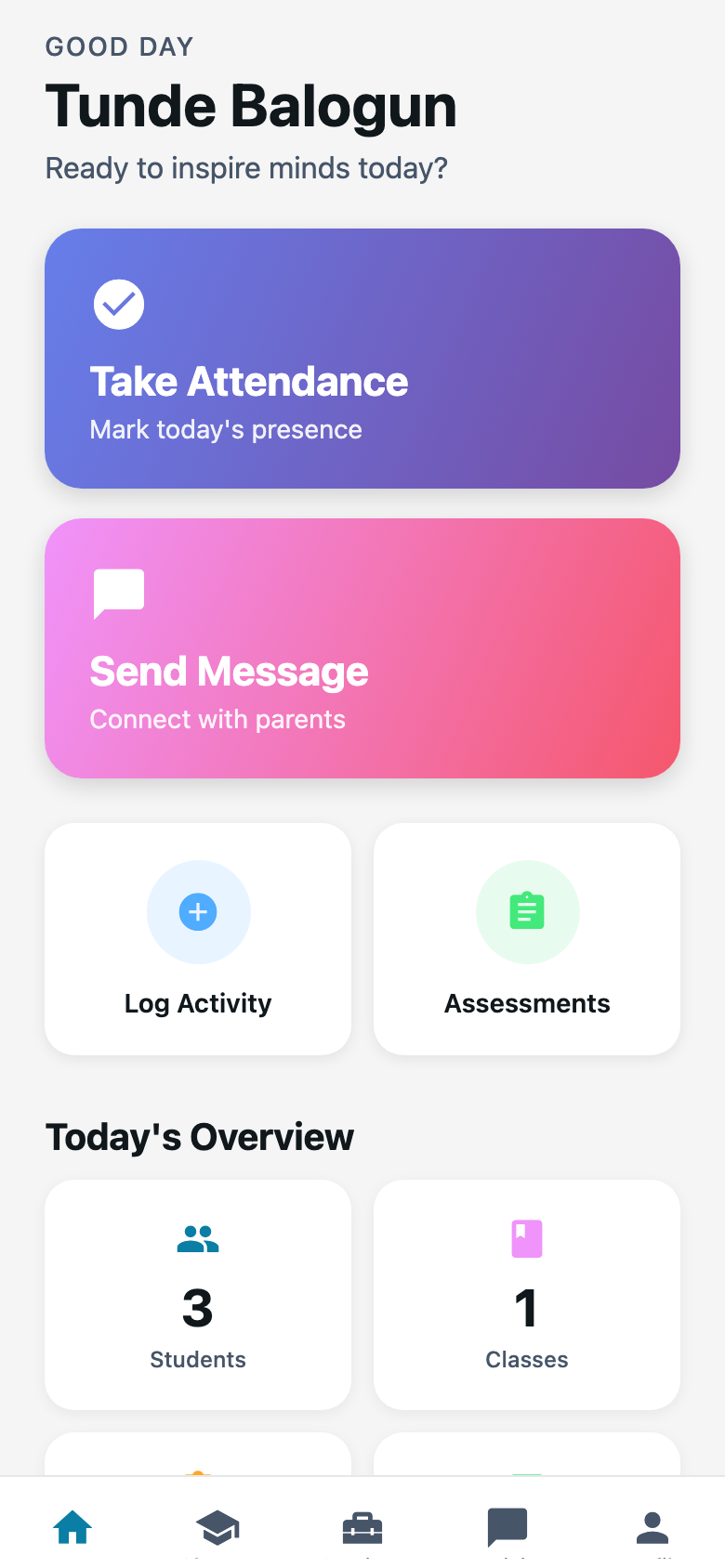
This is a different product from Teachers web. Teachers web is the browser app at school. The staff app is what you open on the bus, or in the corridor between periods.
The tabs
| Tab | What it is for |
|---|---|
| Home | Today’s snapshot and shortcuts |
| Classes | Your classes and the children in them |
| Services | Teaching day, curriculum, student support |
| Activity | Parent feed and messages |
| Profile | You, and which school you are in |
Attendance, assessments, and reports open from a class or from Services. They are not their own tabs. I still look for them on the tab bar the first week. They are not there.
School admins get extra office shortcuts on Home. Drivers and gate staff see different homes. These pages are for teachers.
Steps
1. Sign in
Open the staff app. Enter your Meadowbrook email and the one-time code (or password, if your school uses one).
2. Stay on the tabs
Do not hunt for the website sidebar. There is no Academic Years here. There is no School Settings. If you need those, use Teachers web on a computer.
3. Open a class when the work is about children
Press Classes, then JS2 A. From there you view students, mark attendance, and open assessments.
Common mistakes
- Treating a Teachers web screenshot as the phone. The website has a left sidebar. The app has five tabs.
- Signing in with a parent email. Parents have a different app.