Settings
Settings holds the rules your school’s daily work follows: the year and its terms, how each grade level is assessed and graded, what the report card looks like, and who on the staff may do what. Daily work, such as assessments, attendance and reports, stays in the left sidebar. Keeping the rules apart lets the owner decide who may change them.
What you need first
- A school-admin sign-in. Teachers do not see Settings.
- Access to at least one settings page. The owner sees them all; other administrators see what their access groups allow.
Steps
1. Open Settings
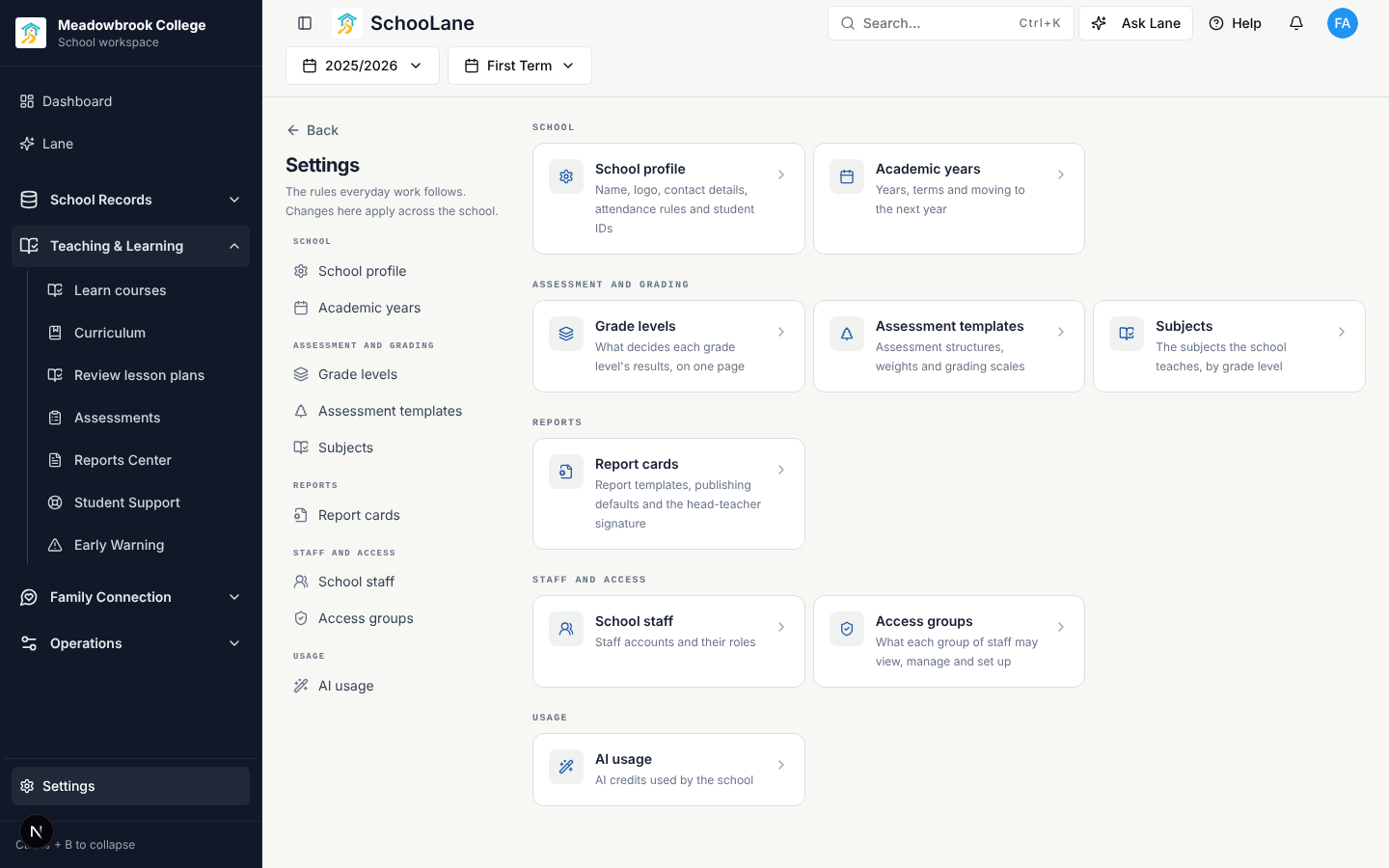
Press Settings at the bottom of the left sidebar. The overview shows a card for each settings page, with a line about what it decides. Press a card to open that page.
On a computer, the Settings menu sits on the left of the page. On a phone, it is a dropdown above the page: press it and choose another page.
2. Go back to your work
Press Back at the top of the Settings menu. It takes you to the page you were on when you opened Settings.
3. Find a settings page from anywhere
Press Ctrl+K (⌘K on a Mac) or choose the search box in the header, then type the page name. Settings pages are listed as Settings: Grade levels, Settings: Report cards and so on.
What each page decides
School
- School profile: the school’s name, logo, contact details, attendance rules and student IDs. See School settings.
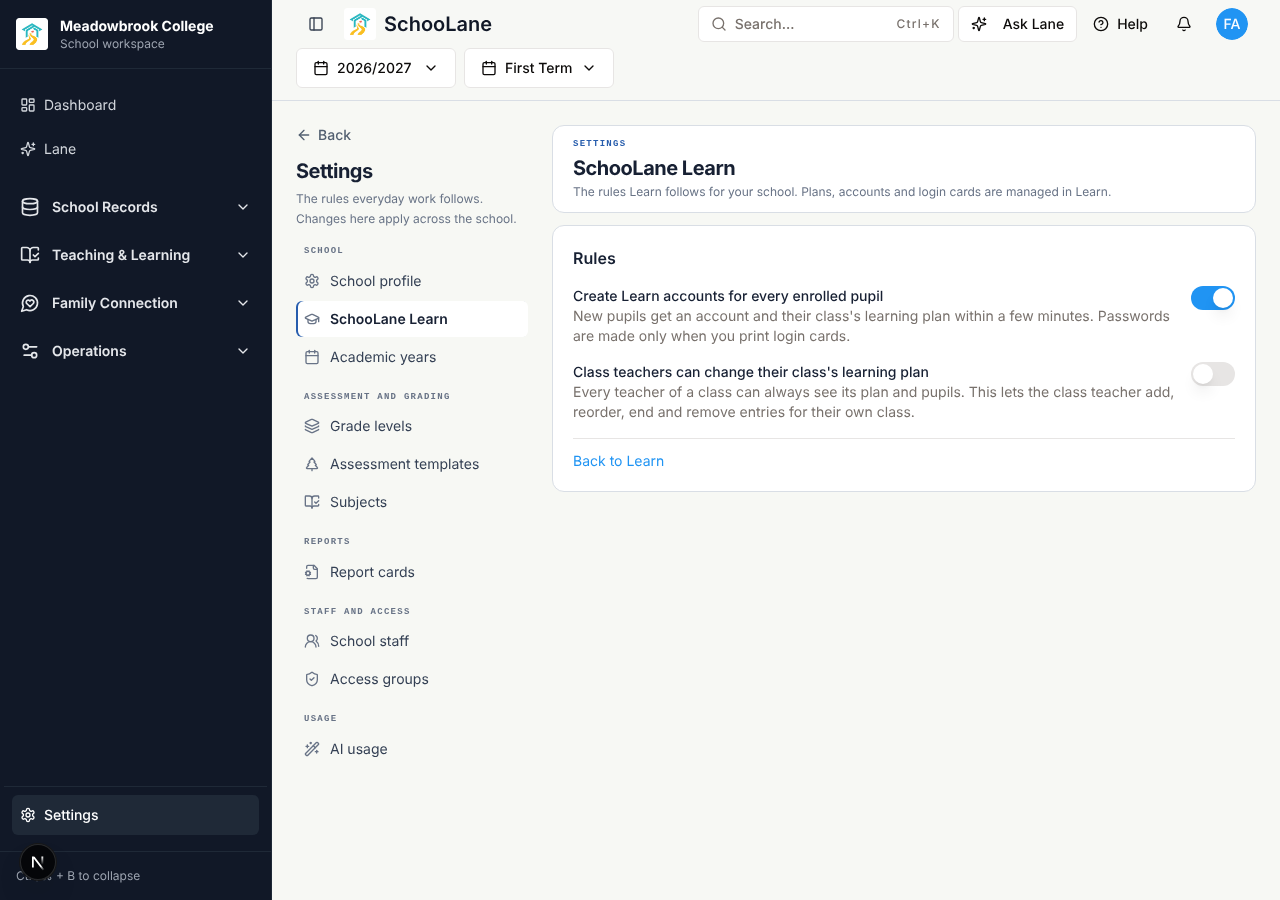
- SchooLane Learn: whether every enrolled pupil gets a Learn account automatically, and whether class teachers can change their class's learning plan. Full school administrators only. See Learn learning plans.
- Academic years: the years, their terms, and moving pupils on to the next year. See Academic years and Terms.
Assessment and grading
- Grade levels: everything that decides one grade level’s results, on one page. See Grade levels.
- Assessment templates: the shape of your assessments on the Templates tab, and your letter bands on the Grading scales tab. See Assessment templates and Grading schemes.
- Subjects: the subjects your school teaches. See Subjects.
Reports
- Report cards: your report templates, publishing defaults and the head teacher’s signature. See Report settings.
Staff and access
- School staff: who can sign in, and their roles. See School staff and roles.
- Access groups: what each group of staff may view, manage and set up. See Access groups.
Usage
- AI usage: the AI credits your school has left, what has been used, and who used it.
Who sees what
You only see the settings pages your access groups let you open. The overview and the menu leave out the rest. If Settings is missing from your sidebar, your access groups include none of these pages. Ask the school owner.
Settings follows your school's subscription too. A page for something your school has not bought is not listed, and a page whose part of the subscription is read only opens without its change buttons.
Opening a page is not the same as changing it. Changing the rules for academic years, subjects, assessments, grading or report cards needs Set up on that permission. Without it, the page is read only: you see what applies, but the buttons that change it are hidden. See Access groups.
Old links still work
These pages used to sit in the left sidebar: School Staff, Access Groups and Academic Years under School Records, Assessment Templates and Report Settings under Teaching & Learning, and AI Usage and School Settings under Operations. Bookmarks and links to the old addresses open the same pages in Settings.
Common mistakes
- Looking for School Settings or Academic Years in the left sidebar. They are in Settings, at the bottom of it.
- Changing a rule in the middle of a term without telling staff. Settings apply across the school from then on.
- Expecting Manage to change a template, grading scale or report card. That needs Set up.