Profile
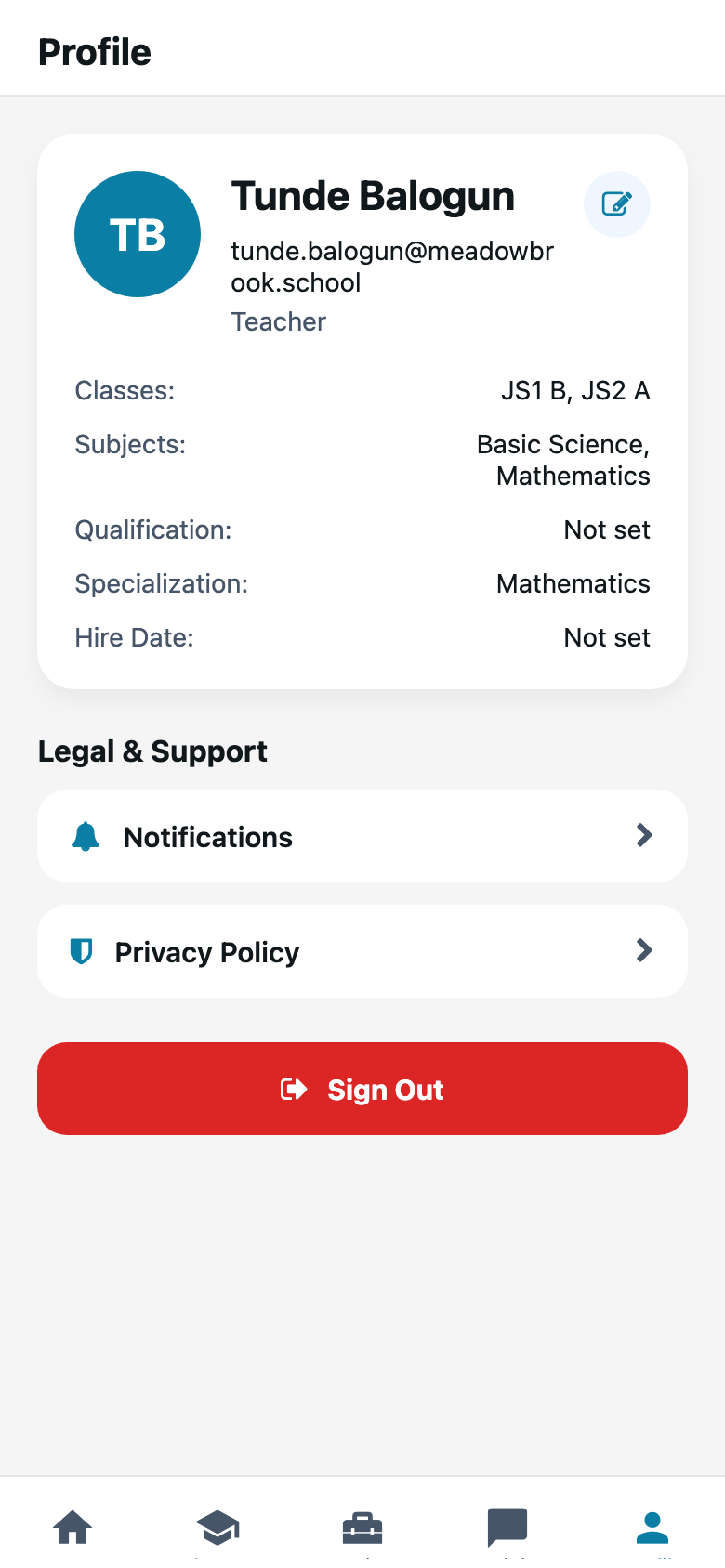
You, your phone number, and which school this login belongs to. Sign out lives here too.
What you need first
- A working staff-app login
Steps
1. Press Profile
The last tab. You should see your name (Tunde Balogun, if you are using the Meadowbrook demo) and the school.
2. Edit the bits you own
Name and phone can change here. Your email is the login. Do not invent a second personal email just for the phone. You will forget which one you used.
3. Check the school if you work at more than one
Some people belong to two schools. The school on Profile is the one the tabs are showing. Switch it before you mark JS2 A at the wrong campus.
4. Sign out on a shared phone
If this is the staff-room iPad, sign out when you are done. The next teacher should not post as you.
Common mistakes
- Editing Profile when you meant to change a child’s record. Student files are under Classes.
- Signing in as a parent on this app. Parents have their own app.