Students
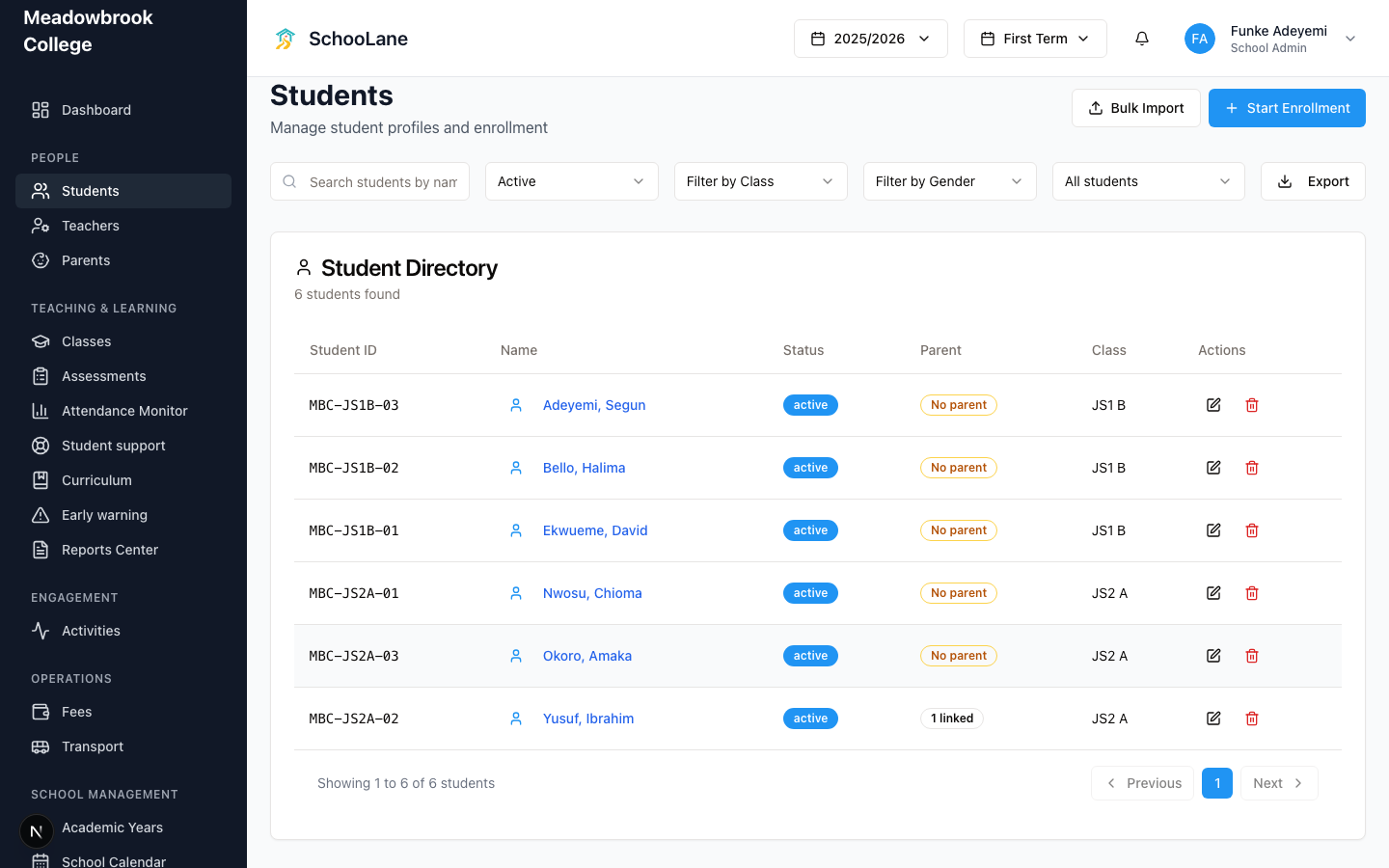
The school roll. Add one child with Start Enrollment, or bring a whole class in with Bulk Import.
What you need first
- An active academic year
- At least one class that already has a class code
- The child's name, and any government ID your school stores
Steps
1. Open Students
In People, press Students. You land on a page titled Students, with a line under it about managing profiles and enrollment. That is the roll.
2. Enroll one student
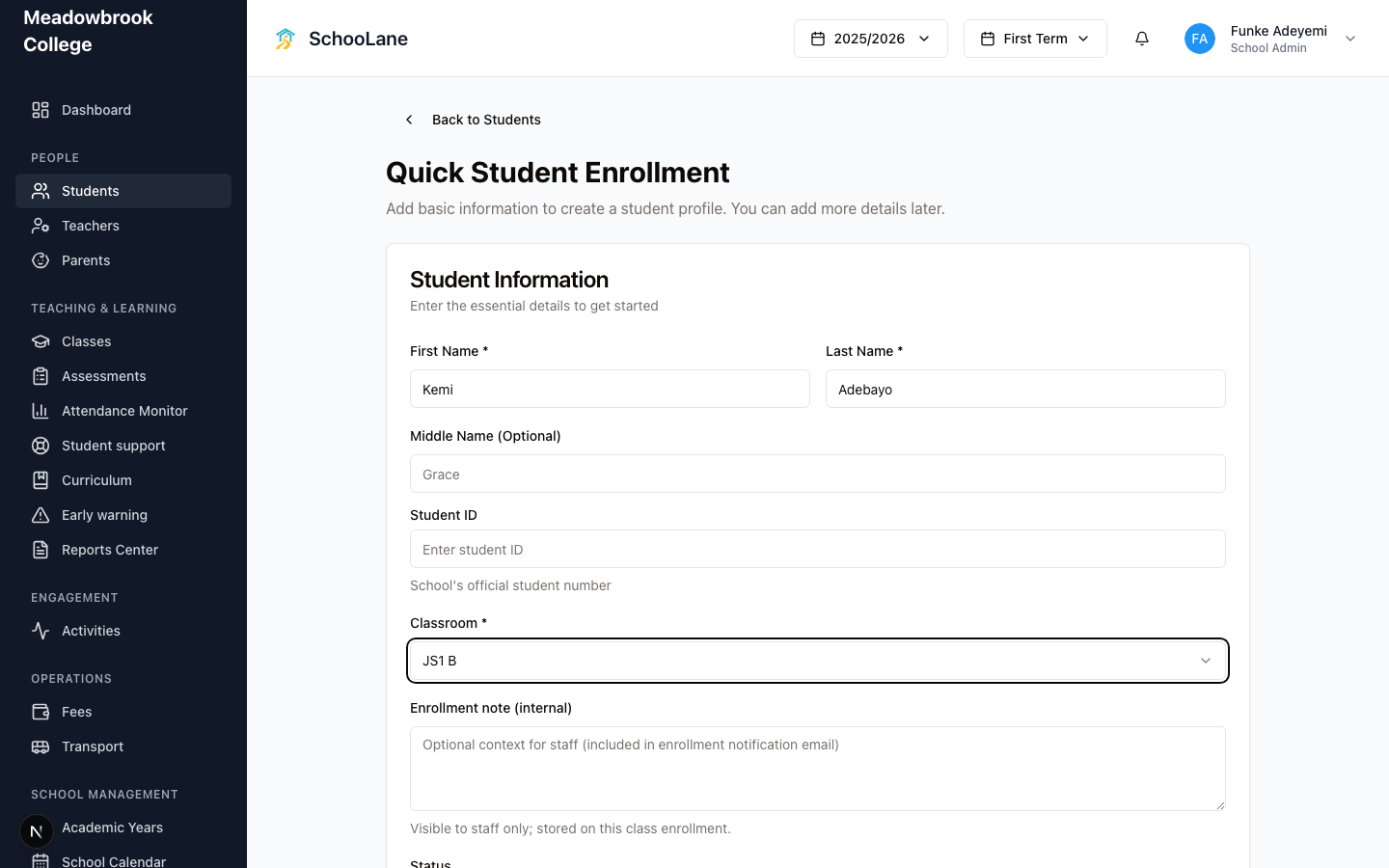
Press Start Enrollment. Type the name and pick the class. You can leave a short office note if you want. Extra fields can wait. Open the profile later and fill them in.

3. Import a class list
Press Bulk Import when you have a whole class sitting in a spreadsheet. Every row needs a class code that already exists on Classes. If a row fails, fix that row and try again.
Only import your own current class list. A leftover file from last term will put children in the wrong rooms.
4. Open a student
Press a name. You get the profile and class history. Linked parents show up here too. Edit if the spelling or ID is wrong.
Who sees what
Teachers never see this full school roll. They open My Students and only see children in their own classes. Bulk Import stays off the page unless you signed in as a school admin.
Common mistakes
- Importing before class codes exist. The importer matches on class code. Nothing else.
- Enrolling into last year's class after promotion. Check the year switcher at the top first.