Sign in
Email first. Then pick Email OTP or Password. You should land on School Overview or Dashboard, not back on Sign In.
What you need first
- The admin website your school gave you
- The email they used when they added you
- A password you already set, or that same inbox if you want a one-time code
Watch it once if you like moving pictures. Then do the clicks yourself.

Steps
1. Open Sign In
Go to the admin site. You should see the SchooLane logo and the heading Sign In. If you see a dashboard already, you are still signed in from last time. Fine. Skip the rest.
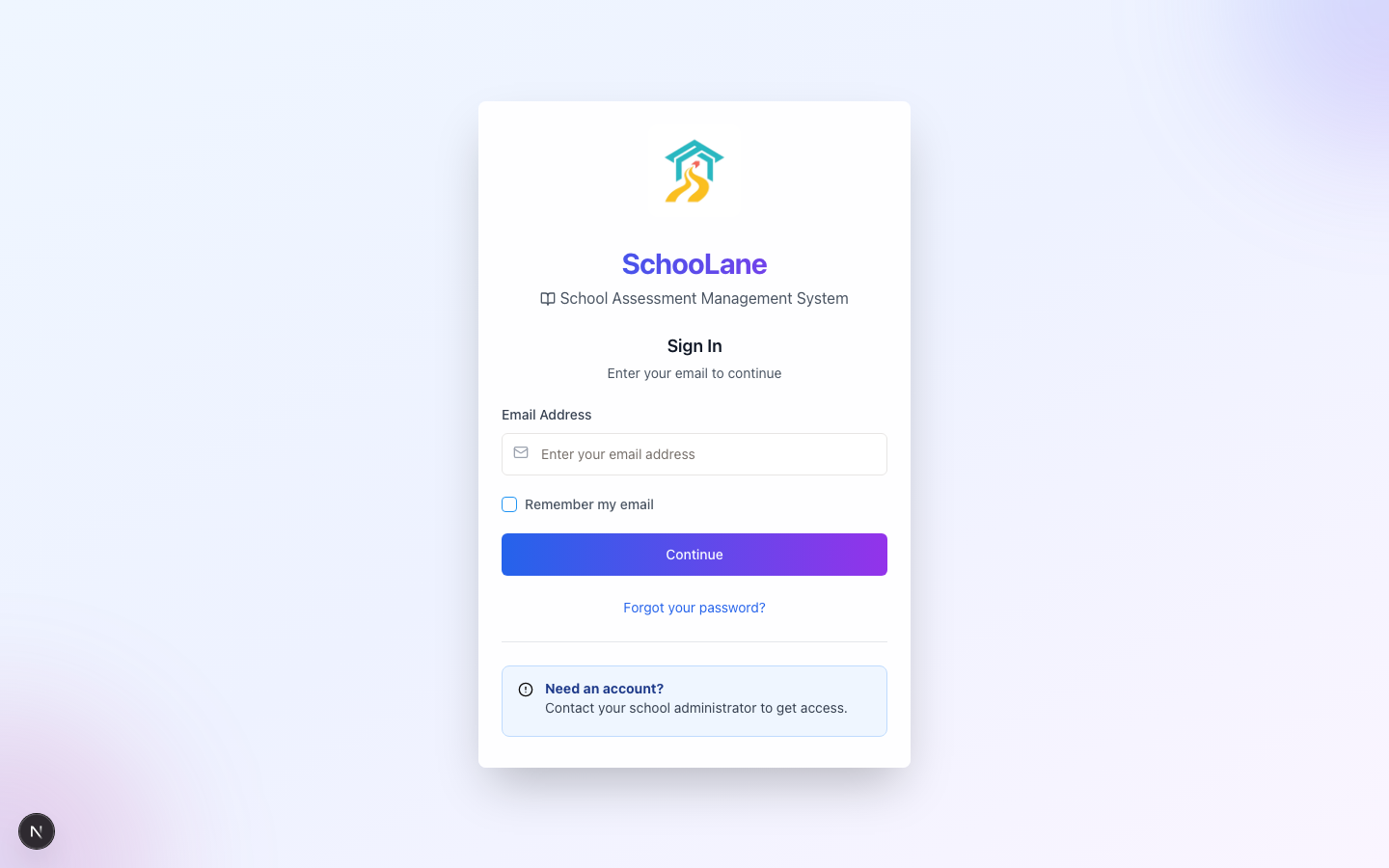
2. Type the email
Put your school email in Email Address. Press Continue.
Use the address they invited. Your personal Gmail will just sit there. I have watched people retry that for ten minutes.
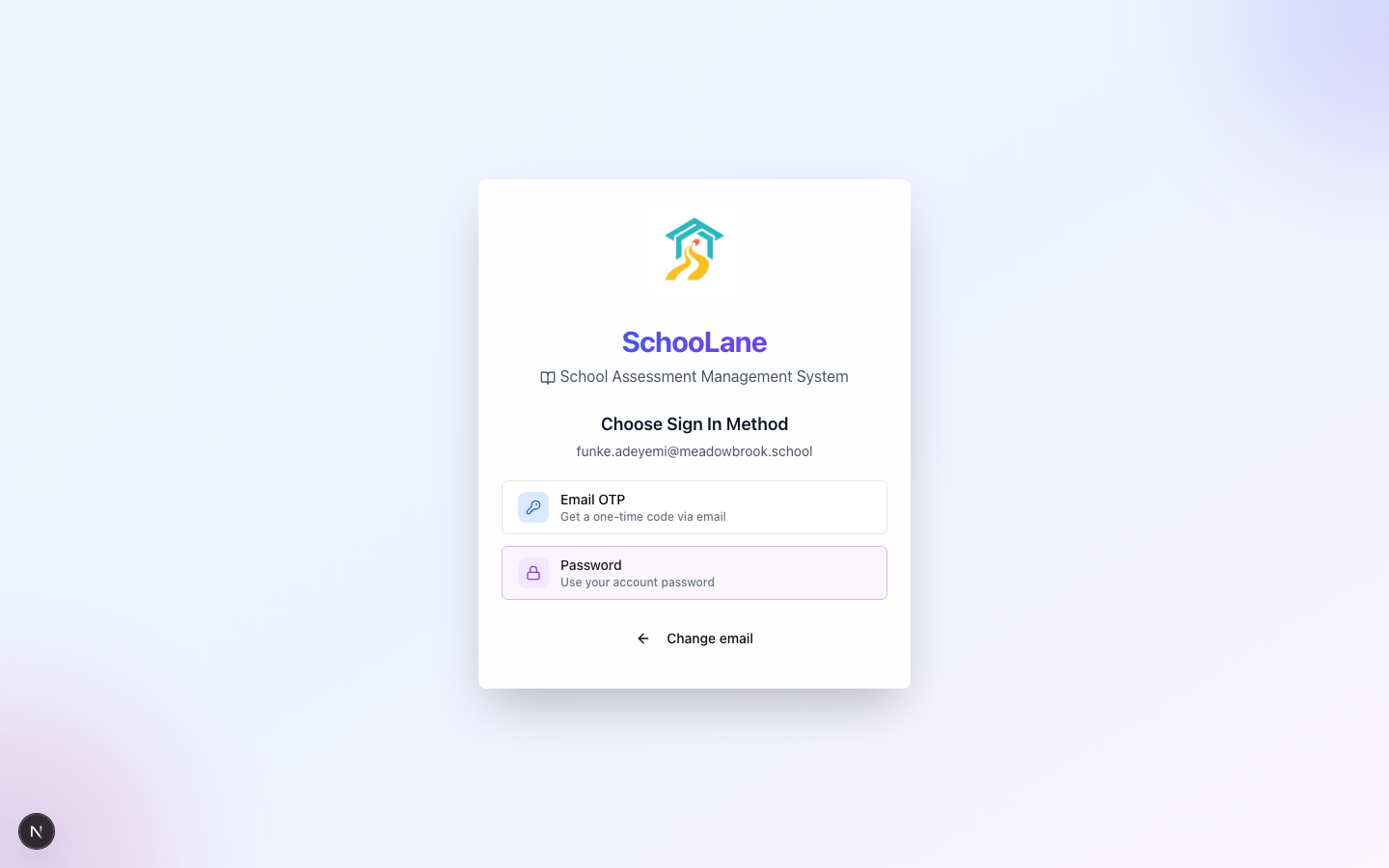
3. Choose Sign In Method
The next heading is Choose Sign In Method. It repeats the email so you can see you typed it right.
- Email OTP: they send a code. Use this on day one, or when you forgot the password.
- Password: use this if you already have one. Faster. I pick this when I can.
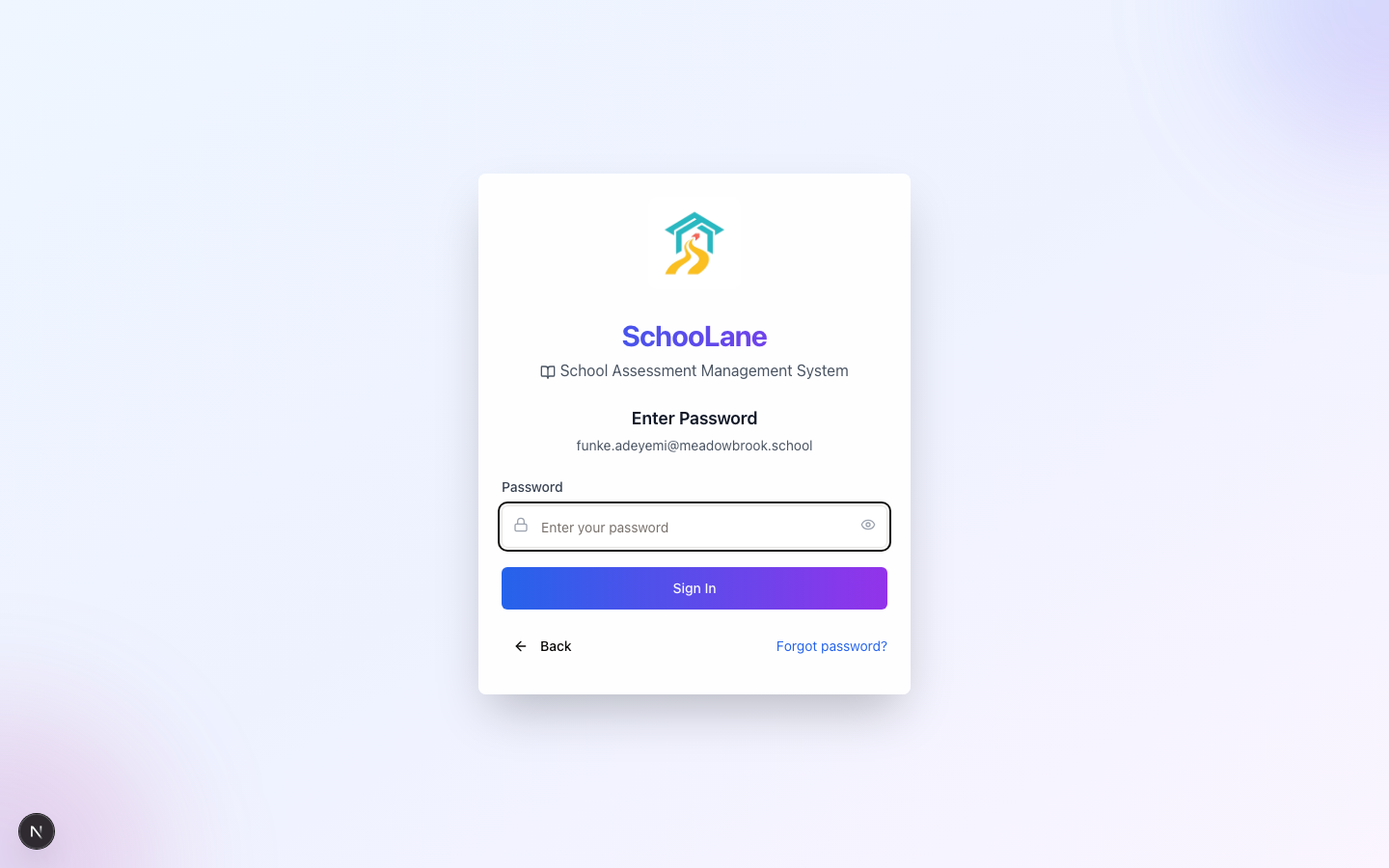
4. Enter Password
Press Password and the heading becomes Enter Password. Type it. Press Sign In.
If you chose Email OTP instead, open the inbox, type the code, and confirm. Check junk. Codes hide there.
Wrong password? It fails and leaves you on that screen. Go back and check the email first. I have typed the right password against the wrong address more than once.
5. Check where you landed
A school admin should see School Overview. A teacher should see Dashboard.
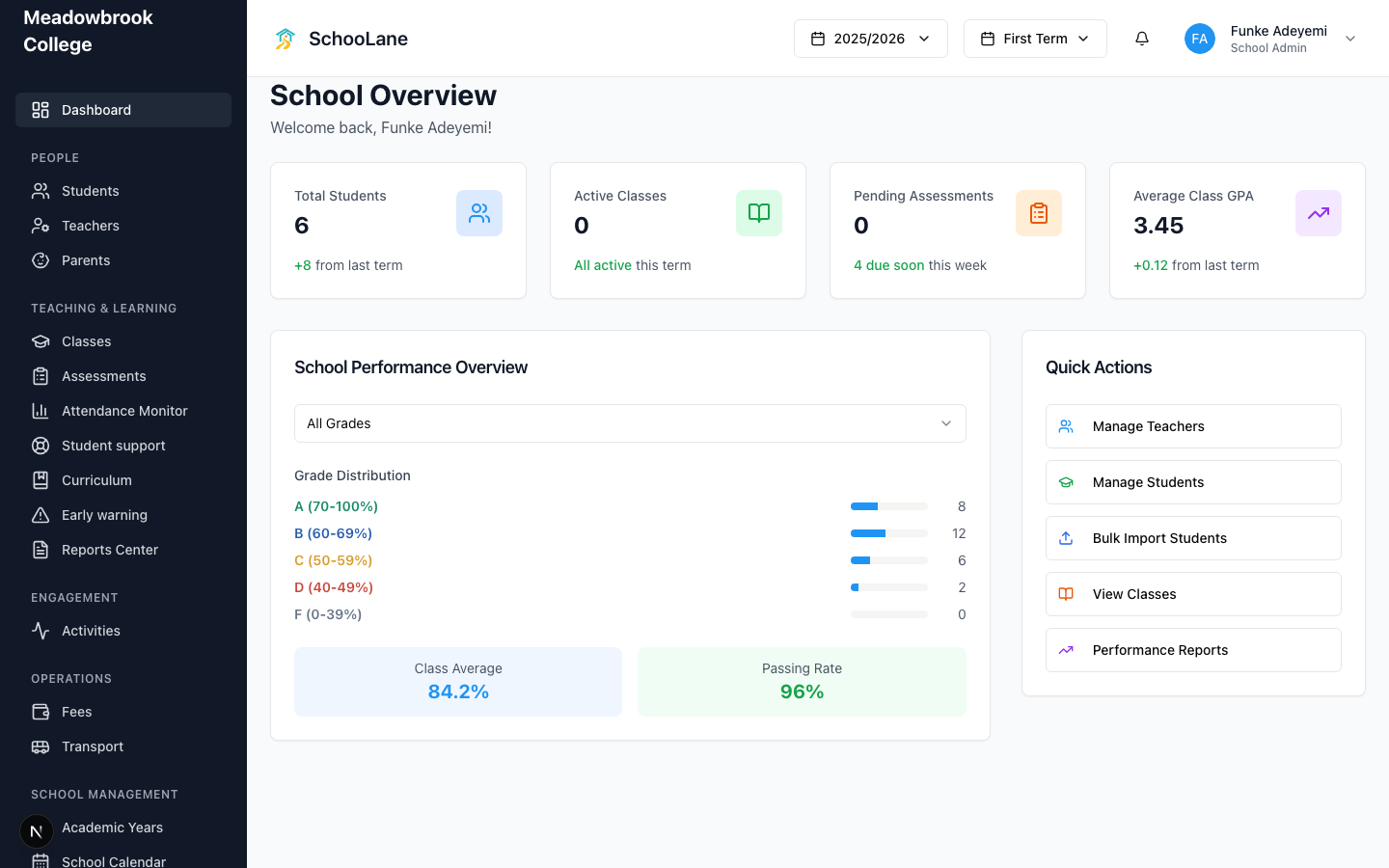
What done looks like
The left sidebar shows your school name. You can open Students or My Classes and stay inside. If Sign In comes back, the login did not take. Try once more, slowly.
Who lands where
School admins get the office: People, Teaching & learning, the rest of those groups. Teachers get their own shorter menu. Parents should not be here at all. See Roles and access if the menu looks wrong.
Common mistakes
- Typing a home email that nobody invited. Ask a school admin to add you under School Staff or Teachers.
- Waiting on a code that is sitting in spam. Or use Password if you have one.
- Opening the parent app with a staff email. Staff use this website, or the staff app.