Lane, your AI advisor
Teachers and school admins can open Lane from the web sidebar or Ask Lane in the web header. The conversation opens on its own page. In the staff app, Lane is a tab of its own for teachers and school admins. The school year, term and class you have selected carry into the conversation. From a student's report, Lane opens on that student; press Back to return to the report.
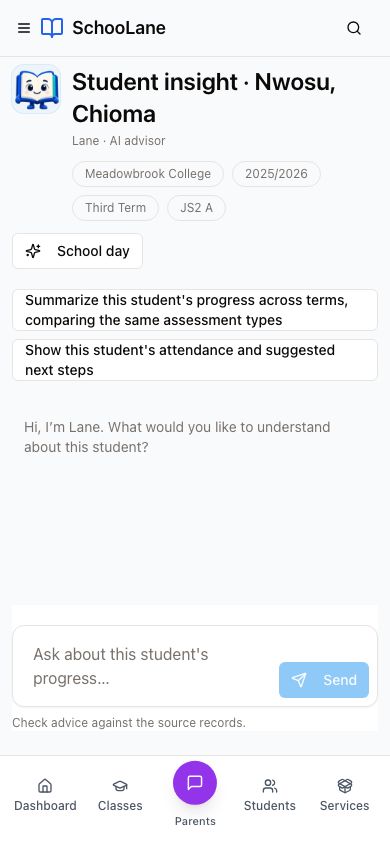
Press Lane in the staff app's bottom navigation to open Lane. It opens on the conversation, with a few suggested questions: press one to ask it straight away. A question that ends in “…” goes into the message box with the cursor at the end, so you can finish it and press Send. Use Today to return to your day. Teachers open Profile from the profile button on Today; school admins have a Profile tab. The message composer sits above the navigation. When the phone keyboard is open, close it to use the bottom navigation. Teachers find Services under Plan or Assess, then All services.
Meet Lane, your AI advisor. Lane’s blue and teal book character looks toward your message while you type, thinks while a request is running, and briefly waves when a reply arrives. Earlier replies stay still. With reduced motion enabled, Lane uses a still portrait. The AI advisor label identifies AI-generated advice; review the source records and any draft before confirming a change.
Lane is AI, and AI can make mistakes. Under the message box Lane says AI can make mistakes. Check important information. Check anything important against your school's records before you act on it or share it. Nothing Lane drafts is sent or saved until you confirm it. The Terms of Service cover AI features.
Ask about your day
Choose a suggested question or type your own, then press Send. On the web, Enter also sends; press Shift+Enter for a new line. A suggested question fills the message box so you can finish or change it before sending. Teachers can ask about their classes, attendance and student progress, for example:
- “Everyone in JS3 A is present today except Ibrahim, who is sick.”
- “Who has missed two days in a row?”
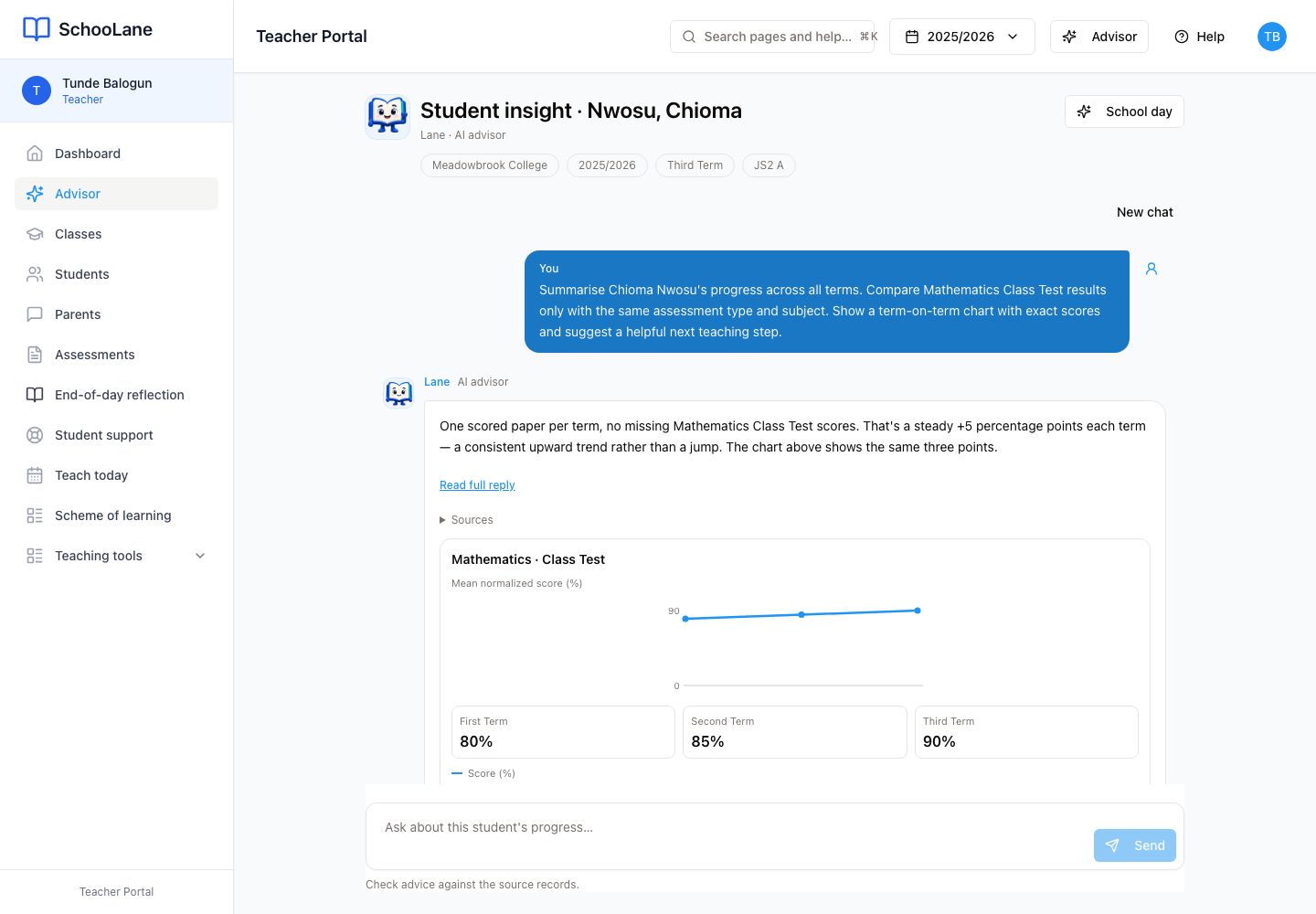
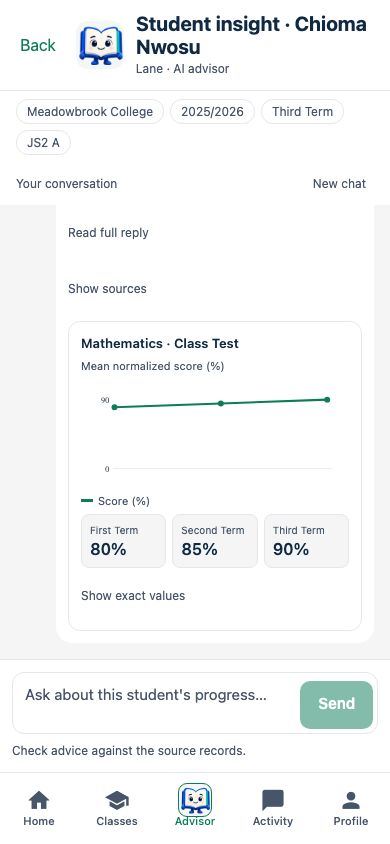
- “How has Chioma Nwosu done in Mathematics across the terms?”
- “Plan this week's JS3 A Mathematics lesson from the scheme of work.”
School admins can also ask:
- “Who still owes fees, and how much?”
- “How much are we owed today? Break it down by class.”
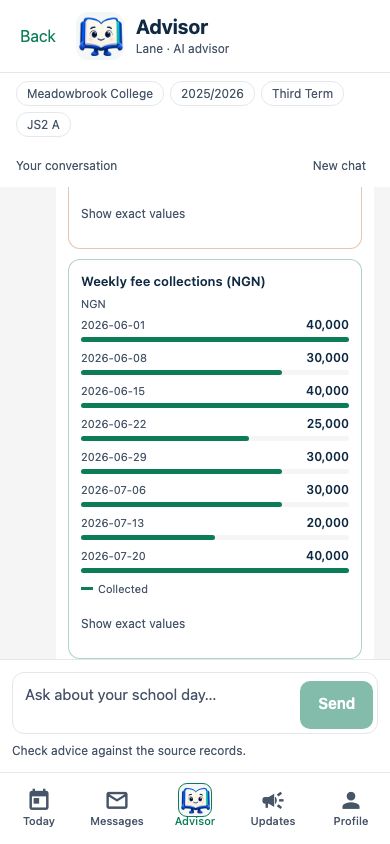
- “Show collections per week.”
- “Who has missed school this term?”
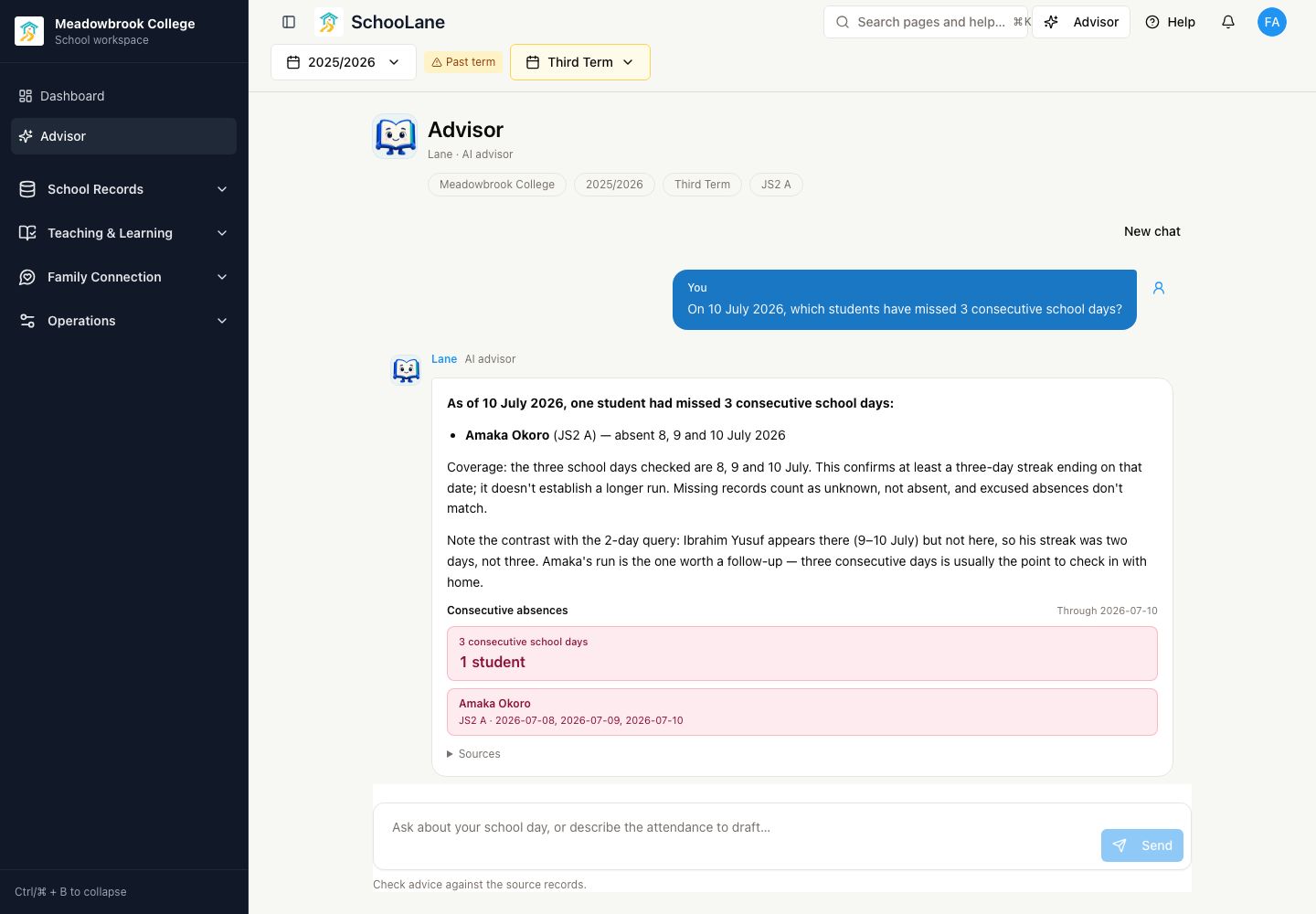
- “Which students have missed 3 school days in a row?”
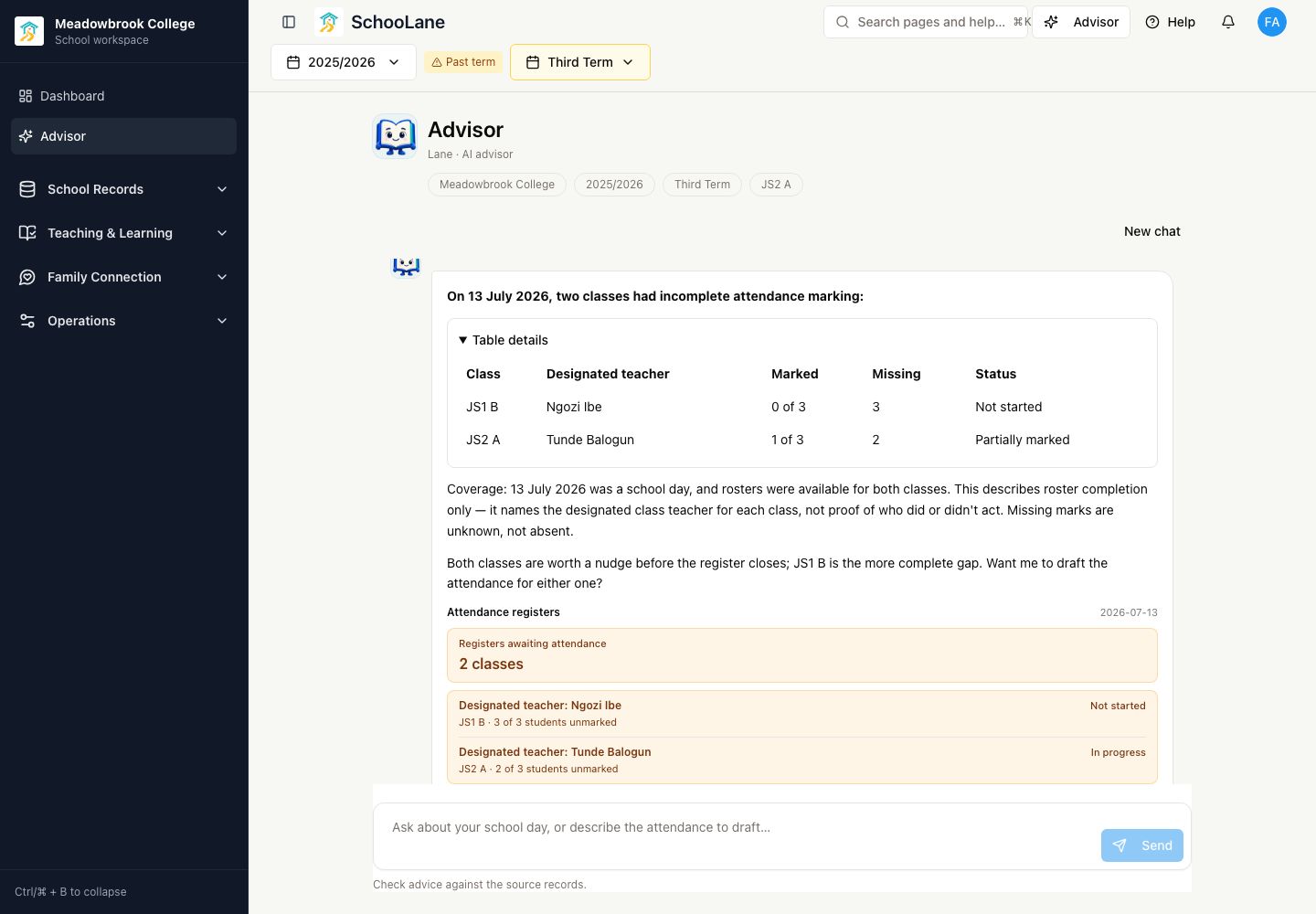
- “Which registers are incomplete today?”
Your question appears immediately in the conversation. While Lane works, a line under it says what it is checking, for example Reading the register… or Checking fee balances…, then Putting the answer together…. A reply can take up to half a minute. Lane's reply and any charts or draft cards appear beneath it. In the staff app, when a reply ends with a draft to approve, the conversation scrolls so its buttons are on screen. If nothing matches your question, Lane says so, with the dates or classes it checked, and suggests a related question to ask next. You can keep reading earlier messages while the reply arrives. A long reply with charts or drafts shows its opening and offers Read full reply for the rest.
Speak instead of typing
Press the microphone beside Send and say your question. Your words appear in the message box as you speak. Press the stop button when you finish, check the words, then press Send. Nothing is sent until you press Send. The first time, your phone or browser asks to use the microphone; allow it to dictate.
Dictation uses your device's speech recognition, in the English variant your device is set to. The staff app shows the microphone on phones that support it. On the web it appears in browsers with speech recognition, such as Chrome, Edge and Safari. Where it is missing, type your question or use the microphone on your phone's keyboard.
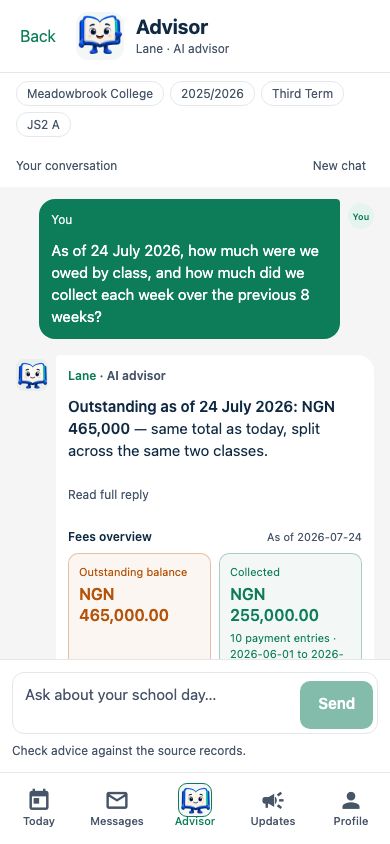
Fee replies show the Outstanding balance in amber and Collected in green, with the collection window and payment-entry count. Absence results highlight the named students in red. Incomplete registers use amber with Not started or In progress labels. Check the labels, names and dates alongside the color.
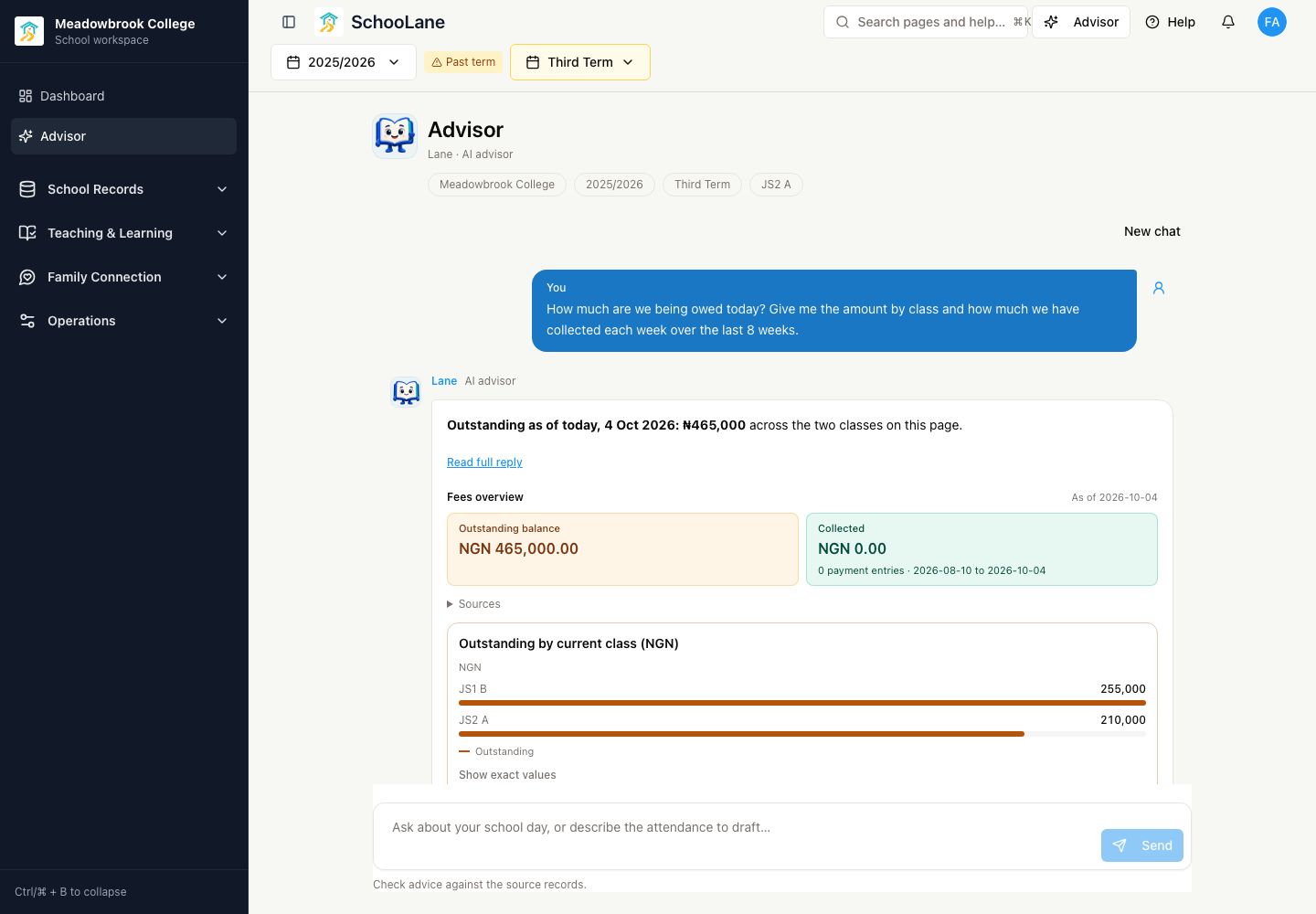
Lane reads the records you can access. Open Sources on web or Show sources in the staff app, then open the named record; the staff app also offers Show records. Charts show the periods, units and series names. Bar charts initially show up to eight values. Press Show exact values beneath a chart to inspect every value. A missing assessment score is not treated as zero. Results can cover a limited date range or page, so ask for another page or a narrower class when needed.
When a response includes charts and an additional table, open Table details on web or Show table details in the staff app to see information such as weekly payment counts.
Follow up on attendance
Ask for students who missed 2 or 3 school days in a row. If today's register is not marked yet, the answer uses the school days before today and says so. Check the named students, their classes and the dates used for the comparison. The school calendar takes precedence over weekday defaults. A missing attendance record is unknown; it does not count as an absence. The result finds students absent on at least the requested number of recent school days.
Ask “Which registers are incomplete today?” to see classes with incomplete registers and their designated class teachers. Not started means no students have been marked. In progress means some students still need a mark. These results show register completion; they do not establish who entered the existing marks. On a non-school day, Lane does not flag registers as missing.
Include an exact date to review a previous school day, for example “Which registers were incomplete on 2026-07-13?” Check the date in the answer before following up.
If the selected date has no covering term or class roster, Lane reports that the records are unavailable. This does not mean attendance is complete or that no students were absent.
Review an attendance draft
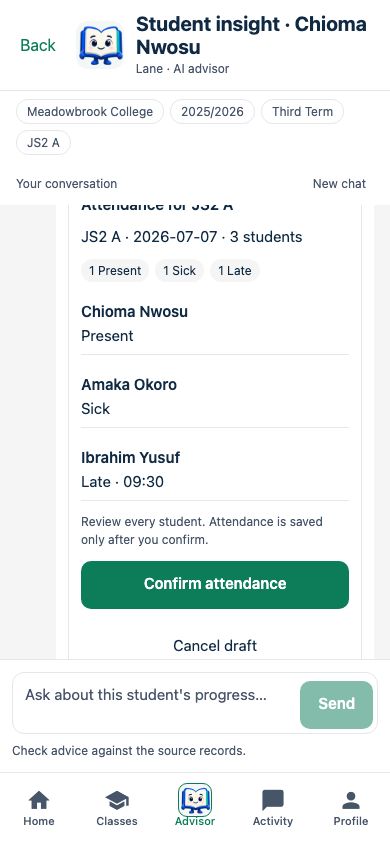
Describe the attendance, typed or spoken. For example: “All my students in Primary 2 are present except Jayla, who arrived at 09:30, and Daniel, who is sick.” Teachers can leave out the class: Lane knows which classes you teach and uses the class selected on your screen, or your only class. If you teach several and named none, Lane asks which one. Without a day, Lane uses today.
Lane resolves the class and students before showing a draft. If a name is ambiguous, provide the full name. Review the class, date, every student's status, arrival times and notes. Press Confirm attendance to save, or Cancel draft to discard. A draft is not saved until you confirm it. If a draft expires, ask for a fresh one.
The date must be a school day within that class's academic year and teaching term. Weekends and school-calendar holidays cannot produce a draft, unless the school calendar marks that date as a teaching day. A covered roster can still be read on a non-school day; it cannot be submitted for that date. Extra-session classes use their session dates. A draft uses the students enrolled for that date. If the term or roster changes before confirmation, check the updated records and request a fresh draft.
Review lesson and timetable drafts
Ask Lane to plan a lesson from the scheme of work, for example “Plan this week's JS3 A Mathematics lesson from the scheme of work.” Lane reads your class's scheme, finds the week and writes the plan. Lane can prepare lesson-plan content and changes to a timetable draft when your role has access. Compare the before and after content, then press Confirm draft or Cancel draft. These actions save drafts. Publication and approval remain in the lesson or timetable editor.
On the web, scroll the conversation to read a timetable proposal from its title through the confirmation buttons. New chat and Lane settings are beside the Lane heading. For timetable settings, review the grade levels under Before and After as well as the bell times. A scope or bell-time change can clear generated lesson placements; the preview shows the number that will be cleared. After confirming, open the timetable editor and regenerate before publishing.
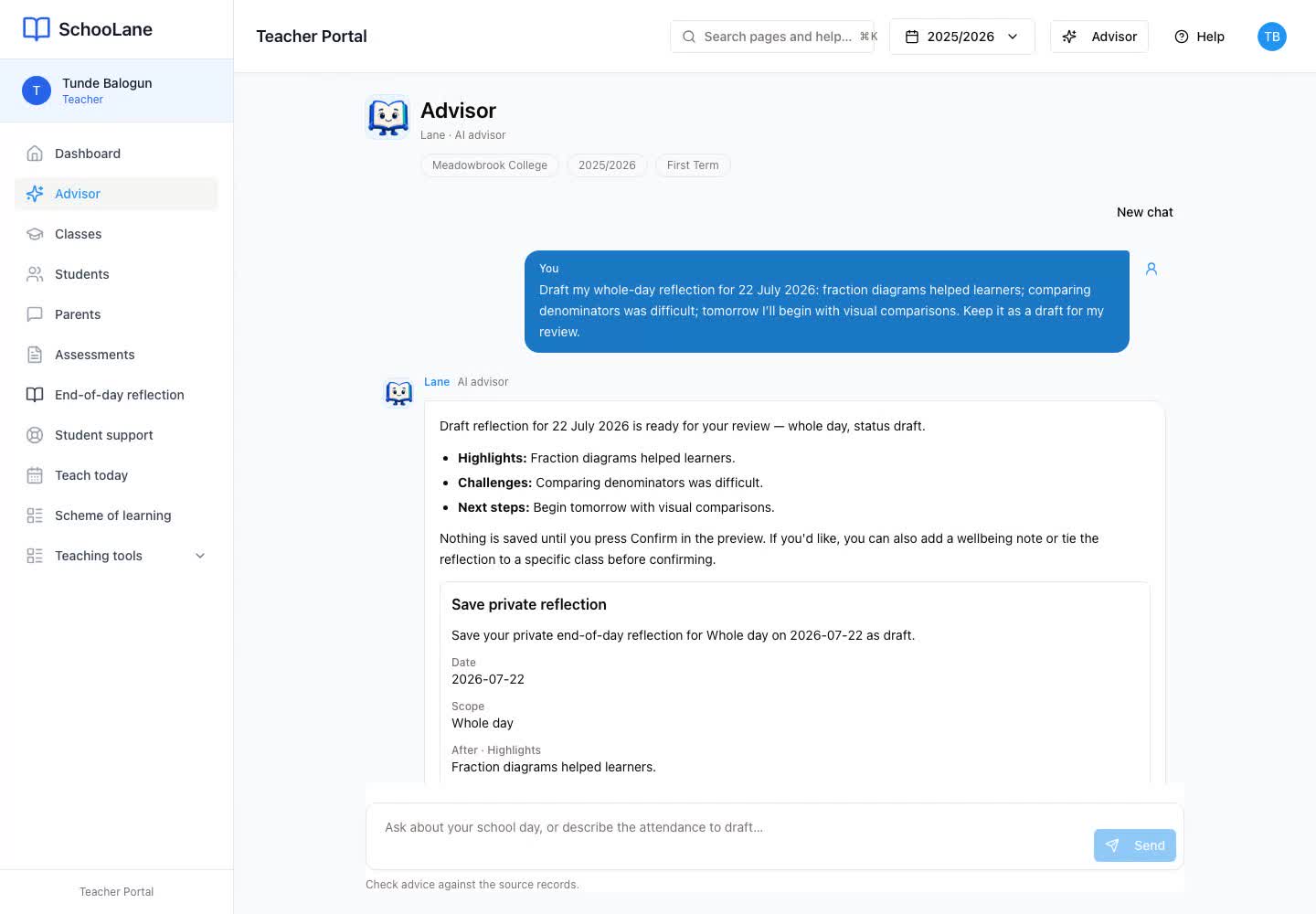
Lane can also prepare a private end-of-day reflection. Review Scope (Whole day or the class name), the date and your notes before pressing Confirm reflection.
Answer a parent
Teachers can ask Lane to answer a family, for example “Reply to the latest message from a parent” or “Answer Kofi's mum about his reading book.” Lane finds the conversation, reads it, and drafts a short reply in your voice. It greets the family member by the name your school has for them. It writes Mr, Mrs or Ms, or calls them a pupil's mum or dad, only when you ask or the school recorded that relationship. The draft shows who it goes to, the pupil, and the message exactly as the family will read it. Press Send reply to send it from your account, or Cancel draft. Nothing is sent until you press Send reply. To change the wording, tell Lane what to change and it drafts again.
Tell your class's families
Ask “Tell my class's families that…” and finish the sentence, for example “…we go to the museum on Friday; send a packed lunch.” Lane drafts a class announcement with a title and message. Check Families, the title and the message, then press Post announcement. It appears in the families' Activity like any announcement. Teachers can post only to classes they teach; school admins to any class.
Write report comments
At the end of term, ask Lane to write report comments, for example “Write report comments for my class” or, from a pupil's report, Student insight and then “Write this pupil's report comments from the term's evidence.” Lane reads the term's results, attendance, points and your own classroom observations, then drafts the remark and, if you ask, attitude, conduct and interest. It writes only what the evidence shows, and keeps to the space the report card has (220 characters for the remark, 110 for the others).
Each pupil's draft shows as a card: the pupil, class and term, then each comment as it will print, with Replaces under any comment you had already written. Press Save comments to save them to the report, or Cancel draft. The report stays a draft: nothing is finalized or sent to families. For a whole class, Lane drafts up to three pupils at a time; ask it to continue. If you changed a pupil's comments after Lane read them, it asks you to request a fresh draft instead of writing over yours. If a report's scores changed after it was generated, Lane asks you to refresh the report first. Finalized and published reports need an administrator to reopen them first.
What Lane remembers
Lane knows your name, your school and the classes you teach from the school's records. Tell it anything else you want it to keep, for example “Call me Mrs Mensah and sign my messages Mrs Mensah, Class 3 Blue” or “I mark the register at 7:50.” Lane says when it will remember something, and uses it in every conversation, for example to sign replies to families.
Press the settings gear at the top right of Lane, on the web or in the staff app, to open Lane settings. Under What Lane remembers you see everything it remembers. Both show the same memory. Press Forget beside an item, or Forget everything. Lane keeps only what you say about yourself; it does not remember pupils' names or details.
Under About Lane, press See our Terms of Use to read the terms that cover AI features. In the staff app they open inside the app. If the page cannot open, the app says so; you can read the terms at schoolane.app/terms.
Ask about a student
On a student's web profile, press Student insight. In the staff app, the same entry appears on the student's term report. The student carries into the conversation.
Ask for progress across terms. You can also ask about a pupil by name from the main Lane page, for example “How has Chioma Nwosu done in Mathematics across the terms?” Teachers can ask about pupils in the classes they teach. If two pupils share a name, Lane asks which one you mean. Lane compares the same subject and assessment type, shows scored and missing counts, and uses percentages to compare assessments with different maximum scores. Check the source dates before drawing conclusions from a change.
Keep working when Lane is unavailable
If the screen says Lane is not enabled for this school or Lane is currently read-only for this school, continue with the ordinary school tools. Your school admin can check access.
If a record cannot be read, a short note under the reply says why, for example that the date is outside the past year. If Lane cannot answer or a connection stalls, the composer becomes available again and your message stays there so you can retry. After an interrupted confirmation, check the current records before trying again. Continue using the ordinary attendance, lesson, timetable and student screens whenever you prefer. Check important advice against the underlying school records.
New chat at the top clears the conversation on that screen. Changing school or persona starts a fresh conversation.