Timetable
The weekly teaching grid. Teachers read it from Teach today. Build it after 2025/2026 is active and classes have subject teachers. Do not start this on a Sunday night with no period times in your pocket.
What you need first
- An active academic year and its terms (First Term at least)
- Classes with subject teachers assigned
- The school’s real bell times: start, end, period length, breaks
Steps
1. Open Timetable
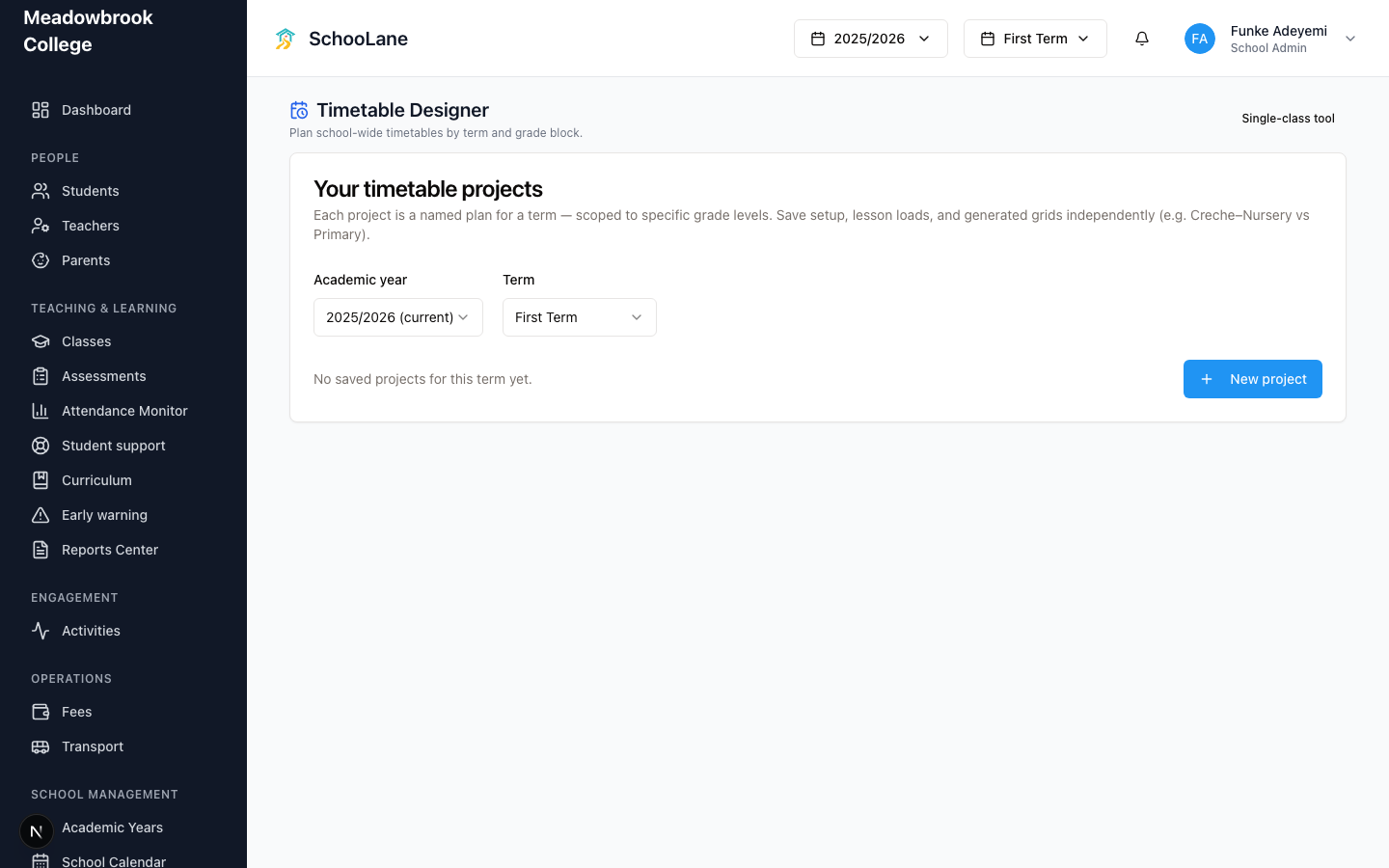
Under School management, press Timetable. That opens Timetable Designer (the address ends in /admin/timetable/designer).
You see Your timetable projects. Pick the academic year and term first. Meadowbrook’s First Term grid lives on 2025/2026. Press New project.
2. Set the school week
The designer walks Setup, Activities, Generate, Review, then Publish.
On Setup, set Daily bell times: Starts, Ends, Period length. Add lunch or recess under Break times with Add break. Tick the Teaching days that actually run (Mon through Fri, unless Saturday is real). Press Save in the toolbar. Often.
3. Place lessons, then publish
On Activities, the load for each class and teacher should match what you already assigned on the class. Then Generate. Then Review the grid. Then Publish.
If a slot looks wrong, fix it before you publish. Teachers trust the first grid they see.
4. Check Teach today
Ask a teacher to open Teach today. They should see today’s lessons from this grid. If that list is empty, the project is still a Draft, or you published a different term.
Permission note
If Timetable is missing from School management, the school’s plan may not include it. Teachers never see the designer. They only see their own teaching agenda.
Common mistakes
- Opening the designer before subject teachers exist. You will generate an empty week and blame the tool.
- Publishing First Term while the year switcher still shows last year.
- Skipping Save on Setup, then wondering why lunch vanished after you closed the tab.
- Leaving the project as Draft and telling teachers the grid is live. It is not.