Access groups
The owner sees everything. Everyone else who helps run the school gets a job: the head teacher runs academics, the front office runs admissions, the bursar runs fees. An access group is that job written down as permissions.
What you need first
- The Owner role to create, edit or delete groups
- A school-admin sign-in to view groups
Steps
1. Open Access groups
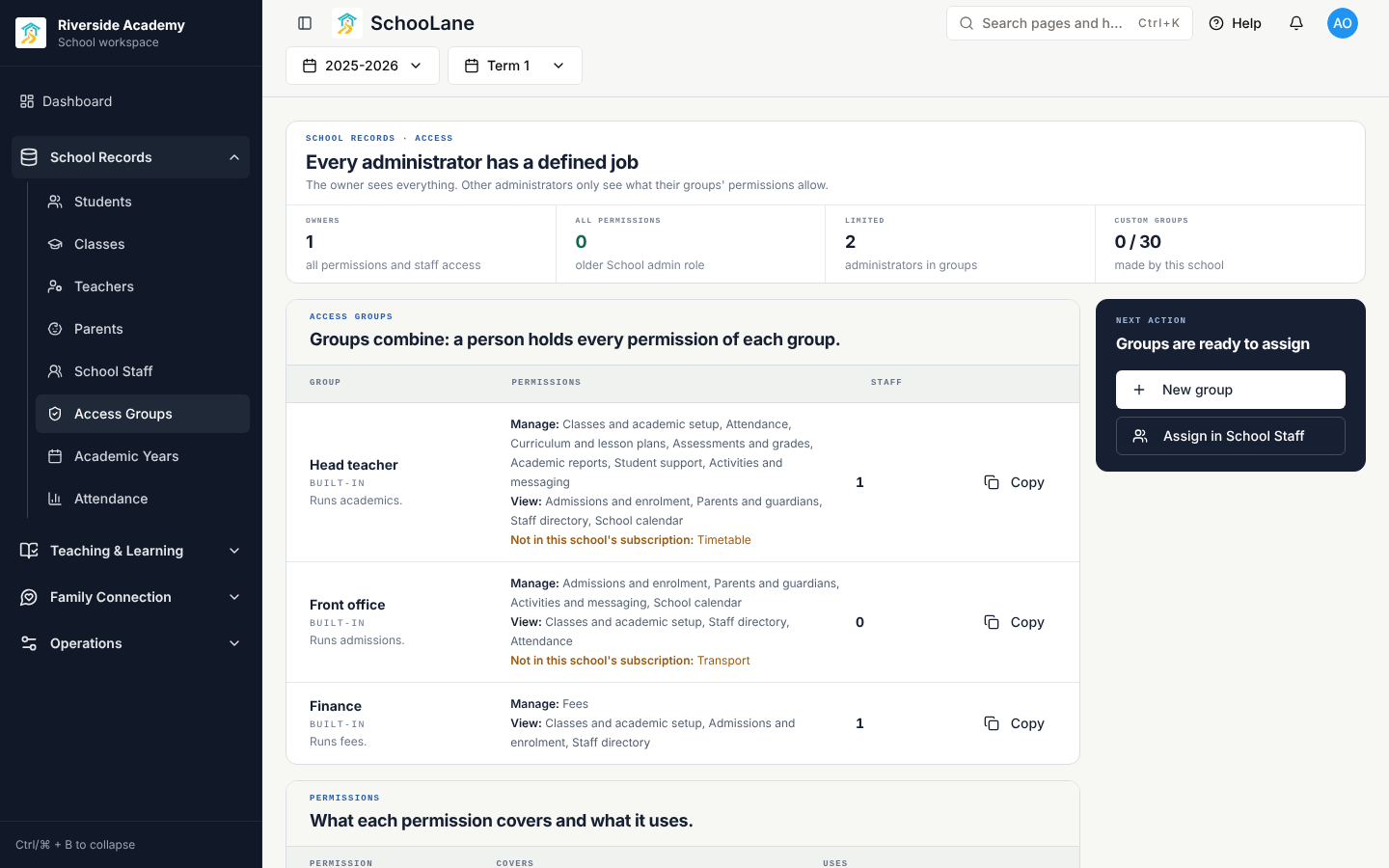
Press Settings at the bottom of the left sidebar, then Access groups (under Staff and access), or press Access groups at the top of School staff. The header counts Owners, people still on All permissions, Limited administrators, and your Custom groups.
Every school starts with three built-in groups:
- Head teacher: runs teaching and learning, and sets its rules. Manages classes and academic setup, attendance, curriculum, assessments, reports, student support, the timetable, activities and messaging, incidents and accidents, and staff points. Has Set up on classes and academic setup, assessments and reports. Sees students, health and medical details, parents, staff and the calendar. No fees.
- Front office: manages admissions and enrolment, health and medical details, parents, activities and messaging, the calendar and transport. Sees attendance, incidents and accidents, classes and staff.
- Finance: manages fees. Sees the students and classes that fees are billed to, and the staff directory.
Groups add up. A bursar who also enrols new students holds Front office and Finance.
2. Read the permissions
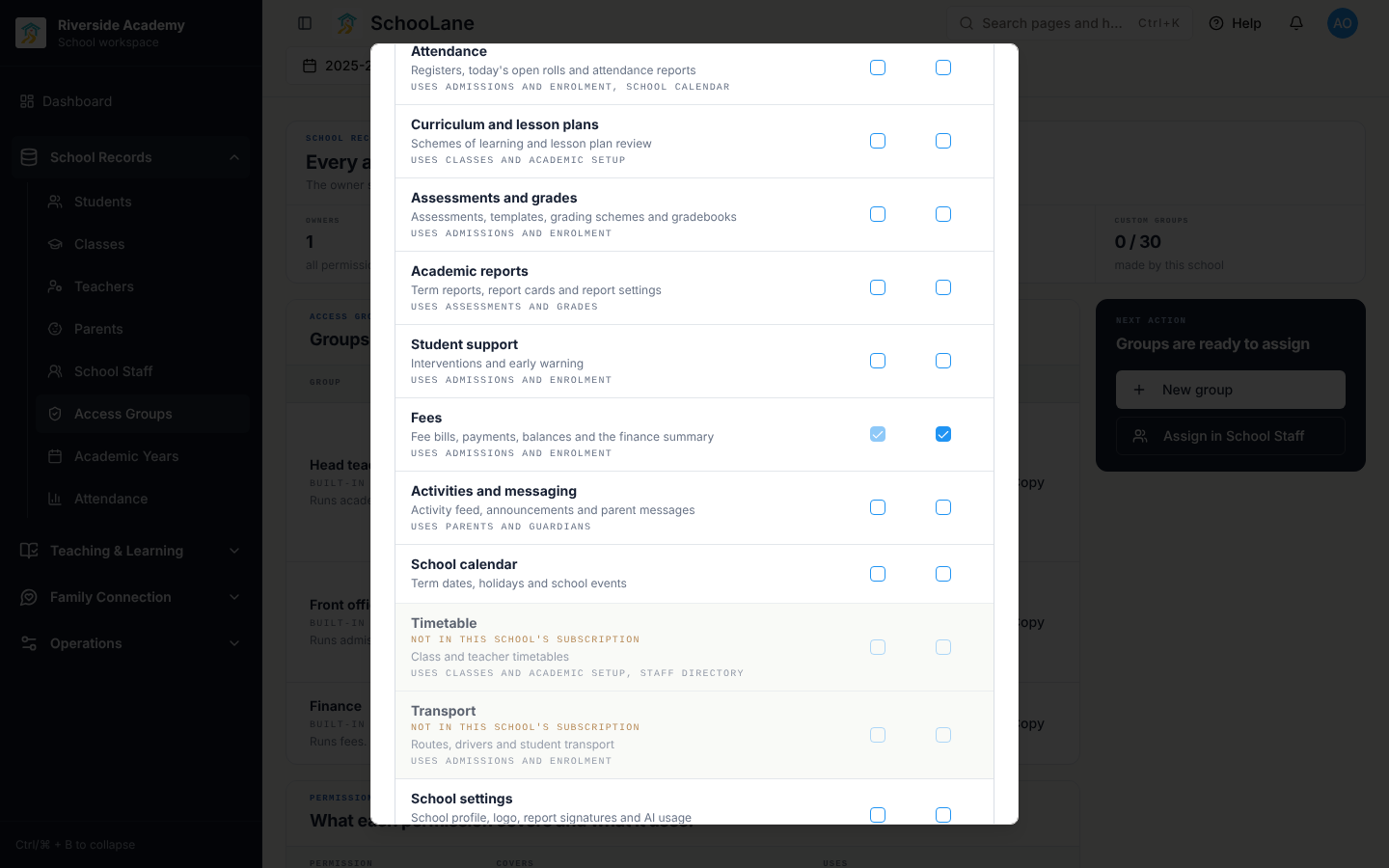
The Permissions list says what each permission covers and what it Uses. Fees uses Admissions and enrolment, because every bill belongs to a student. Admissions uses Classes and academic setup, because you place a student in a class. Classes uses the Staff directory, because every class has a class teacher. Attendance uses the School calendar, because registers open only on school days. When a group gets a permission, it also gets View on what that permission uses.
A permission for something your school's subscription does not include shows Not in this school's subscription and cannot be ticked. A group that already holds it keeps it, but it opens nothing until the school adds that part of SchooLane.
3. Make your own group (owner)
Press New group, or Copy on a built-in group to start from it. Type a Group name, then tick View, Manage or Set up for each permission. Manage and Set up each include View. A ticked, locked View shows why, for example View included for Fees. Effective access under the grid is what the group will actually open. Press Save group.
Manage on Staff directory lets the group approve and decline staff leave. It does not let them add or edit teachers. Staff accounts, roles and access groups stay with the owner.
Manage on SchooLane Learn lets the group change classes' learning plans, give extras to pupils and print login cards. Creating Learn accounts and changing Learn settings stay with full administrators.
4. Decide who sets the rules (owner)
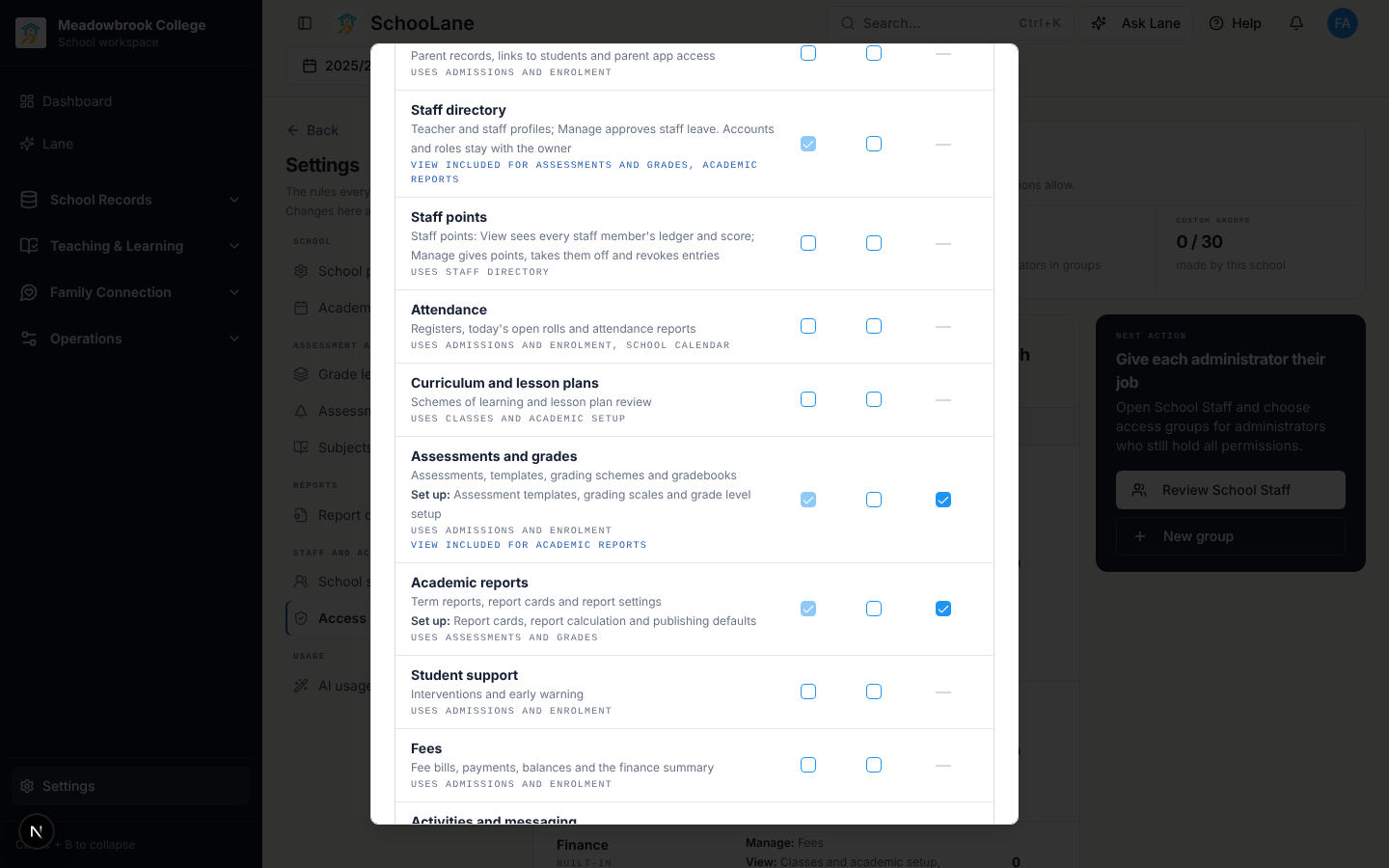
Three permissions have a Set up box. Under each, a Set up: line says what it covers:
- Classes and academic setup: Academic years, terms and subjects
- Assessments and grades: Assessment templates, grading scales and grade level setup
- Academic reports: Report cards, report calculation and publishing defaults
The other permissions show a dash in that column.
Manage is the day-to-day work: creating and grading assessments, publishing reports, promoting pupils, managing classes. Set up changes the rules that work follows, in Settings: assessment templates, grading scales, grade level setup, report cards, report calculation, publishing defaults, academic years and terms, and subjects.
Set up includes View but not Manage. An exams officer can hold Set up on Assessments and grades without Manage, and set the templates and grading scales without grading anything. A head of department can hold Manage without Set up, and grade without changing the grading scale. Tick both for someone who does both.
Groups you made before Set up existed keep changing those rules: their Manage on those three permissions counts as Set up too, so the editor shows Set up ticked. When you next save the group, it keeps exactly what the boxes show. From then on Manage and Set up are separate, so untick Set up before you save if that group should only do the day-to-day work.
5. Give a person a group
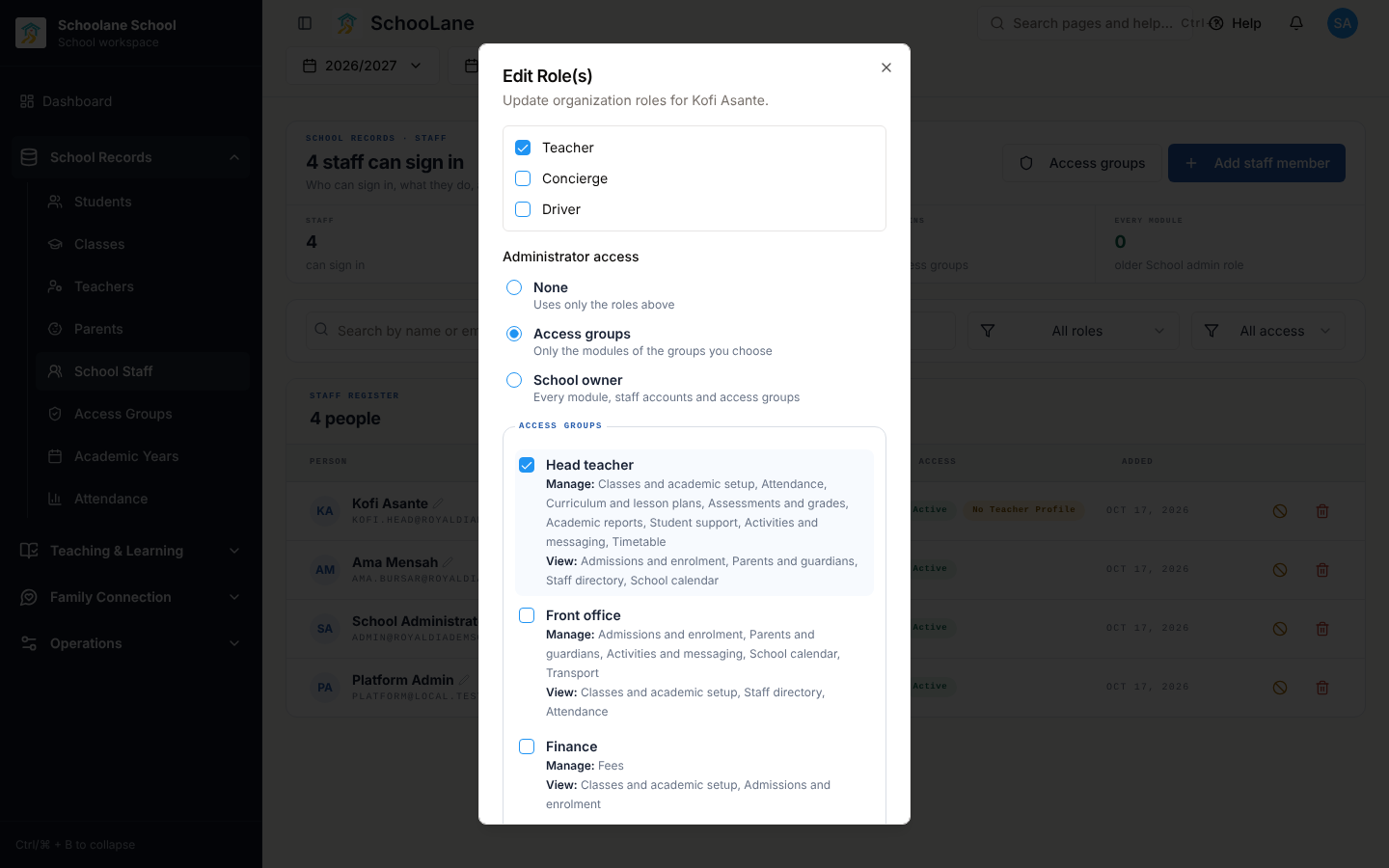
Open Settings, then School staff, and press Roles next to their name. Under Administrator access, pick Access groups and tick one or more groups. Press Save Roles.
6. Change or delete a group (owner)
Press Edit on a custom group. Changes apply straight away to everyone who holds it. The delete button only appears once nobody holds the group.
What a limited admin sees
Only what their permissions allow. The sidebar, the school desk, the student page tabs and the staff app hide everything else. A head teacher's desk has classes, assessments and attendance but no Fees. A Finance-only bursar's staff app has Today and Profile, with fees on Today. A typed link to another area shows Access required. Pages they can only view show View only, and the school rejects changes.
In Settings, they only see the pages their groups allow. Without Set up, a settings page is read only: they see what applies, and the buttons that change it are hidden. The school refuses a rules change from anyone without Set up.
If they also teach, they keep their teaching Dashboard, Students (including each pupil's page) and Lane for their own classes. If they also work the gate as a concierge, the concierge screens in the staff app keep marking arrivals. If they are a parent at the school, the parents app works as normal.
Health and medical covers allergies, medical conditions, medications, dietary needs, emergency contacts and parents' health updates. View shows a student's full health details; Manage also edits them and confirms or declines what parents send. Without it, staff still see the allergy badge on attendance and class lists, but not the full details. The school's audit log records each time someone opens full health details.
Incidents and accidents covers accident, incident and illness reports. View reads the reports and exports the PDF log; Manage also reviews reports, adds follow-up notes and amends them. Head teacher manages incidents; Front office views them. See Incident reports.
Staff points covers the school's record of recognition. View reads every staff member's ledger and score; Manage gives points, takes them off and revokes entries. It uses the Staff directory, so a group that gets it also gets View there. Head teacher manages staff points; every other built-in group has none, and so do the groups you made before this permission existed. Tick it on the group editor for anyone else who should give points. Nobody can change their own points, and owners have none of their own. See Staff points.
A group with Parents and guardians set to Manage can add a guardian to a student, even if it only views admissions. Applying a school setup pack stays with the owner, because a pack sets up classes, subjects, grade schemes and assessment templates together.
People on All permissions
Before access groups, every administrator could open everything. Those people show All permissions in School staff. They keep that until you choose access groups for them; nobody new can be given it. The All permissions count in the header is the leftover work. Press Review School Staff, then Show them.
Common mistakes
- Making someone an owner so they can do one job. Give them the group for that job.
- Building a group without the permission a screen uses. Look at Uses in the Permissions list first.
- Giving Manage to someone who needs to change a template, grading scale or report card. That is Set up.
- Saving an older group without looking at Set up. It shows ticked wherever the group had Manage. Untick it if that group should only grade and publish.
- Expecting a group to switch on a feature the school's subscription does not include. Groups only narrow access; those permissions show Not in this school's subscription.