Assessments
Make a test, quiz, or assignment for one class and term, then type the scores. School admins see every class. Teachers see their own.
I would rather you create one paper for JS2 A than try to invent a school-wide exam from this screen. Tunde Balogun grades JS2 A at Meadowbrook College this way. One class. One subject. One term.
What you need first
- An active year and a working term in the header
- A class with a subject teacher
- A grade scheme if reports will print letters
Steps
1. Open Assessments
In Teaching & learning (admin) or Teaching (teacher), press Assessments. The heading is Assessments. The line under it says Create and manage student assessments.
Look at the year and term in the header before you touch anything. A paper created in last term’s view stays there.
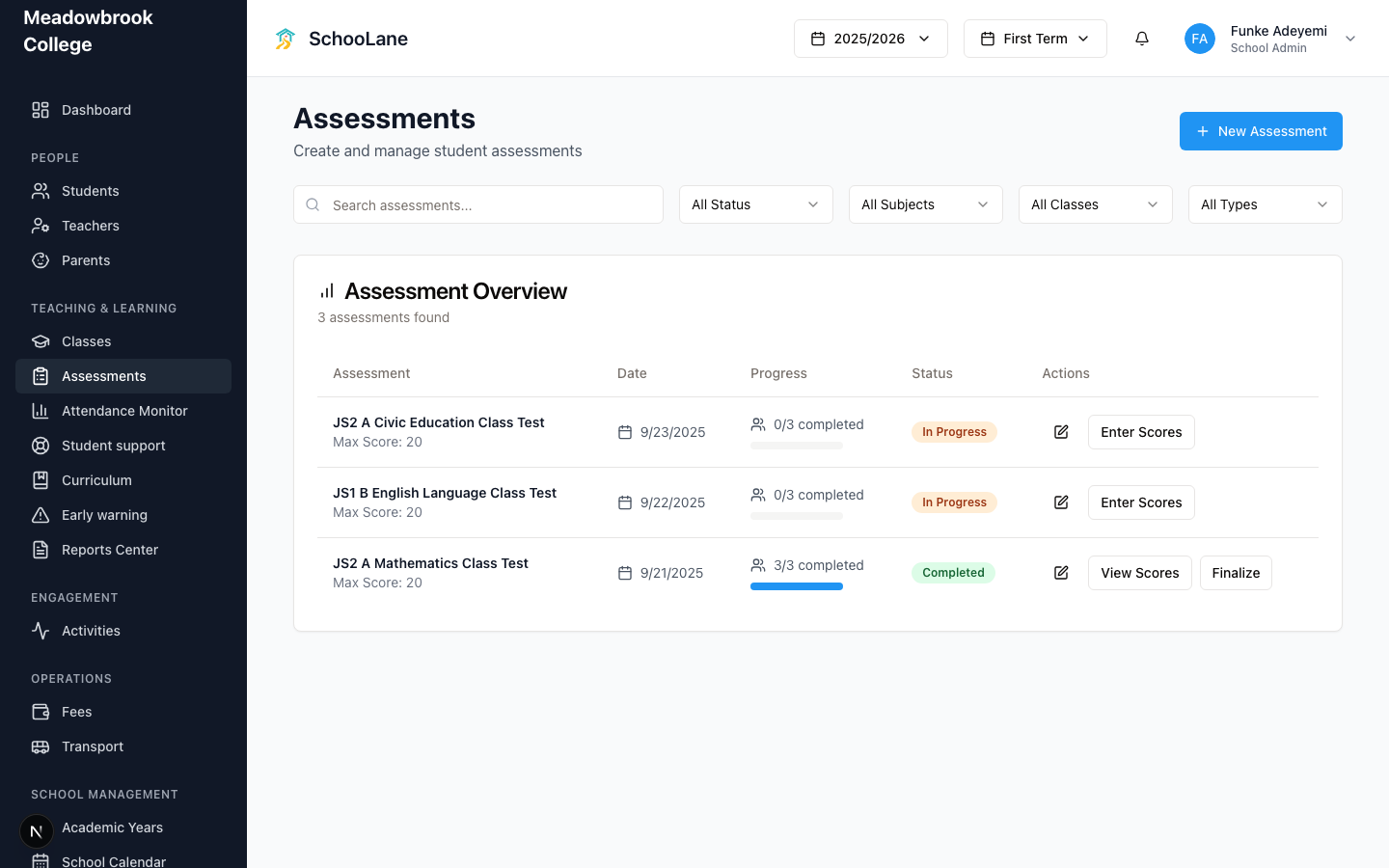
2. Press New Assessment
Press New Assessment. On an empty list you may see Create Your First Assessment instead. Same form.
The dialog title is Create New Assessment. Pick:
- Class (JS2 A, if that is Tunde’s class)
- Assessment Type (the type also shows Max)
- Subject
- Assessment Date
- Assessment Title (it can auto-fill; you can type your own)
Term is not a field on this form. It follows the term already selected at the top of the site. Press Create Assessment.

3. Enter scores
Open the assessment. Type each student’s mark. Save as you go. The list shows how much of the class is graded. Status filters are Draft, In Progress, Completed, and Finalized.
4. Finalize when you are done
On the list, press Finalize. The confirm box asks Finalize & publish results? Press Finalize & Publish.
Do not finalize if you still expect changes. A late script after that is a headache for Reports Center.
Developmental checklists
Filter to a class that grades by skill or domain and New Assessment disappears. You get a blue card: Developmental grading mode. The button is Initialize Checklist, then Checklist Ready. That is the grading path for that class. Stop hunting for a test paper.
Common mistakes
- Building the paper on the wrong term. Check the header first.
- Finalizing a half-marked class. Parents will see blanks.
- Looking for a term dropdown inside Create New Assessment. It is not there.