Roles and access
Pick the login that matches the job in front of you. A missing button is usually the role, not a broken page.
I keep this page next to sign-in because people mix the accounts up. A lot. If you run the office some days and teach on others, you can hold both roles. The menu follows the one you are working as.
School admin
Office work lives here.
You open the year and invite staff. Enrolling students is yours too, plus linking parents. The logo and the report signature sit with you as well. If something school-wide is wrong, it is usually you.
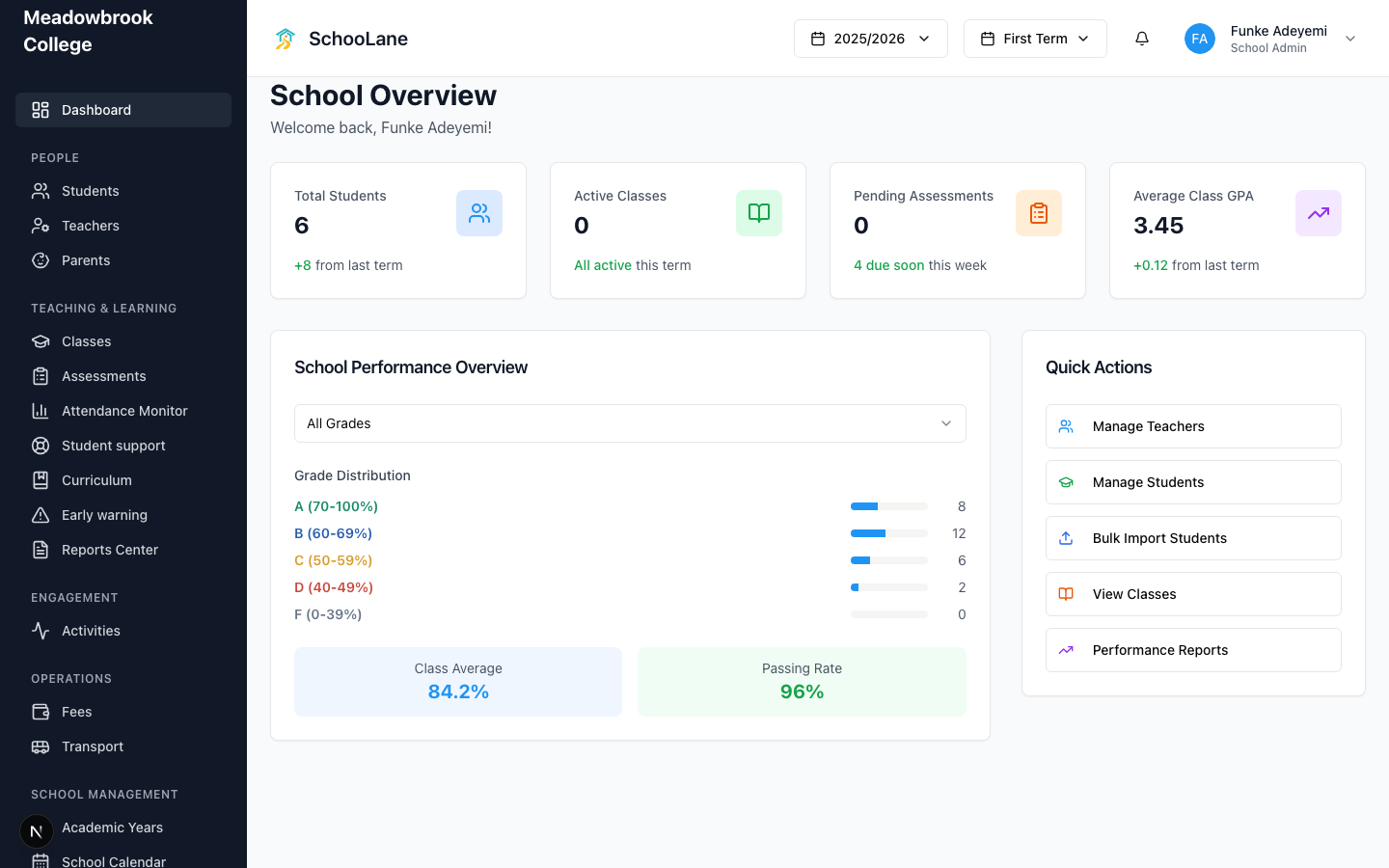
After sign-in you land on School Overview. The left sidebar splits into these groups:
- People: Students, Teachers, Parents
- Teaching & learning: Classes, Assessments, Attendance Monitor, Student support, Curriculum, Early warning, Reports Center
- Engagement: Activities
- Operations: Fees and Transport, when those are on
- School management: Academic Years, School Calendar, Timetable, Assessment Templates, School Staff, School Settings
Do not hand this role to every teacher. They will wander into settings they should not touch. Keep it for the people who actually run the office.
Teacher
If you teach, this is your login.
You see Dashboard after sign-in. From there you can open My Students or My Classes. You also get Assessments and Curriculum. Teach today is there too. Activities is in that same short list. Head teachers also get Review lesson plans.
You will not see Academic Years, School Staff, or School Settings. That is on purpose. Ask a school admin if you need a class assigned or a year turned on.
If you also run the office, sign in with the account that has both roles. Do not keep a second personal email just for teaching. You will forget which one you used.
Parent
Parents do not belong on this website.
They use the parent app. They see their own children’s activities, grades, and messages. If a parent is asking you for a staff login, stop. Add them under Parents and let them use the app.
System admin
This one is SchooLane staff. Not a school-office job.
A system admin can see every school on the platform. You should not need this account to run Meadowbrook, or your real school. If someone gave you one by mistake, put it down and ask for school admin instead.
Staff app on the phone
This is the phone app. It is not Teachers web. Teachers web is the browser app with the left sidebar.
Teachers and school admins use the same five tabs:
- Home: what is due today
- Classes: your classes and the children in them
- Services: curriculum, teaching, and support tools
- Activity: the parent feed
- Profile: you, and which school you are in
Attendance and grading sit inside a class, or under Services. They are not their own tabs. I still look for them on the tab bar the first week. They are not there.
See Staff app for the phone pages. See Teachers web for the browser.
Common mistakes
- Signing in as a teacher, then hunting for Academic Years. That screen lives on the school-admin menu.
- Giving a parent the admin website. They will bounce. Send them the parent app.
- Treating a missing menu like a bug. Check the role. Then check whether Fees or Transport is even on.