Activities
The parent feed. Post what happened in JS2 A today. Families see the day without a paper newsletter.
What you need first
- Activities turned on for Meadowbrook
- A class whose children have linked parents
- Something real to post. An empty “had a great day” helps nobody.
Steps
1. Open Activities
Press Activities in the sidebar. On a teacher login it sits under Engagement. The heading on the page is Daily Activities.
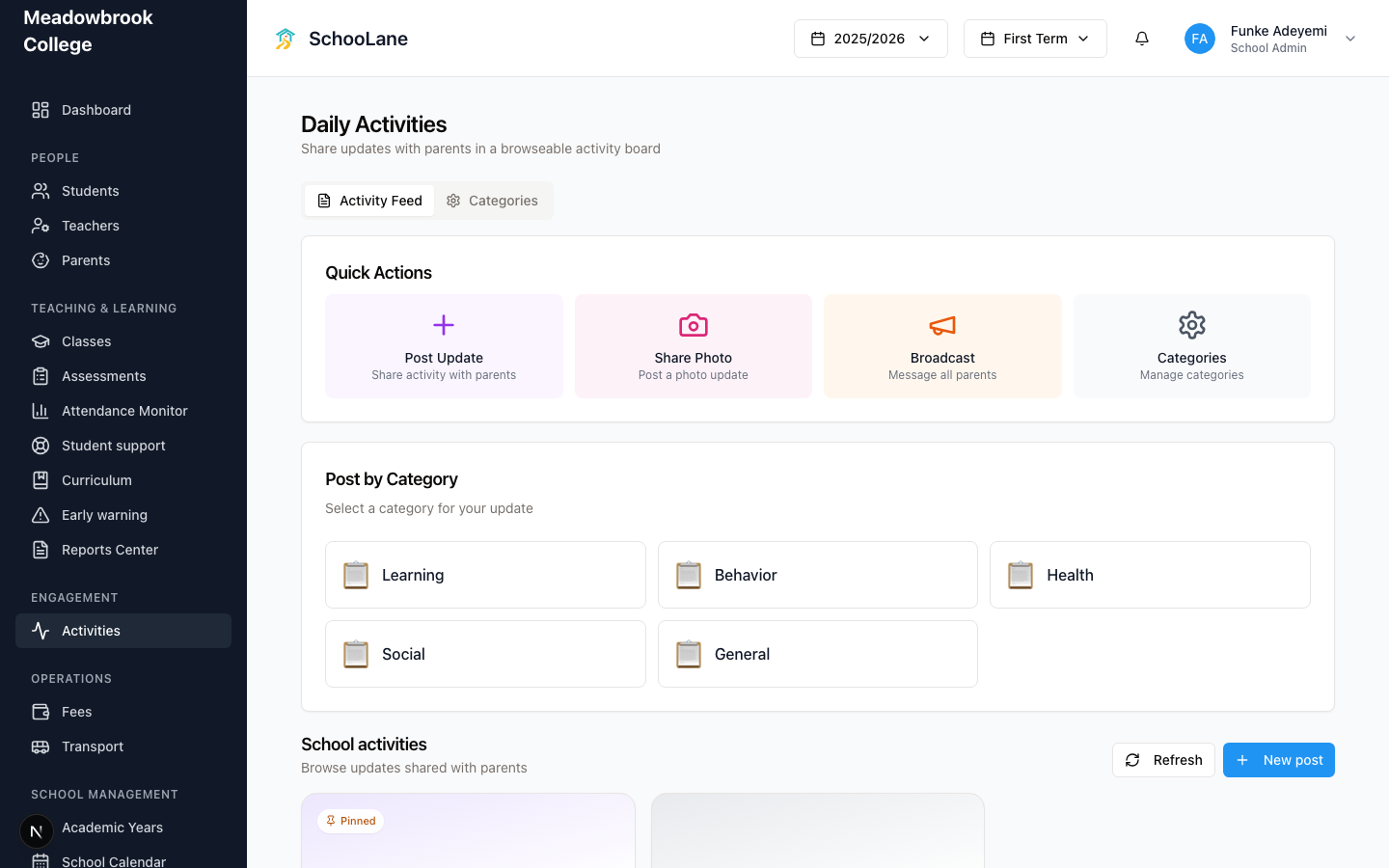
You get quick actions: Post Update, Share Photo, Broadcast, and Categories. Teachers should almost always pick a class, not the whole school.
2. Create a post
Press Post Update or + New post. Write a title people will actually read. “JS2 A science: Ibrahim’s group built the circuit” beats “Update.”
Choose the class. Attach photos if you have them. Post.

3. Check who can see it
A class post goes to parents linked to that class. A school-wide post goes to every family at Meadowbrook.
Do not put Chioma’s face on a school-wide post unless that is the school’s rule. Class feed first. Always.
4. On the staff app
The same feed lives under Activity in the phone app. That is not Teachers web. You can post and reply from the phone after a trip. I still write the long posts on the website. Thumbs are clumsy.
Common mistakes
- Posting before parents are linked. Their app looks empty and they think you did nothing.
- Naming one child in a school-wide post. Keep Chioma and Ibrahim on the JS2 A feed.
- Using Broadcast for a lost water bottle. That button is for the office, or for something every family must see today.