Set up Learn for your school
Give each class a learning plan, hand pupils their login cards, then let teachers assign work. A learning plan is what a class can open in Learn; a Classwork task is work the teacher expects back.
Before you start
For a public introduction to lessons, practice and the school workflow, see SchooLane Learn. The setup below is for your school administrator and teachers.
Your school needs an active Learn agreement, an active academic year and enrolled pupils in their classes. Learn is included in Full agreements. Other agreements may explicitly include a Learn add-on. Ask the SchooLane team about the school's agreement; a school administrator cannot change it from the account setup screen.
1. School administrator: set up Learn for the whole school
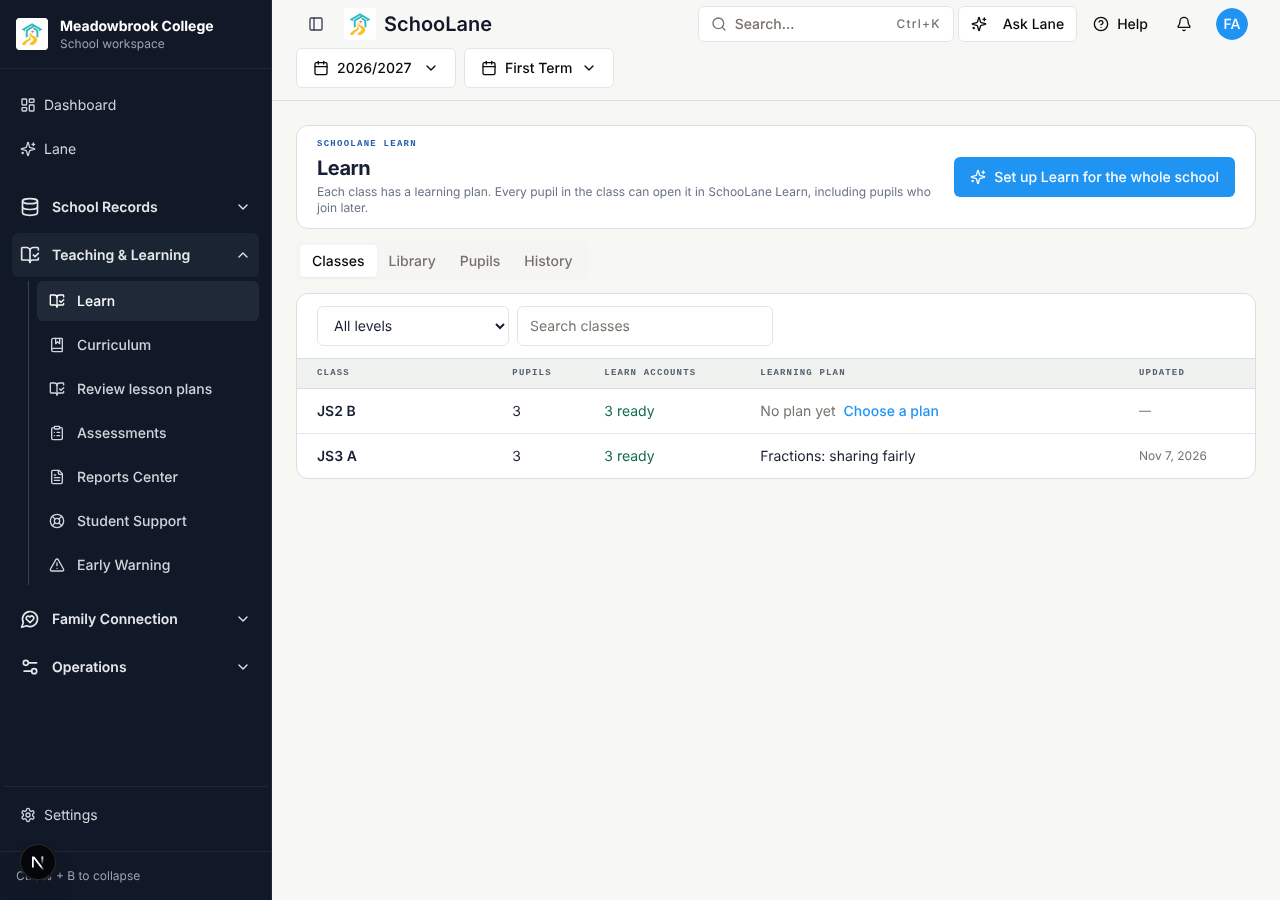
Open Teaching & Learning → Learn and choose Set up Learn for the whole school.
- Accounts: every enrolled pupil needs a Learn account. With Create Learn accounts for every enrolled pupil on (the usual setting, under Settings → SchooLane Learn), accounts are created within a few minutes. You can also choose Create, with the number of accounts, to start now.
- Plans: for each level, tick the collections its classes should study, then Give plans. You can do this later from Library or from a class.
- Login cards: open each class and choose Print login cards.
Pupils who join a class later get its plan by themselves. See Learn learning plans to change a plan, give extras to a few pupils, or set end dates.
2. School administrator: hand over login details
On each class's SchooLane Learn section, choose Print login cards, then Pupils who have not signed in yet. Hand each card to the pupil or their guardian. Printing resets the chosen pupils' passwords, so do not reprint a whole class just to change its plan. See Learn accounts for single pupils, expiry and recovery.
3. Teacher: assign the work
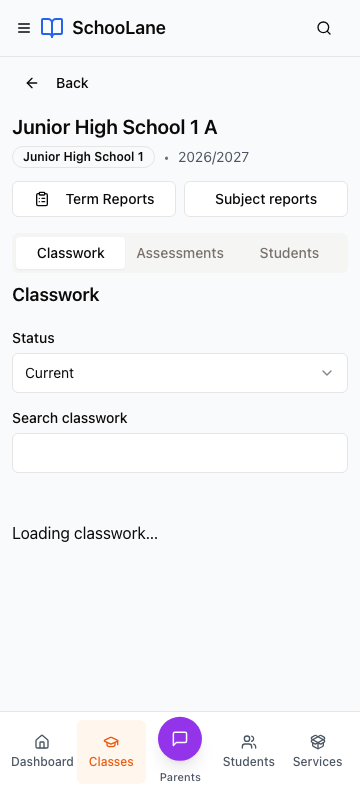
Open your class's Classwork tab. Choose Create work → Set a task, enter the title and instructions, then Add Learn lesson. Search by lesson or course title, check the course, format and minutes shown, and choose the published lesson. Then choose the deadline and pupils. Add an assessment under Assessment and marking (optional) if the work should contribute a school mark. Choose Review assignment, check the details, then Publish.
Teachers can select published lessons without Learn Studio author access. Learn Studio is for preparing new content; Classwork is for assigning it to pupils.
4. Pupil: sign in and complete the task
In Learn, type the pupil's own SchooLane ID and temporary password and choose Sign in. At first sign-in, make a new password. On Home, use Assigned by your school → Start lesson. Completing the same lesson independently from the library does not submit the assignment.
Sending to your teacher means delivery is pending. Sent to your teacher confirms the school received it. See Learner lessons and school work.
5. Teacher: review, grade and share
Return to Classwork and open the pupil's submission. Review the Learn evidence, choose the mark and feedback, then Save grade. This approves the mark for the linked assessment; practice points do not approve a mark automatically.
Choose Release to family to share the result, and select which feedback or evidence to include. Finalizing a linked assessment is a separate action. Use Request revision when the pupil needs another attempt.
Parents follow work in Services → Learning and official published assessment marks in Grades. They help children use their own learner accounts; they do not submit quiz answers using the parent login. See Parent homework.
If something is missing
- No learner account: check Learn › Pupils › Without a Learn account, or the pupil's row on the class.
- No course access: check the class's learning plan under Learn › Classes, or give the pupil an extra.
- No school task: check that the teacher published it to the correct pupils.
- Expired or forgotten learner password: ask the school to issue a new temporary password.
- Paused job: open it in Learn › History and use Retry remaining pupils.
- School Learn inactive: contact the school about access. Existing job results remain available for recovery for enrolled pupils; independent course grants stay separate.