Taking attendance
Mark present, late, or absent for your class. Do it on the day. Mark before first break or you will forget who walked in late.
What you need first
- A roster on the class (JS2 A for Tunde)
- Today’s date, or the date you are fixing
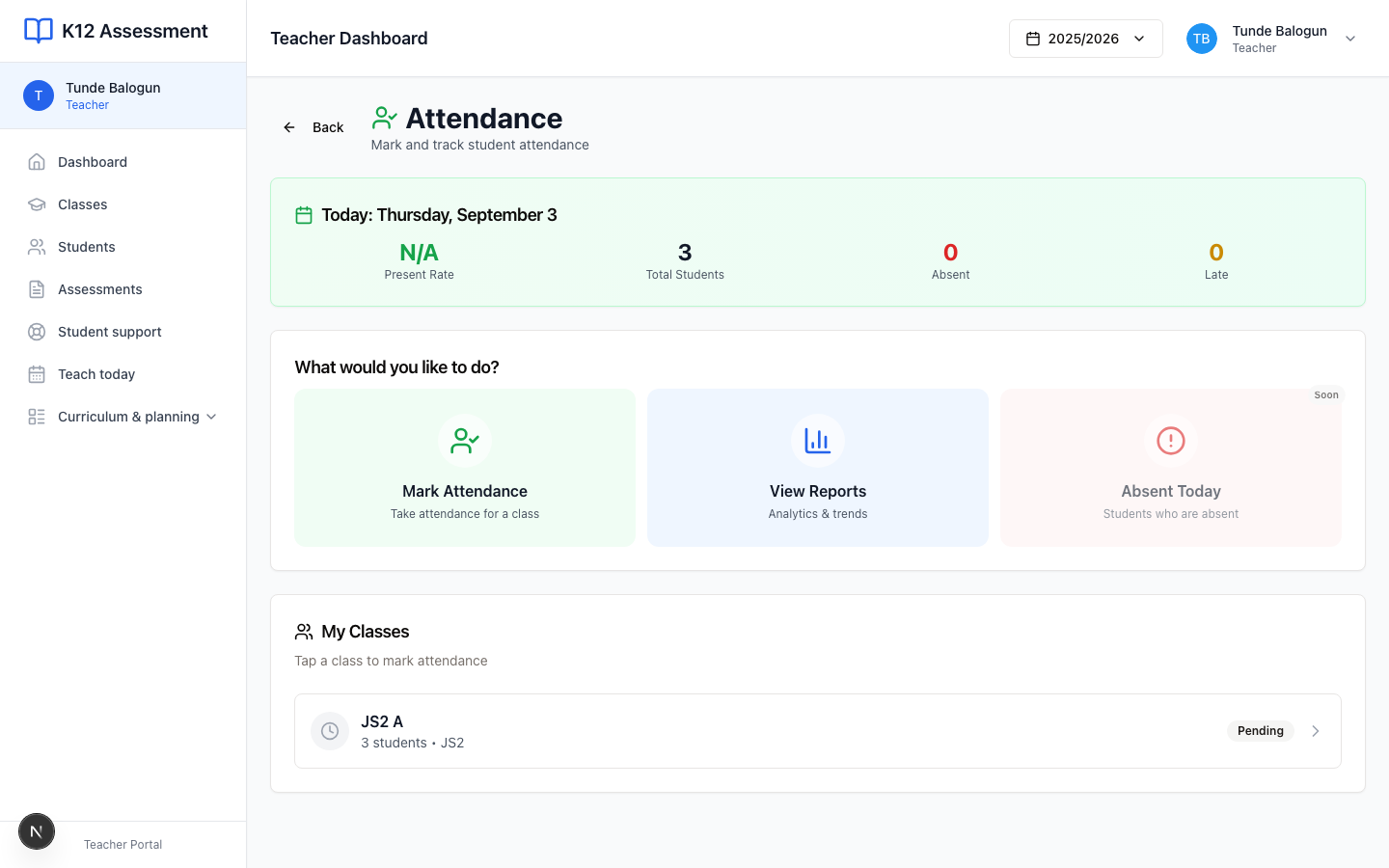
Steps
1. Open Attendance
Go to /teacher/attendance, or press Mark Attendance on Dashboard, or open the class from My Classes. The heading is Attendance.
You see today’s date, present rate, and how many are already absent or late. Under that, My Classes lists JS2 A with a Pending pill until you save.
2. Pick the class
Press Mark Attendance, or tap the class row. One class jumps straight to the roll. Two classes, like Tunde covering JS2 A and a support group, means you pick first.

3. Mark each student
Set present or late or absent. Late follows the school’s threshold (after 08:30 at Meadowbrook, unless the office changed it).
Ibrahim at 08:41 is late. Chioma who never arrived is absent. Do not mark the whole class present because assembly ran long. You will lie to parents.
4. Save
Save before you leave. Unsaved ticks die when you open Assessments. The office monitor and the parent app never see them.
5. Fix a mistake
Still inside the edit window? Change the mark and save. After the window, Meadowbrook may ask for a reason. Write the real one. “Wrong child” is fine. “System” is not.
On the staff app, open the class from Classes or Home and mark the same roll there. That is the phone app, not this website.
Common mistakes
- Waiting until last period. You will not remember who came after break.
- Leaving JS2 A on Pending overnight. The office watches that list.