Teacher dashboard
Teachers web after you sign in. Your classes and the next job. Not the school office, and not the phone app.
What you need first
- A teacher login at Meadowbrook College
- At least one class on your name (Tunde has JS2 A)
Steps
1. Sign in and land here
Use your school email. After sign-in you should be on Dashboard. If you land on Students or Assessments instead, press Dashboard in the sidebar.
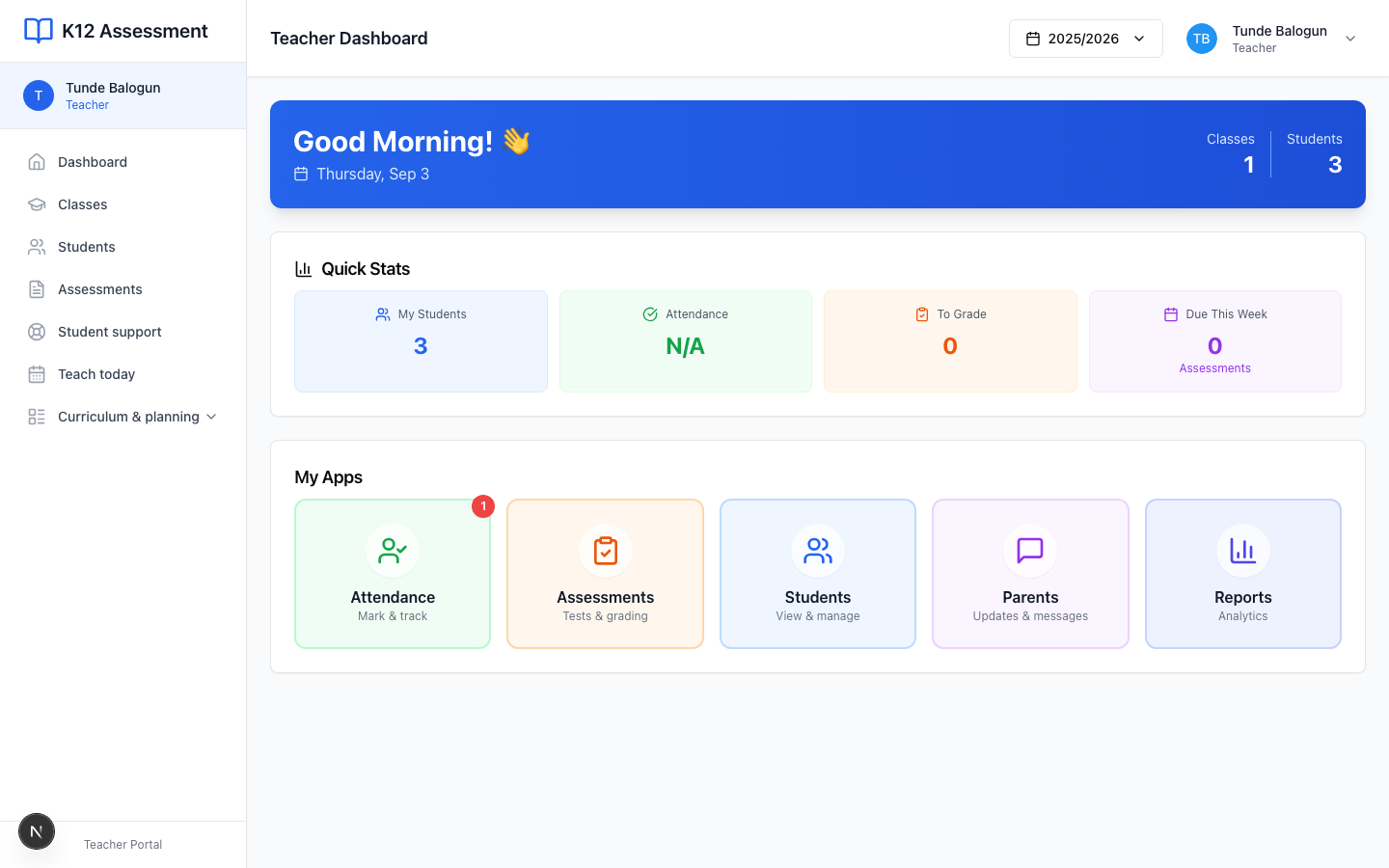
2. Read the strip at the top
You get a greeting and today’s date. Under that, Quick Stats counts My Students, Attendance, To Grade, and Due This Week. Those numbers are yours, not the whole school.
If every count is empty, nobody assigned you a class yet. Stop and ask the office. Do not invent work in Assessments while JS2 A is still missing.
3. Open today’s work
The sidebar is short on purpose:
- Dashboard
- My Students
- My Classes
- Assessments
- Curriculum
- Teach today
- Activities
That is the whole teacher menu. You will not see School Staff, School Settings, or Academic Years. Those belong to the office.
From the cards you can mark attendance, open a class, or start a test. I open My Classes first on a Monday. Then Teach today if I already wrote the plan.
What you will not see
The full school roll. Staff invites. Year setup. If you need Chioma Nwosu enrolled, or a second class like Ngozi’s JS1 B, a school admin does that. See Roles.
Common mistakes
- Hunting for School Settings after sign-in. You are in the teacher portal. That screen is not here.
- Ignoring an empty My Classes card. If Tunde cannot see JS2 A, the assignment never saved.