Home in the parent app
Home is your child's day: whether they are at school, what you need to do, and the photos and news from their class, newest first. Everything on Home is about the child named at the top.
If your parent app has not been updated yet, Home shows one highlighted card (bus, timetable or fees), the upcoming events and the school's posts instead. Update the app from the App Store or Google Play to get the Home this page describes.
Pull down on Home to refresh it.
The top of Home
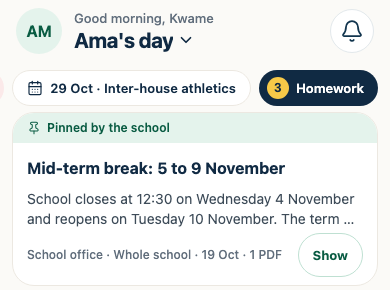
The top of Home shows your child's photo (or their initials), a greeting such as Good morning, Kwame, and your child's name, for example Ama's day. If you have more than one child, press the name to switch to another child.
The bell on the right opens your notification settings.
The row under the name
Under the name, one row of small buttons sums up today. Slide it sideways to see them all. Each one shows only when your school uses that service and there is something to say.
-
Now, a blue button first in the row, only while something is happening: Bus on its way, Bus is next for Ama, Ama is on the bus, or the lesson in session, for example Now · Mathematics until 11:15. It needs your school to use live transport or the timetable. It goes away when the bus run ends or the lesson does. When the bus and a lesson are both on, the button names the bus. Press it to open Today.
-
Attendance, for example Present · 7:52, Late, Absent, Excused or Not marked yet. On a weekend or a school holiday it says No school today. A bus update is not an attendance mark, and nor is your own absence report: after you report one, it says Not marked yet until school staff mark your child.
-
To do, with the number of things waiting for you, for example 3 To do. It is not shown when there is nothing to do. If the list cannot be loaded, for example with no connection, it says Couldn't load your to-dos · Retry; press it to try again.
-
Pickup code, when your school uses pickup codes.
-
Fees, when you owe something, with the amount and when it is due, for example GHS 1,570 · due Fri. When a fee is past its due date the chip says overdue and turns red. Press it to open Fees.
-
The next event, for example Thu · Inter-house athletics. Press it to open the school calendar. See School events.
-
Homework, with the number of outstanding tasks for your selected child, for example 3 Homework. It appears at the end of the same row. Swipe to it and press it to open To do in Homework. It disappears when no homework remains to do. See Homework.
Press Now, attendance, To do or Pickup code to open Today.
Today
Today opens over Home, for example Ama's today, with the date and the class. Press ✕ or the dimmed part of the screen to close it.
Right now
When the Now button is showing, Today starts with a blue Right now card. For the bus it gives the words on the button, the route and the stop, and any message from the school such as About 5 minutes away; press it to open Transport. For a lesson it gives the subject and when it ends, the time range and the teacher, and Next: the lesson after it.
Attendance
Today's mark, for example Present today and Marked at 7:52, and a ring of this term's attendance with the number of days Present, Late, Absent and Excused, and a line such as 95% present in Term 1 so far. The term counts start on the day your child joined the class. When you reported an absence yourself, it shows your report, for example You reported absent at 7:52 · Not marked by school yet, until the school marks your child.
Pickup code
The code is hidden until you press Show, so it is safe to open Today with someone beside you. Press Show to see the six digits and when the code changes, for example Changes at 15:05. Press Hide to hide it again; it also hides when you close Today or leave Home.
Press QR code and approved adults for the QR code and the adults who can collect your child. See Pickup code.
To do
Each item says what to do:
- Read and acknowledge the accident report (or incident or illness report), with the day it happened. See Incident reports.
- Pay and the fee name, with the amount and when it is due. Overdue since and a date means the due date has passed.
- Hand in and the work's name, with its due date. See Homework.
- Read and acknowledge and the reading's name, when the teacher asked you to confirm your child read it.
Press an item to open the screen where you do it. The list shows five items first; press See all for the rest, and Load more if there are more still. When you finish something, it leaves the list the next time you open Home.
To do only lists what you can do in the app today. When the school's service is paused, fees still show, but reports and work wait until the service is back.
Next event
The next school event, with its day, time and place. Press it to open the school calendar.
Updates from school
The rest of Home is the feed: posts from your child's class and the school, under a heading for each day: Today (with the date), Yesterday, the day of the week for the last week, then the date, for example 20 Oct.
New posts and all caught up
Beside Today, a label such as 5 new counts the posts that came since you last left Home. A line saying You're all caught up sits between the new posts and the ones you have already seen. Home remembers this on your phone for each child, and only when you leave Home or close the app, so the labels do not move while you read. On another phone you may see a post marked new again.
At the end of the feed, You're all caught up · You've seen everything from school this week means there is nothing older to load. Otherwise, older posts load as you scroll.
Pinned by the school
One post the school pinned, the newest, sits above Today with Pinned by the school and the date it was posted.
Who a post is from
Each post names your child's class, for example Basic 4 Gold, and says Class staff and the time, or School office and who it is for, for example Whole school. When your school chooses to show staff names, you see the teacher's name, for example Mrs Akosua Boateng, instead of Class staff.
A post the teacher made about your child alone says Just for you, about Ama, with a lock. Only your family sees it.
Kinds of post
- Photos from class: a photo or a few, with a line about what the class did. Press a photo to see it full screen. A video shows a play button. Long text shows More.
- Stories: the class's day in a few photos, with a theme such as School trip and the number of photos. Press Read the story to see all the photos with the whole story.
- Achievements: for example Ama is Star of the week, with the teacher's words and sometimes photos.
- House points: one line a day, for example Ama earned 3 house points, with what they were for, the house and +3.
- Events: the date, the time and the place, the details, the event's PDF when there is one, and See in calendar.
- Notices from the school office or the class, with their PDFs. Press a PDF to open it.
- Homework and This week's learning, with the due date. Press Open homework or Open learning to see the work. See Homework.
- Results: a result is ready. Press See results to see it in Grades. Home never shows a score.
- Reports: your child's report is ready. Press Read to open it.
- Bus updates, as one short line, for example Ama got on the bus at Dzorwulu Junction.
- Articles from SchooLane for families. Press Read the article to open it.
- Notes from class and other updates, sometimes with photos or with how your child felt, for example Happy.
Photos from class, stories, achievements, notices and notes can also carry PDFs from the school. Press a PDF to open it. If your school does not show photos in the app, a story shows its whole text with More instead.
Try at home
Some posts end with Try at home: one small thing you can do with your child tonight, for example Give Ama 12 bottle tops and ask her to share them into quarters.
Like, comment and Say thanks
Under a post, press the heart to like it and the speech bubble to read or write comments. Your likes and comments on a class post are seen by the school, not by other families.
Press Say thanks to thank the class staff for a post in one tap. It changes to You said thanks ✓; press it again to take it back. Say thanks is on posts from class staff only, not on notices from the school office, bus updates, results or reports.