Hub
The office's daily jobs on one tab: attendance, incident reports, pickup, students, classes, staff, staff leave, staff points and parents, messages to families, school events, parent feedback, payments and bills, grading and term reports, and the calendar.
What you need first
- A school admin login on the staff app
- The modules your school uses. The Hub only lists what the school has.
What you see
Press Hub in the bottom navigation, next to Today. Type in Search to find an app by name or by what it does, for example bills finds Fees. Apps are grouped:
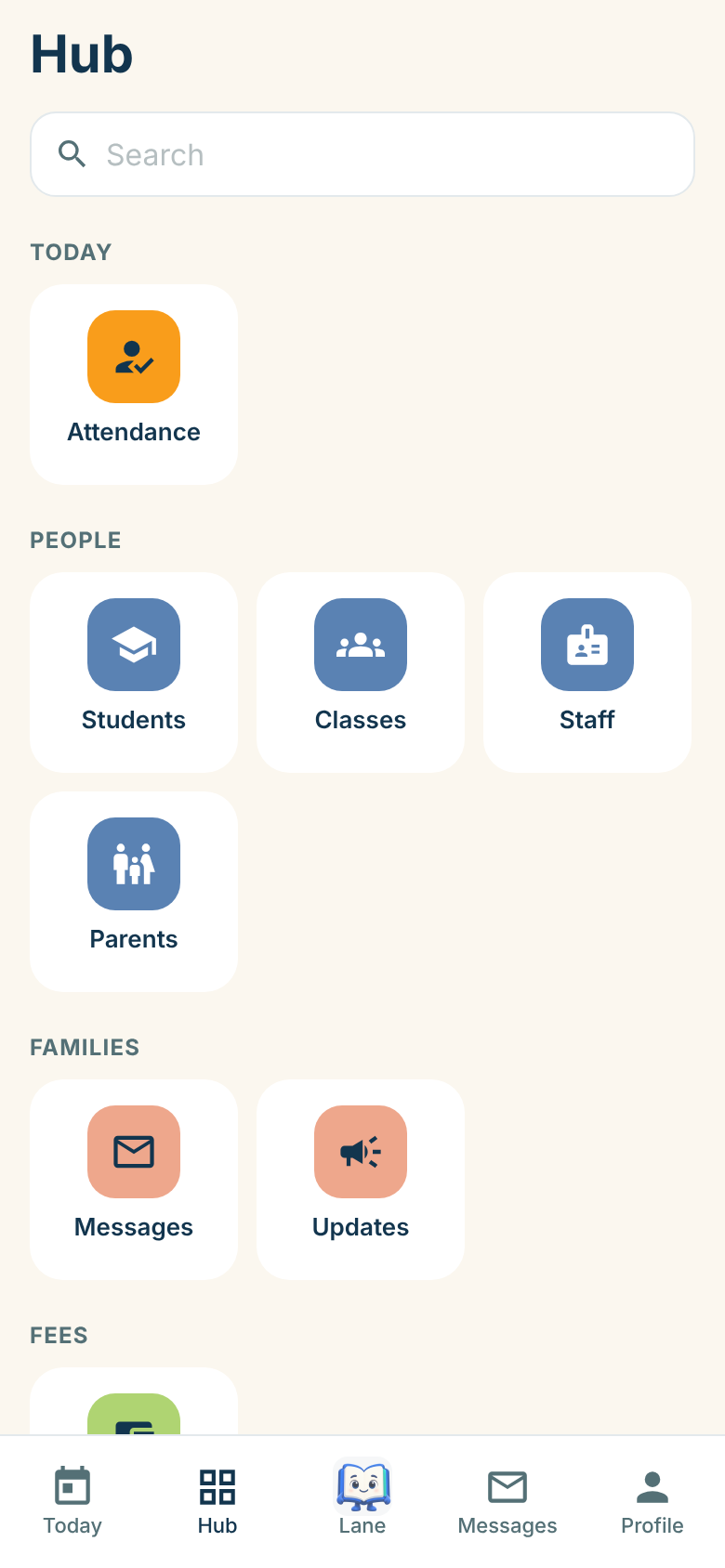
| Group | Apps |
|---|---|
| Today | Attendance, Incidents, Pickup |
| People | Students, Classes, Staff, Staff leave, Staff points, Points & behaviour, Parents |
| Families | Messages, Updates, Events, Parent feedback |
| Fees | Fees |
| Teaching & learning | Grading progress, Term reports |
| School operations | Calendar, Lane |
You will not see all of them. The Hub only shows what your school uses and what your access groups allow. A Finance office login sees Fees and little else. If something your school uses is missing, ask the owner to add it to your access groups. See Access groups.
View only under an app means the school can look but not change anything there.
Each app opens on its own first page: the figure that matters today, the main action, then its screens. The bottom navigation stays where it is, so Today and Messages are always one press away. On iPhone the tabs sit in the iPhone's own tab bar. Attendance opens in the tab you are on. Other apps you open from Today, for example Fees owing, open in the Hub, and the back arrow takes you to the Hub.
Curriculum, student support, timetable and transport are not on the phone yet. Setup work such as academic years, templates and the school profile stays in Settings on the website.
Steps
1. See how attendance is going
Press Attendance. The top shows how many classes are marked today and how many learners are still unmarked. Take JS2 A attendance opens the one class still to mark; with several, See 6 unmarked classes lists them.
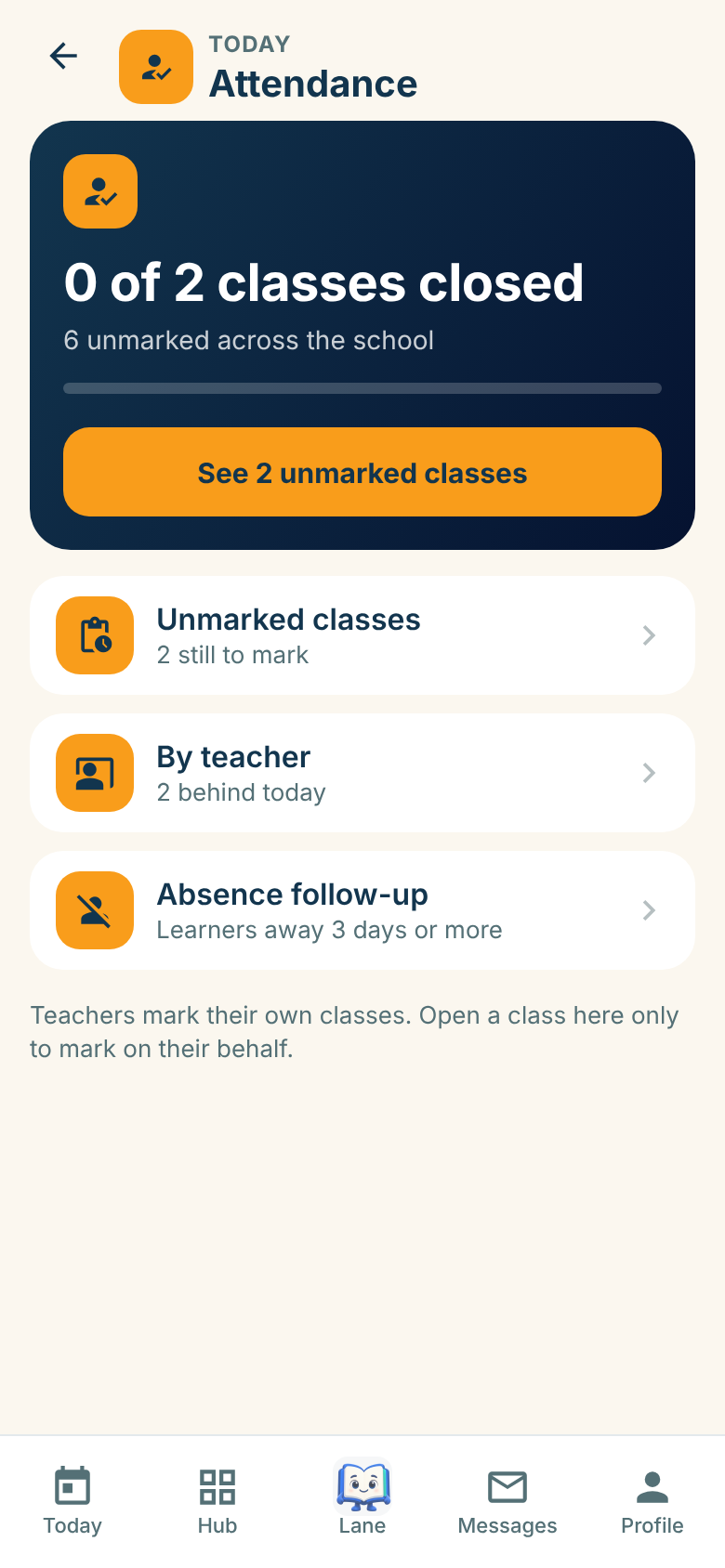
- Unmarked classes shows how many classes are closed, then the classes Still to mark and those already Marked, each with its teacher and a bar of how many learners are marked. Mark JS2 B opens the next class to mark. Press any class to mark on the teacher's behalf.
- In a class, the top shows how many learners are marked and Mark everyone present (or Mark 6 present for the rest). The pills under it (All, Unmarked, Present, Absent, Late, Excused) show only those learners. Press a learner and choose a status. To take a mark back, press the learner and choose Unmark. Only school admins can unmark; a parent's report stays.
- By teacher shows who has not started and who is part way through.
- Absence follow-up lists learners absent 3 or more school days in a row, longest first, with their class and the day it started. More learners load as you scroll. Press a learner to reach their parents.
Teachers mark their own classes. Open a class here only to mark for them. If you may only view attendance, the button reads View JS2 A attendance and the class opens to view.
If a long list such as Students stops loading part way, Could not load the rest of this list appears at the bottom; press Retry.
2. Reach a family
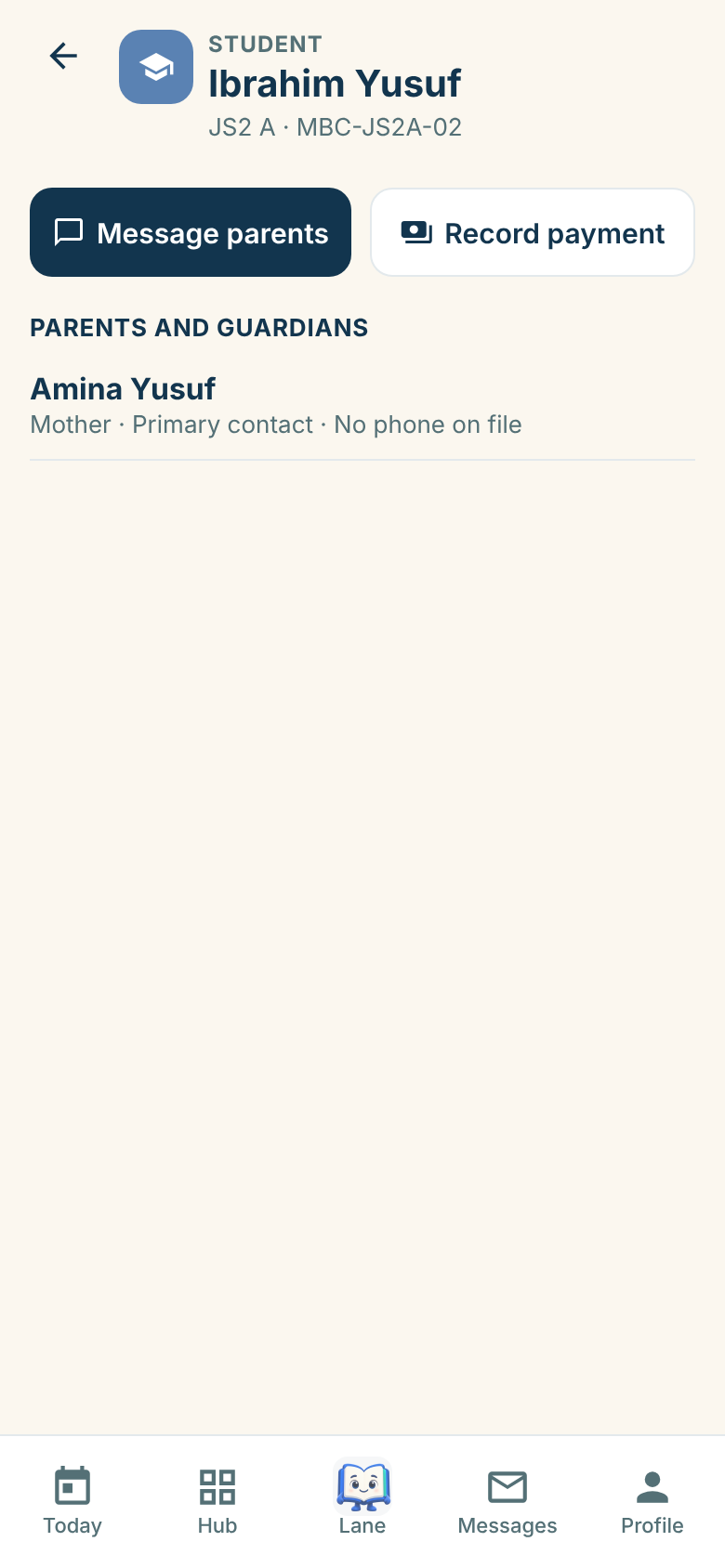
Press Students. Type part of the name or the student ID, for example Adebayo. Press the student. Message parents writes to every parent linked to that student; they see it in the parents app. Add photos or video attaches up to 5 photos or 1 video, the same as a school update. It only appears when your school's subscription includes photos or video. After Send message a tick confirms it; Open conversation takes you to the thread. Parents and guardians lists each parent with a call button. On a device that cannot make calls, such as a tablet, the app shows the number instead.
Parents works the other way round. Search for the parent and see their children. Press the message button to write about one of their children. The message goes to that parent, and every other parent linked to the child can read it too. Not signed in yet means they have never opened the parents app, so a call may reach them faster.
The conversation then lives in Messages.
3. Open a class
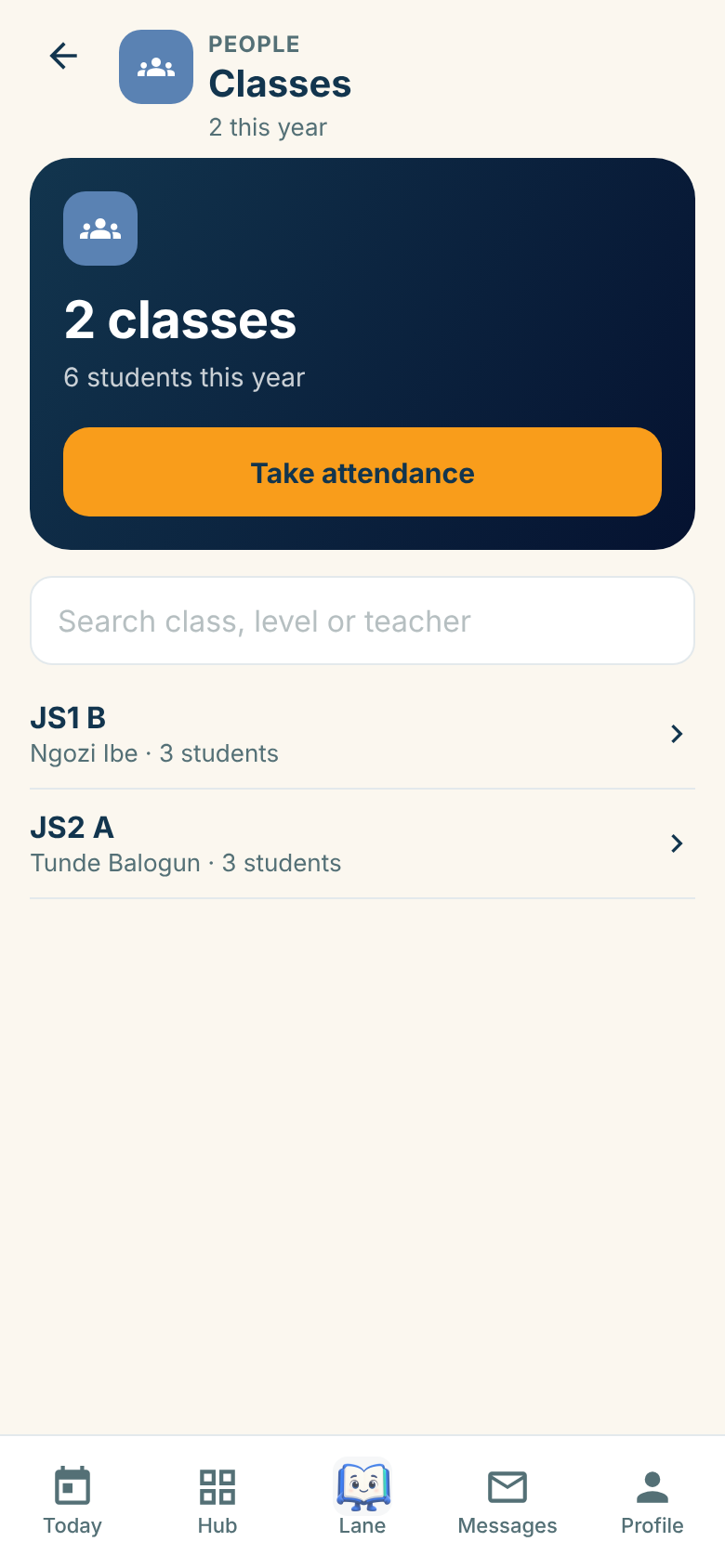
Classes lists every class this year with its class teacher and size. Press one for the students. Take attendance opens today's attendance for that class. Bill this class starts a bill for it. See Fees.
4. Check what is coming up
Calendar shows the holidays, exams and events left this year. No school marks days the children stay home. Change the calendar on the website.
5. Record a payment or send a bill
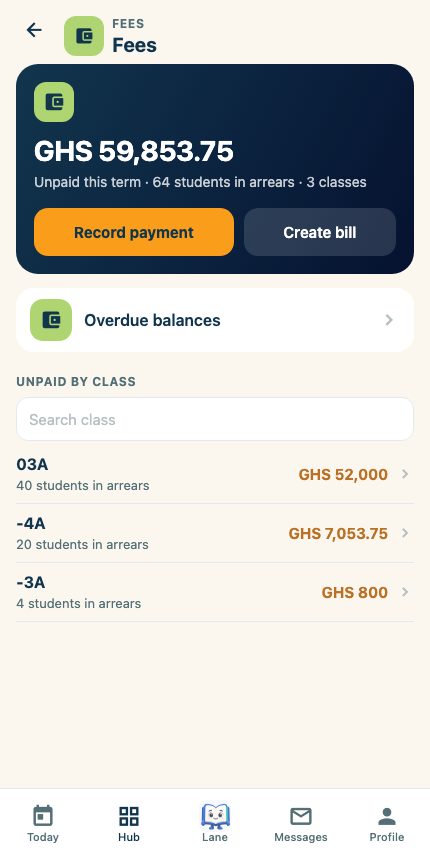
Open Fees, then Record payment, Create bill, or Overdue balances. See Fees.
6. Check marking
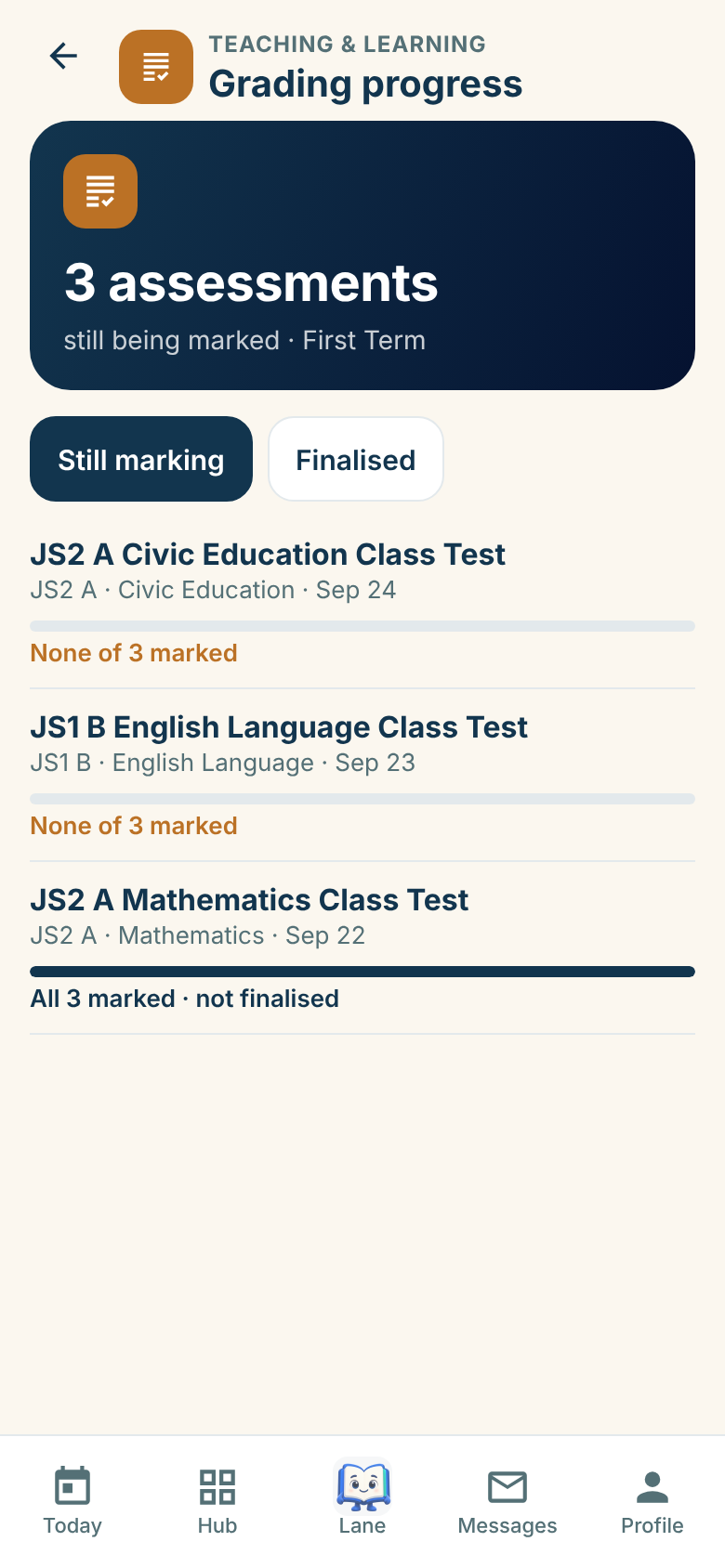
Grading progress lists this term's assessments across the school, newest first. Each shows its class, subject and date, and how many scripts are marked, for example 18 of 28 marked. Still marking shows work in progress. All 28 marked · not finalised means the teacher only has to finalise. Finalised shows locked work. Teachers mark and finalise; this screen is for seeing who is behind.
7. Publish term reports
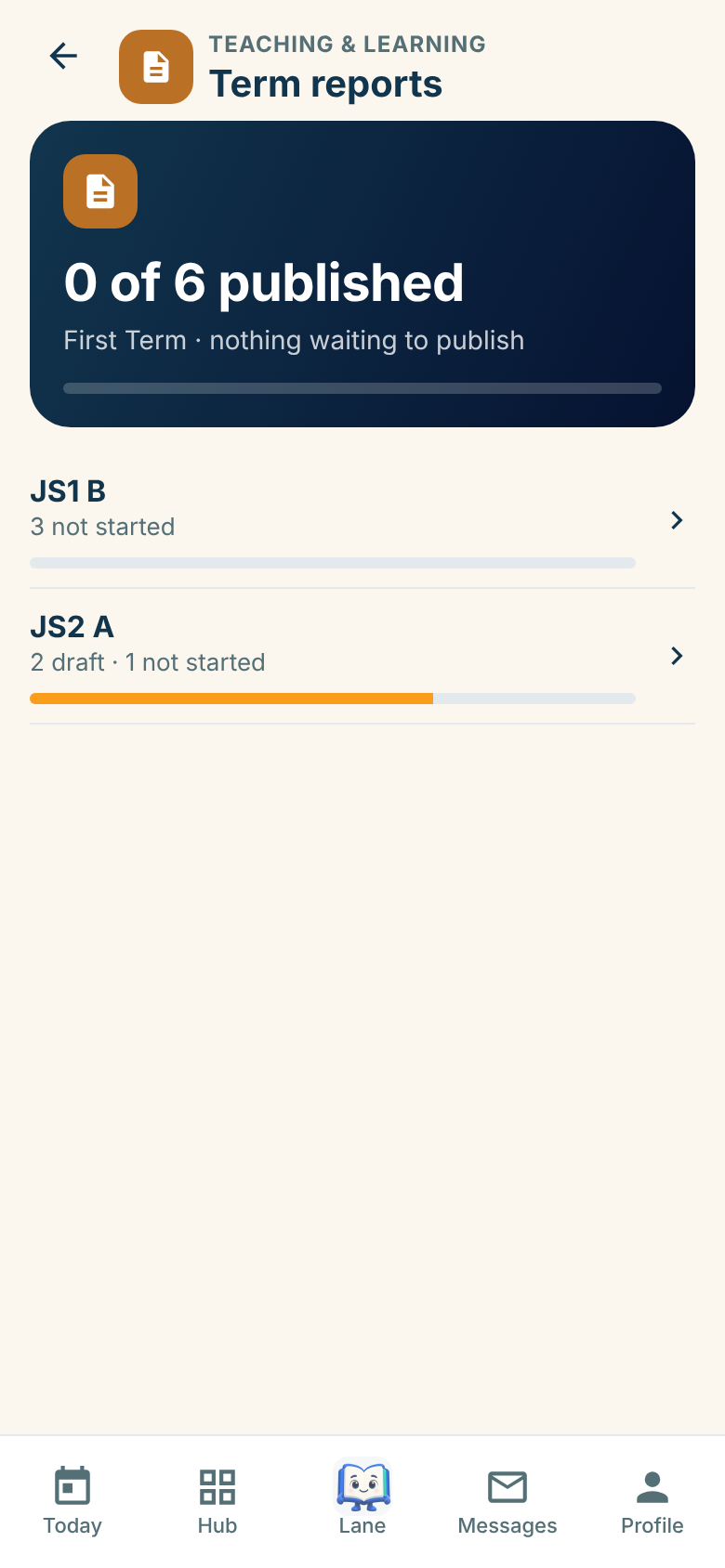
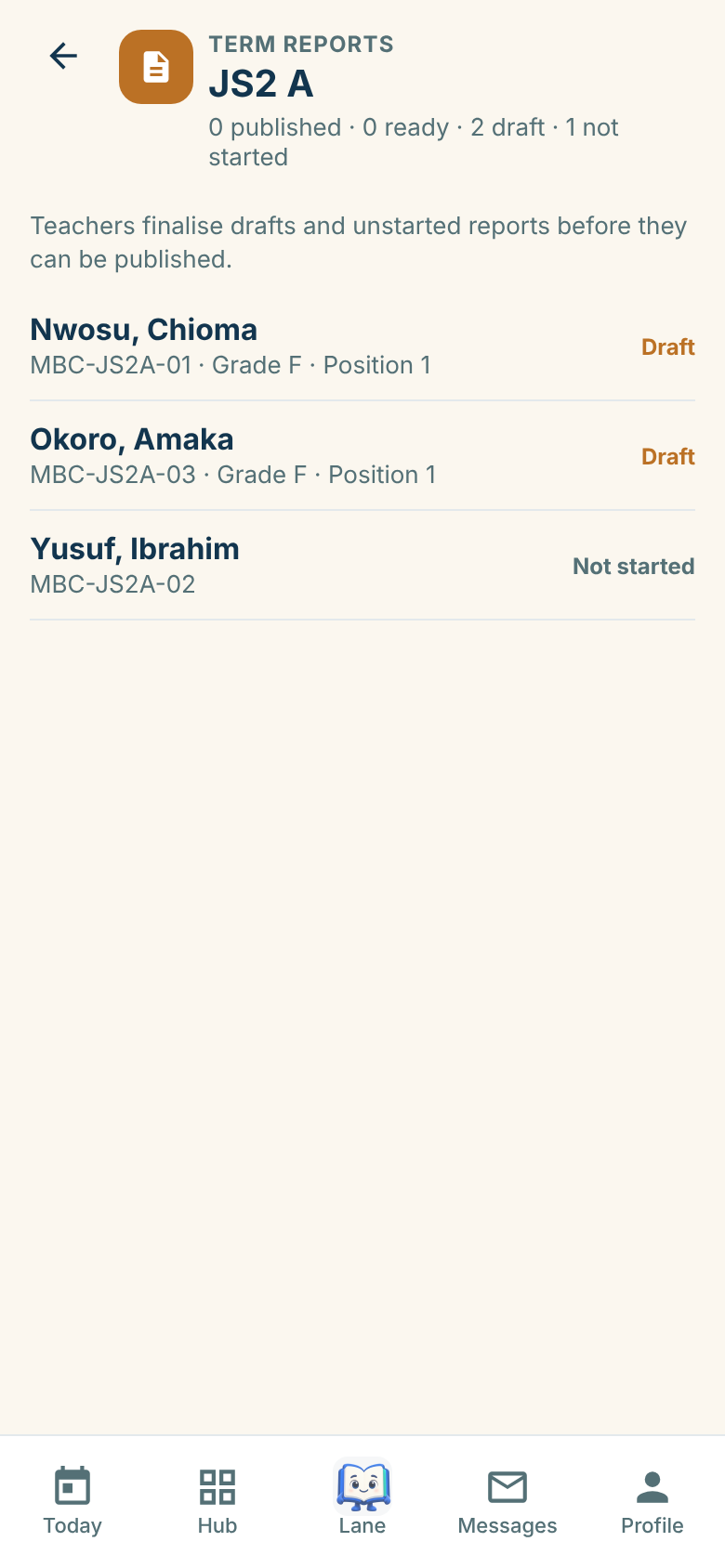
Term reports shows how many of the reports written this term are published, then each class: how many reports are published, ready to publish, in draft or not started. More classes load as you scroll. Press a class to see each student. Publish X reports releases every report the teacher has finalised, after you confirm. Leave Notify parents in the app on to send a notification. Drafts and unstarted reports stay with the teacher; publishing again never sends a report twice.
8. Post an update
Updates is under Families. See Activity.
9. Decide staff leave
Staff leave is under People. The top shows how many requests are waiting and how many people are out today. Each waiting request shows who asked, the type, the dates and their note. Press Approve, or press Decline, type a reason and press Decline leave. A tick confirms it, and the staff member is told in the staff app. Out today lists everyone on approved leave today. My leave is where you ask for time off yourself. See Staff leave.
You are sent a notification when a new request arrives, if you can approve leave.
10. Give points
Staff points is under People. The top shows how many entries the school made this week, for example 3 entries this week, and how many were awards and how many were taken off. Press Give points (you need Manage on Staff points). Search for a person, then press Give points or Take points off. Pick a size, pick a category, write a note of at least 10 characters, and check the summary. Press the button, for example Give 5 points to Ama Owusu or Take 2 points off Kofi Mensah. A tick confirms it, and the staff member is told in the staff app and by email. You cannot choose yourself or an owner. On the phone you give to one person at a time; to give points to several people at once, use the website.
Recent entries lists the school's latest entries. Press one to read the note. To correct a mistake, press Revoke, write why, and press Revoke entry. The entry stays in the history and the score changes back. My points opens your own points. See Points and Staff points.
11. Award house points
Points & behaviour is under People. The top shows which house leads this term, for example Red leads · 42 points, then the House standings. Press Award points, search for the pupil, choose a Category, set the points with − and +, and write a Reason. Check the summary, then press Award points. A tick confirms it; Award another starts again.
When your school gives points without houses, the top reads Behaviour notes and there are no standings. Houses and categories are set up on the website. See Behaviour and houses.
12. Add a school event
Events is under Families. The top shows how many events are coming up and the next one. Below it, every upcoming event shows its date, time, place and who it is for. Press an event with a PDF to open the letter.
Press New event. Type what is happening, for example Sports day, and choose the date. Starts and Ends are optional; leave Starts empty for an all-day event. Choose Whole school or Classes and tick the classes. Leave Remind parents the day before on to send a reminder. Press Check event, check the summary, then Add event. A tick confirms it. Parents see the event in the parents app straight away.
To attach a PDF, choose grades instead of classes, or change or delete an event, use the website. See School events. New event only shows if your access groups include managing the calendar.
13. Answer parent feedback
Parent feedback is under Families. The top shows how much feedback is new, with how many items are read and replied. Use New, Read, Replied and All to filter the list. More items load as you scroll.
Press an item to read it and every reply so far. A New item becomes Read when you open it. Write your reply and press Send reply. The parent sees it in the parent app under My feedback and gets a notification. When the child has a class teacher, Also continue in Messages posts the reply in a Messages thread too, which every parent of the child can read.
You cannot reply to anonymous feedback. See Parent feedback.
13. Check a pickup code
Pickup is under Today. It shows how many children went home today and who collected them. Press Check a code when a parent shows a pickup code. If your school does not use pickup codes, or has pickup switched off, Pickup is not in the Hub. See Pickup.
Common mistakes
- Looking for Updates in the bottom navigation. It opens from the Hub.
- Looking for four attendance apps. There is one, Attendance; unmarked classes, teachers and absences are inside it.
- Expecting to edit a student's record on the phone. Students, Classes, Staff and Parents are for finding people and reaching families. Edit records on the website.