Learn and review a lesson
SchooLane Learn gives learners a place to practise published Learn collections. The collections you can open depend on your account’s access. For school-managed pupils, the school sets up the account and gives course access. Practice points and lesson progress belong to the learner; they are not school grades.
Signing in
In the Learn app, use SchooLane ID or email and Password to sign in. Your SchooLane ID is on the card from your teacher: 8 letters and numbers, such as KM4T 7Q2R. You can type it in capitals or small letters, with or without the space. An older card may show a username that starts with sl. instead: type it as it is. Type your password, then choose Sign in. Choose Show to check what you typed. The first time, Learn asks you to Make your own password: type a new password with at least eight letters or numbers and choose Save and start learning. A good one is three words you like and a number, such as mango river 47. Learn turns down passwords anyone would guess first, such as 12345678 or password. On a phone or tablet, the Home, Explore, Review and Progress tabs appear once you have made your own password. Ask your teacher for a new password if yours expires or you forget it. Each pupil uses their own account.
If you have an email on your account, choose Email me a code and enter your email. Choose Send sign-in code, then type the six digits from your inbox. Use Resend code if it expires and Change email if you typed the wrong address.
To choose a new password, tap Forgot password? and Send reset code. Enter the code from your password reset email, set a new password and tap Save new password. Sign in with the new password. A pupil who uses a school-issued ID asks their teacher for a replacement password.
If Continue with Google appears, choose the Google account with the email already on your Learn account.
Work assigned by your school
When your school has set work, Home shows Assigned by your school with your tasks, lesson names and deadlines, with overdue work first. It is hidden when there is nothing to do. Choose Start lesson and complete each activity. While school work is waiting, your own next lesson on Home has a lighter button, so the school work comes first. School assignments have their own attempts, so practising the same lesson from your library does not submit your homework.
When you finish, Learn saves your lesson and shows Sending to your teacher until the school acknowledges your submission. Sent to your teacher means it has arrived. If the connection is interrupted, delivery is retried. Use Check submission status to check again. Keep your own account signed in when checking; use Sign out on a shared device.
Finished school work is on Progress, under School work history. Use More school work and Previous school work to change pages. When your teacher requests revision, choose Revise lesson. A new attempt does not replace the earlier submission.
Choose Continue lesson to resume work you have already started. New school attempts are unavailable while school Learn access is paused. Already admitted work has a finite completion window; a commercial pause allows up to seven further days within that original window. A teacher's closure or cancellation stops further activity. The school retains accepted work and progress.
Open your learning path
On Home, choose Start this lesson to open the next unfinished lesson. When there is no next lesson, choose Find a lesson to open the library. In the library, choose a learning path to see its overview and lessons. Choose a listed lesson to open its activity overview, labelled Learning path lesson, then choose Start activity. To enter the first lesson session directly, choose Start first lesson → at the bottom of the path overview; once you have started, it says Continue: and the lesson name. Some paths show their lessons as a trail; see Trails, boss rounds and badges. Choose a quiz, flashcard deck or check to see its overview, then choose Start activity. When a standalone quiz, flashcard deck or check contains several activities, its overview lists them so you can choose which one to start. If a learning path or activity overview cannot load, choose Try again. If more collections are available but none on the current page is next for you, choose Find my next lesson.
On Home and the library, use the Home, Explore, Review and Progress destinations to move around Learn. In the Learn app they sit in your phone's or tablet's own tab bar. On the web they sit at the bottom of the screen on a phone or a tablet held upright, and in a side panel when a tablet is turned sideways. Lessons open full screen, without the tabs. Choose Explore to browse the learning you can open. Search topics and skills, then use the row of filters: All classes (when Learn knows your class), All, Learning paths, Quizzes, Flashcards, Checks, then each subject. When Learn knows your class, Explore first shows learning for your class; choose All classes to see every class, and choose it again to go back to your class. A search always looks in every class, and the result count says so. Choose a filter again to clear it; All clears the format and subject filters. If there is nothing for your class yet, choose Show all classes. With no search, Collections shows sets of courses that go together; choose one to see only its courses, then choose Showing … · Show everything to go back. Each card shows what it is (Learning path, Practice quiz, Flashcard deck or Check), the level, the time it takes, what you will learn in the first lesson, the number of lessons and the subject, and Read aloud when the lessons can be read to you. A course in Yoruba, Twi, Hausa, Igbo, Ewe or Ga that has no recorded voice shows With your teacher: do it with your teacher, who says the sounds with you. The overview shows the same badge. Some cards have a cover picture to help you recognise the course. Choose a card to open the learning path, quiz, flashcard deck or check. Choose Load more learning at the bottom of Explore when it appears to see another page. When cards or questions to try again are due, Home also shows Review cards with the number ready; it opens a short recall session. On a tablet, the review card sits beside your next lesson; when nothing is due, your next lesson uses the full width. If you leave a lesson before finishing, opening it again returns to the next unfinished activity. If you have typed an answer that has not been saved, Learn asks before leaving. Use Sign out when you finish on a shared device.
Choose How Learn uses your information on the sign-in screen or at the bottom of Home to read the Learn privacy policy.
Work through an activity
Read the learning goal, then follow one short activity at a time. The lesson header says what to do, such as Read and listen, See how, Choose one, Sort, Type a number, Write the fraction, Remember it, What would you do? or Think about it, and shows your step number. Choose the × (Exit session) control to leave; if you have typed an answer that has not been saved, Learn asks before leaving. For a concept or worked example, choose That makes sense to continue. A response activity may ask you to enter or select an answer; choose Check my answer when you are ready. Until you have answered, the button is grey and a short line under it says what to do first, such as Choose an answer first. or Put every card in a group. A lesson may include a worked example, a question, a reflection, a teach-back explanation, a flashcard, a matching activity, ordered steps or a fraction model. For matching, choose one idea and then its meaning; you can replace a match before checking. For ordered steps, use the up and down buttons to arrange the sequence. For a fraction model, choose how many equal parts make the whole, then tap the parts to shade them. Guided practice gives feedback after an answer; it is practice and does not prove mastery. Steps marked On your own or Later check save your first answer. For a teach-back, write your explanation simply, as if teaching a friend, and choose Compare my explanation. Under the box Learn says AI can make mistakes. Your teacher sees what you write. Leave out names and private information. When AI comparison is enabled, Practice feedback compares your own words with each published guidepost, with a score from 0 to 2 for each one, quoted evidence and a suggested next step, and Learn scrolls to it. AI feedback can make mistakes and does not change school marks. If AI is unavailable or the comparison limit is reached, your explanation is saved and Learn asks Which ideas did you include? next to the published guideposts. Use the example explanation to review yours. After you change your explanation, choose Compare my revision if you want to try again. After feedback, choose Next little step, Keep learning, Continue for now or the available finish action to continue. Practice is not a grade.
If the connection drops while saving an answer, Learn keeps that answer on screen and asks you to confirm it before you can continue. Choose Confirm last answer when you are connected again. If the answer was already saved, Learn reloads the lesson at the next activity. A restored answer does not replay the success sound or vibration.
For a lesson flashcard, try to remember the answer first. Write a few words and choose Check my recall, or choose Show the answer without writing. Your words stay visible beside the lesson answer so you can compare them. Choose Again, Learning or Got it to decide when the card should return.
After revealing a lesson flashcard, you can also swipe the card left for Again or right for Got it. The rating buttons remain available below the card, including Learning. The action buttons stay visible at the bottom of the lesson while longer content scrolls above them.
Explore a number model
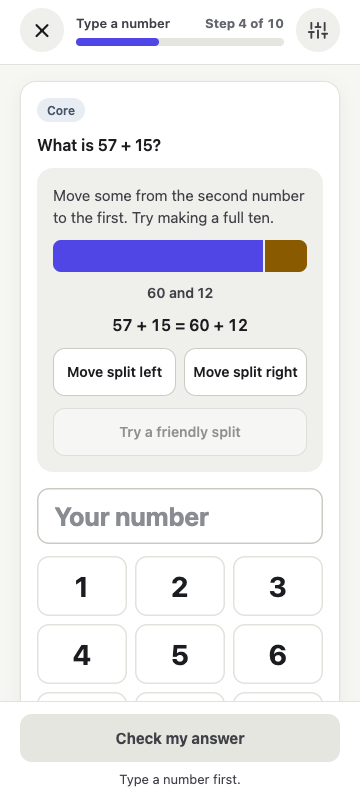
Some number questions have a Number workbench. It shows the calculation as two parts and lets you change the split. The picture, the sentence under it and the equation change together, and the whole calculation stays equal.
- For sums within 20 you see counters in rows of five, two rows to a ten. The first group is filled and the second group is a ring.
- For larger sums, take-aways and divisions you see a bar in two parts with the number written in each part.
- For multiplying you see rows of dots with a gap where the rows are split.
The two buttons say what they do to the calculation, for example Move one across and Move one back when adding, or Take away one more and Take away one less when taking away. Choose Show a useful split if you would like the app to suggest one. Type your answer or use the number keys, then choose Check my answer. Your answer and your split are saved together, and your teacher can see whether the app suggested the split.
More than one split can work. Explain why yours helps. For division, a useful split uses easy multiples: 156 ÷ 6 can become 120 ÷ 6 + 36 ÷ 6, which is 20 + 6 = 26. Checks use different questions without the workbench; an answer given with the workbench is practice with support.
Review cards that are due
When cards or questions to try again are ready, Home shows Review cards and the number due. You can also open Review from the navigation. In Quick recall, write what you remember and choose Check my recall, or choose Show the answer if you did not write a response. Compare your words with The lesson answer, then choose Again, Almost or Got it. A saved rating shows a confirmation; the card leaves the due list once saved. If a rating cannot be saved, choose Try saving that rating again. If the queue needs to reload, choose Refresh cards. When no cards are due and you have finished lessons before, Review says All done for now and Your cards come back soon. Choose Home to go back. If you have not finished a lesson yet, Review says Nothing to review now and Finish a lesson to get new cards. Choose Find a lesson to open the library. You can come back later; there is no penalty for missing a day.
When questions you got wrong are ready to answer again, Review also shows Questions to try again. Choose Try them to answer them, with the worked answer after each one. Choose My mistakes to see every question you got wrong, grouped by topic. See Remember what you learn and My mistakes.
Choose Progress to see a snapshot of your recent practice points, lessons practised and practice streak. The snapshot covers up to your latest 50 completed practice sessions, so it is not a lifetime total. These are personal practice signals, not school grades. Finished recently lists the lessons you finished. Choose a lesson to open the saved review. My badges shows a badge for each check or exam you master. School learners also see School work history here. From that screen, choose Settings (the sliders icon on a phone) to open Make it yours. Use Sound and Vibration to change feedback on this device: for answers and finished lessons, your daily goal and your study bird growing. Use Study bird to show or hide your study bird; see Your study bird. Reduced motion follows your device accessibility setting; change it in your device settings if you want Learn to use simpler transitions. Sound and vibration are off by default.
Listen to an activity
When an activity can be read to you, choose Listen to hear it and Pause to stop. When the voice says more than the words on the screen, Words sits beside Listen: choose it to see the words and Hide words to hide them. A screen reader says Computer voice when the voice was made by a computer rather than recorded by a person. Learn plays the language of your lesson when it has one. A video or sound clip has its own sound and words, so it has no separate Listen button.
A lesson in Yoruba, Twi, Hausa, Igbo, Ewe or Ga may have no recorded voice yet. Where Listen would be, the step says Say these sounds with your teacher. Do these steps with your teacher.
Other kinds of activity
- Build a word: tap the letters in order. Use Undo or Clear to change your word, and Hear the word to listen again.
- Number answer and Short answer: type your answer, or use the number keys, then choose Check my answer. The keys show − and . only when the answer can be below zero or a decimal. A small spelling slip may still count in short answers.
- Sort into groups: tap a card, then tap the group box it belongs in. While a card is chosen, the group boxes light up. Tap the chosen card again to put it down. Tap a sorted card to take it back.
- Tap the right words or places: tap each one you find; tap again to take it away.
- Trace a letter: draw over the dashes with your finger, starting at dot 1, then choose I traced it. If you traced it on paper instead, choose I traced it in my book, then I traced it.
- Drawing: draw with your finger, pick a colour and pen, and use Undo or Clear. Choose Send my drawing when you finish. If you drew on paper instead, choose I drew it on paper.
- Photo of your work: do the task in your exercise book or on paper, then choose Take a photo or Choose a photo. Keep faces out of your photo. Use Remove to take a photo away, then choose Send my photo. Your teacher looks at the photo; it is not marked straight away.
- Read aloud and Voice answer: choose Listen first to hear the reading, then Start recording and Stop recording. Choose Listen to my recording to check it, or Record again. Then choose Send my recording. If the microphone does not work, choose I can't record now to carry on; your teacher will see that there is no recording.
- Teach it back: write your explanation, or record it instead of typing, or as well.
- Tally chart: add or take away one for each thing you count, then choose Save these counts. When a chart has more days to count, choose Stop for now. Next time you open the lesson, it starts at your next count.
- Watch and listen: play the video or sound. The words and captions are shown below it. Choose I watched it after a video, I listened after a sound-only episode, or I looked at it after a picture.
- Activity away from the screen: read You will need and What to do, do the activity, then come back to continue.
- 3D lab: the card shows the lab's missions for this lesson. Choose Open the lab and play them; your place is saved on this device under your own sign-in as you go, so Carry on in the lab takes you back to where you stopped, and nobody else who signs in on the same device sees your ticks. If the lab cannot draw its scene, choose Back to the lesson to leave it. When every mission on the card has a tick, choose Next little step. The questions after a lab use pictures of the same engine, and any you miss come back on later days. On a phone that cannot show the 3D lab, you read a short summary of it instead and carry on.
Checks, tests and your answers
Some lessons are checks or tests. They save each answer without saying whether it is right, and show Answer saved. When you finish, Learn shows your marks, such as You got 14 of 20, then Your answers shows each question as Correct, Not this time or Not answered, with the worked answer. Choose Practise this to open the lesson that teaches it. When you reach a lesson's mastery target, the end says You've mastered it! A strong score says Brilliant work! and a close one Good effort!. A low score has no celebration; Learn says what happens next, such as The ones you missed will come back on other days, so you can learn them. When a course shows difficulty, the review shows how you did at each level, such as Stretch: 5 of 6. You can re-take a check you did not pass from the course page; see Remember what you learn.
A timed test shows Time left at the top. When Time is up, your saved answers are sent. If your marks are not ready, the finish screen says Your marks are not ready yet. Open this lesson again to see them.
In a school Paper 2 test, type in Your essay, Your working or Your labels. An essay shows a word count. If there is a diagram, it appears above the answer box. Choose Save my answer before you move on. Stay connected while you take a timed written test. If the page closes, return to the same task on the same device and account to recover an unfinished draft. Signing out clears the draft.
When time is up, Learn tries to save the answer you were writing before it submits the test. If your connection drops, use Confirm last answer. If Learn says the answer could not be sent in time, you can still read what you wrote on screen before choosing Submit saved answers.
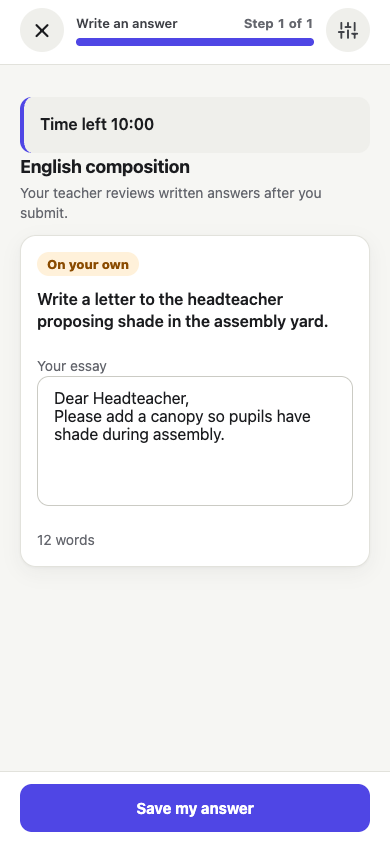
Your teacher reviews written answers after you submit. To check for marks later, open Progress → School work history and choose See review on the task. Waiting for your teacher’s marks means the marks have yet to be shared. You can still see shared marks after your teacher closes the assignment.
Learn without the internet
On a course or on Assigned by your school, choose Download for offline while you are connected. On a course, it then shows Downloaded and you can choose Open offline to do a lesson with no connection. On school work, it shows Saved for offline ✓, and Start lesson opens the saved copy when there is no connection. An offline lesson says Offline · your answers are saved on this device. Some answers are checked on the device; others are checked when your work is sent. Photos, drawings and recordings wait on the device too.
When you are connected again, Learn sends your offline work by itself. When something is saved on the device or waiting to send, Home shows Downloads and how many lessons are waiting to send. Open Downloads to see what is saved, choose Send offline work now, or Remove download to free space. Everything you did offline has been sent. means your teacher can see it. Downloads last for a school term; download again if one runs out. Use your own account on a shared device so your offline work stays yours.
Choose sound and vibration
Sound and vibration start off. Choose the sliders button (Sound and vibration settings) in the top-right corner of a lesson, then switch Sound or Vibration on or off. Learn remembers these choices on this device. Sound plays for correct answers and completed lessons. A flashcard swipe gives a gentle vibration when its rating becomes clear and when the swipe is accepted, if vibration is on. Incorrect answers do not play a failure sound.
Lesson text and activity panels use brief entrance motion. When your device's reduced-motion setting is enabled, Learn shows the content without that motion.
Finish a lesson
Complete the activities to finish the lesson. When you earned practice points, the finish screen shows them. Progress shows your practice points with Points are for trying, not a grade. School work appears once, under School work history, and not again under Finished recently. Points are for practice and lesson completion, with a small bonus for correct answers; they are personal feedback and do not change school marks. When you finish a lesson or do well in a check, a short celebration plays; a low score gets no celebration, only what comes next. Your study bird shows any growth, such as +1 growth for Ama. On a learning path, choose Next lesson: and the lesson name to go straight on, or Finish for today to stop. Both are always there, so stopping is as easy as going on. After a practice set, choose Back to Review or Finish for today. For school work, choose Back to my learning.
When a lesson needs a newer app
Some lessons use activities that only newer versions of Learn can play.
- When the whole lesson needs a newer app, Learn says so. Choose Update SchooLane Learn to open the App Store or Google Play, or choose Go back to pick another lesson.
- When only one activity cannot open, Learn shows A new kind of activity in its place.
- If the card has an Update SchooLane Learn button, update the app to play the activity.
- If it has no button, carry on with the rest of the lesson.
- On the web, the button is Refresh this page, which loads the newest version.
Ask a grown-up to update the app. Your progress stays saved.
Need help?
Ask your school for a missing assigned task, course access or a new school learner password. Your teacher reviews submitted work and decides its school mark. Parents can follow homework in Learning.
See what you have shown
Some learning paths and collections show Not assessed, Developing, Ready, or Recheck due. Choose See requirements for the checks you have demonstrated and what remains. Missing evidence is different from a result below the target.
Start next check opens the next available check. If it is school work, its assignment stays attached. A later check shows when it is due; work needing teacher judgement waits for the teacher's review. If a check cannot open, ask your teacher for access. Your readiness does not change while you are still answering a check or exam.
Checks show Results at the end on the first question. Answer each question and finish the check to see your result. Timed checks share marks and worked answers after submission.
Responses saved while answering are sent to school when you finish an assigned lesson. Independent work is saved with the lesson. After assigned work, its readiness summary is available even if you do not have access to the full course; other required lessons remain unassessed until your teacher makes them available.
Where next-day retakes are enabled, a failed check can be retried from the next day. Opening the original check follows the same rule. A completed retake counts toward its original readiness requirement, subject to the author’s exposure and other evidence conditions.
Sit a private BECE Maths mock
Sign in to Learn with your school account. Under Assigned by your school, find the BECE Mathematics timed mock your teacher assigned and choose Start. Choose Continue to resume your sitting. Start while at least two hours remain before your school’s deadline.
Paper 2 gives you 60 minutes to choose and answer four of six written questions. Use graph paper, a ruler and compasses when the question asks for them, and give that paper to your teacher. Paper 1 starts when Paper 2 is handed in or its time ends. It gives you 60 minutes to answer 40 objective questions. Use Previous and Next to move through a paper, or open the question picker next to the timer to jump directly to a question. The picker shows which questions you’ve answered or chosen. You can change answers while the paper is open. If you reload the page, Learn restores your saved work and the timer keeps running.
After your teacher releases the marks, choose Open on the mock under Progress → School work history to see your score on each paper.