Grade levels
Everything that decides a grade level’s results, on one page: its assessment template, grading scale, how its report adds up, the report card it prints and the subjects it takes. Open JS2 and you see what JS2 follows, and where each part comes from.
What you need first
- A school-admin sign-in that can view Classes and academic setup. Every permission that uses it, such as Assessments and grades or Academic reports, includes that view.
- Grade levels for the school. They come with the school’s setup pack.
- At least one assessment template and one grading scale
- To change anything: Set up on the matching permission (see Who can change what)
Steps
1. Open Grade levels
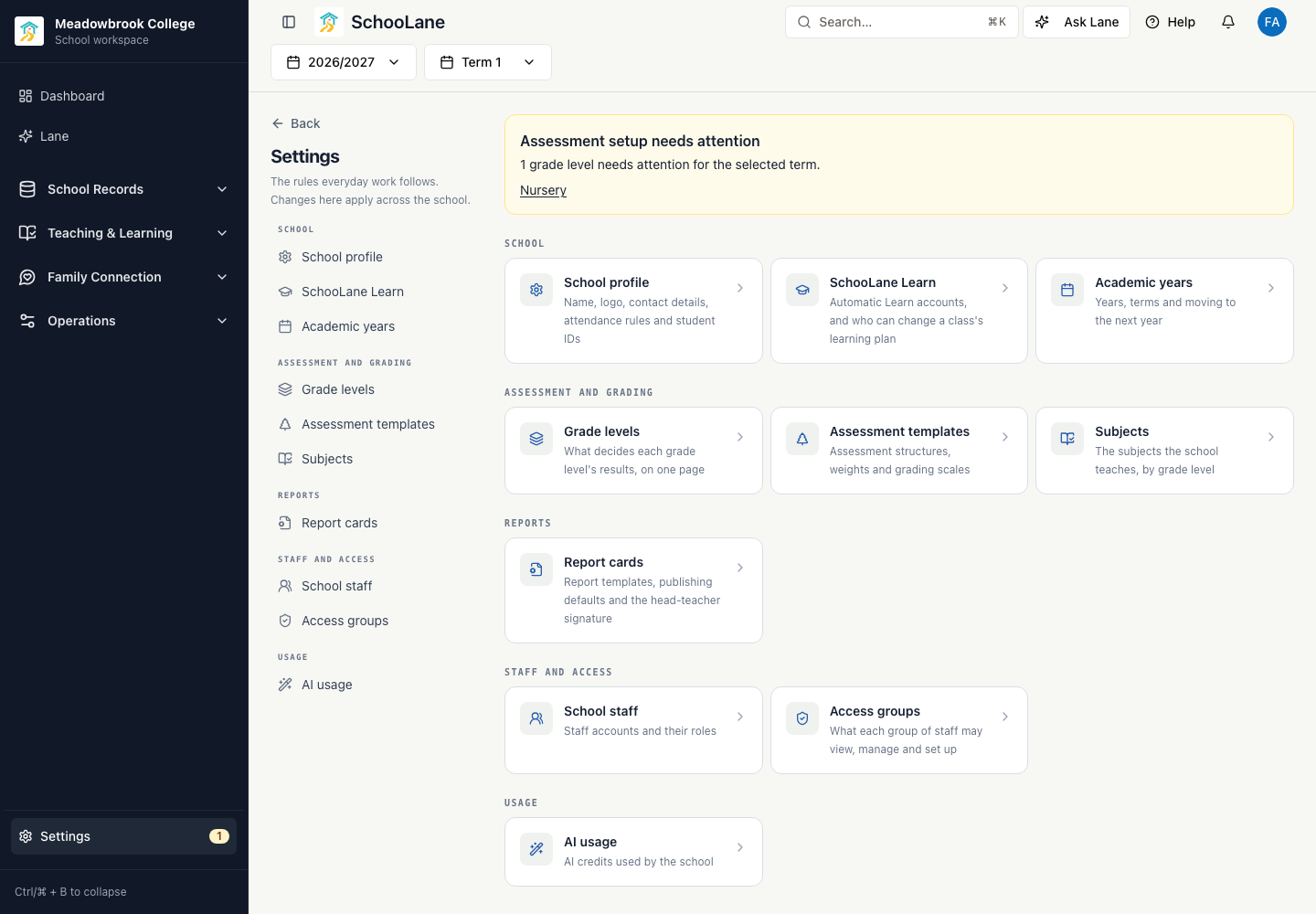
Press Settings at the bottom of the left sidebar, then Grade levels. A badge on Settings counts grade levels with classes whose assessments need attention for the selected term. Open Settings to see links to those grade levels.
The list has one row per grade level, with its Assessment template, Grading scale, Report card and Subjects (how many, and how many are core).
School default under a value means the grade level has no choice of its own, so it uses the school’s default. SchooLane’s default under a report card means your school has no card of its own for that kind of template yet, so SchooLane’s card prints. Not set means nothing applies yet.
2. Open a grade level
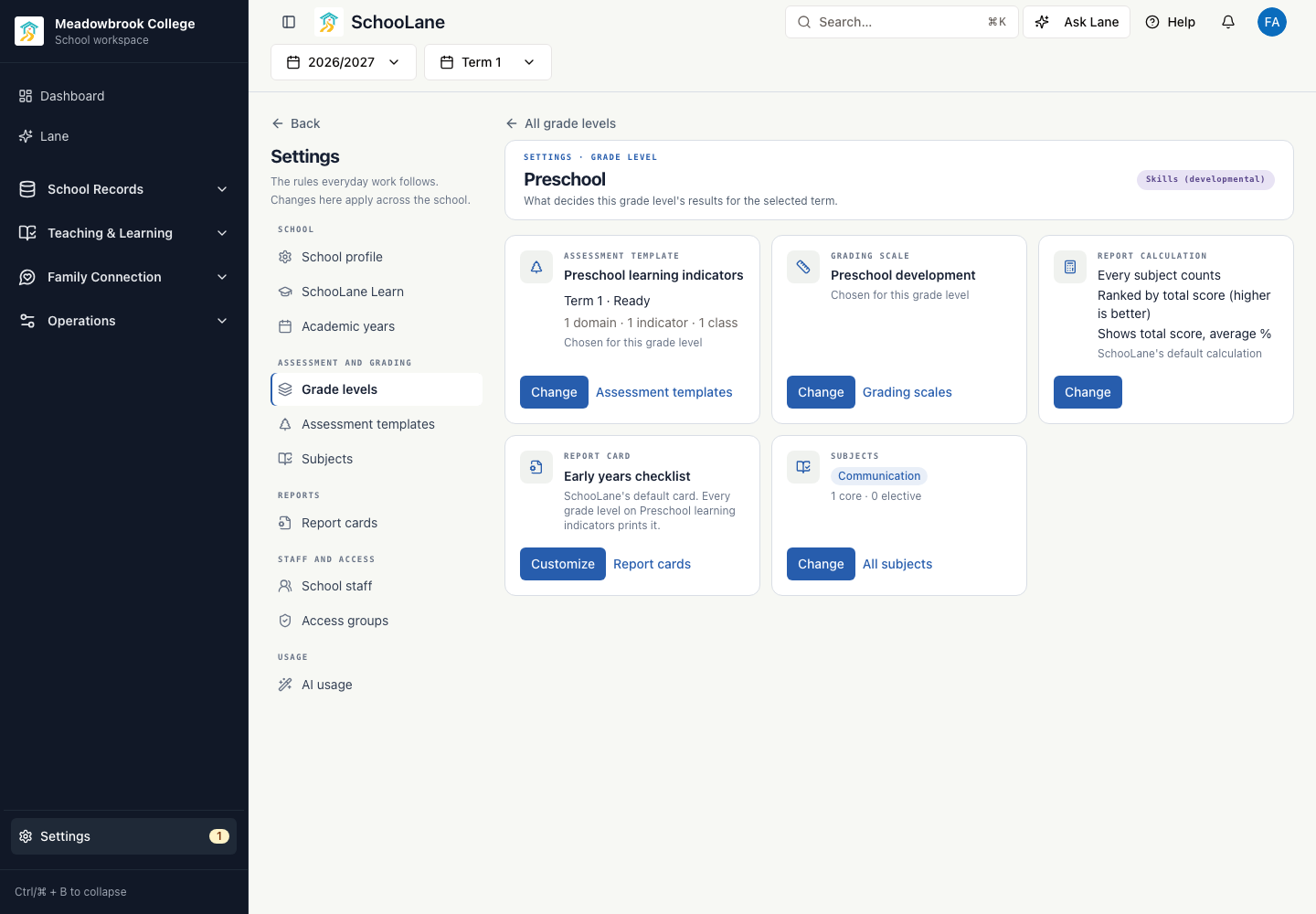
Press a row. The heading is the grade level’s name, with a badge: Numeric marks if its assessment template uses marks, or Skills (developmental) if it rates skills.
Five cards show what decides its results. Under each, a line says where it comes from, such as Chosen for this grade level, The school’s default or SchooLane’s default card.
- Assessment template: the shape of its assessments. Teachers pick from its assessment types when they create an assessment.
- Grading scale: the letter bands its marks turn into.
- Report calculation: how its term report adds up, in plain lines. For example Every subject counts or Core subjects plus the best 3 electives; Ranked by total score (higher is better) or Ranked by aggregate points (lower is better); and what the report shows, such as Shows total score, average %.
- Report card: the report template its pupils’ reports print with.
- Subjects: the subjects it takes. Core subjects are filled in; electives have an outline.
Each card also links to where that part is defined: Assessment templates, Grading scales, Report cards or All subjects.
3. Change one part
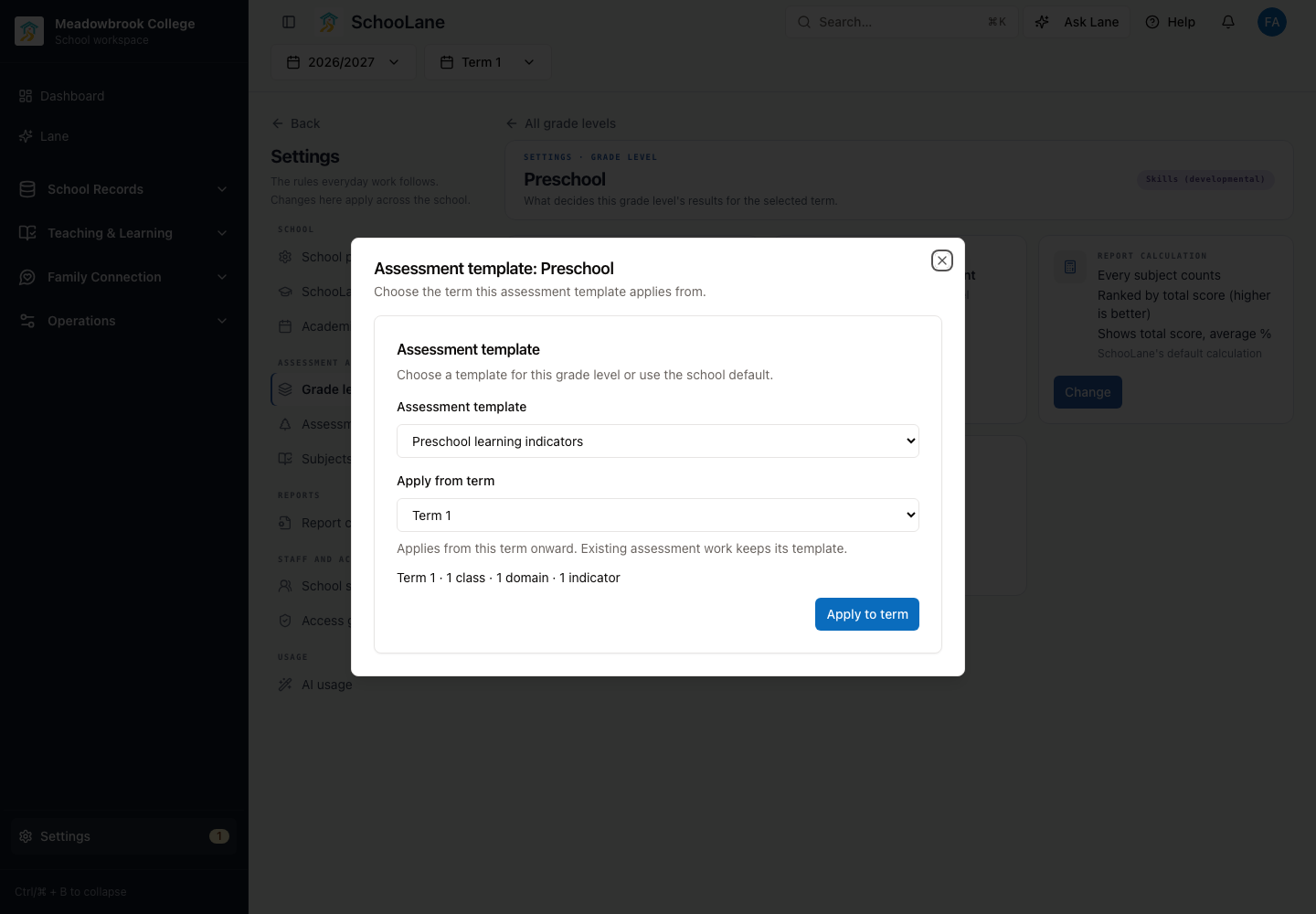
Press Change on Assessment template, Grading scale, Report calculation or Subjects. A dialog opens for just that part of this grade level.
- Assessment template: pick a template, or Use default template. Check Apply from term, then review the number of classes, domains and indicators. Press Apply to term.
- Grading scale: under Grade Scheme Assignment, pick a scale, or Use default grade scheme. Press Save Grade Scheme.
- Report calculation: pick the Aggregation Mode: All subjects, or Core + best electives with how many Best Electives count. Pick a Display Preset and a Ranking Metric (Raw score (higher better) or Aggregate points (lower better)), and tick the Summary Metrics the report shows. Press Save Report Config.
- Subjects: tick the subjects this grade level takes, and switch each one to Core or Elective. Press Save Subjects.
The assessment template applies from the selected term onward, including an empty term that has already started. A term with existing assessments or reports keeps its template: choose an empty, unlocked term for a replacement. Close the dialog to see Ready and, for developmental templates, the domain and indicator counts.
Needs attention means the setup is incomplete or inconsistent. Review the template and rating scale. If a saved assignment is inconsistent, contact SchooLane support; repeatedly saving it will not repair its history. Teachers see Assessments aren’t ready for this term and are asked to contact their school administrator.
4. Change the report card
The report card is chosen for the assessment template, not for the grade level. Every grade level on the same assessment template prints the same card, and the card’s note says so.
Press Edit card to open your school’s card in the report designer. If SchooLane’s card prints, the button is Customize instead: it opens Report cards, where you make a card of your own. See Report settings.
5. Go back to the list
Press All grade levels at the top of the page.
Your school's grade levels are your own
Each school has its own list of grade levels. A new school starts with the standard list, from Creche to Basic 9, and its setup pack adds any others it needs. No other school sees your grade levels, and nothing another school changes reaches yours.
To add a grade level or change a level's name, contact SchooLane support.
What “School default” means
A grade level can choose its own assessment template and grading scale, or leave them to the school’s default: the template and the scale marked as default in Assessment templates. Pick Use default template or Use default grade scheme to go back to the default.
A grade level on the default follows it. If someone changes the school’s default, every grade level marked School default changes with it.
The report card works the same way, one step further out. An assessment template prints the card chosen for it, otherwise your school’s default card for its kind, otherwise SchooLane’s.
Who can change what
Anyone who can view Classes and academic setup can open these pages. Each person sees only the parts their access groups and your school's subscription cover:
- Assessment template and Grading scale show with Assessments and grades.
- Report calculation and Report card show with Academic reports, and only if your school has report cards. Without them, the list has no Report card column.
- Subjects always show.
Changing a part needs Set up on the permission that owns it:
- Assessment template and Grading scale: Set up on Assessments and grades
- Report calculation and Report card: Set up on Academic reports
- Subjects: Set up on Classes and academic setup
Without it, that card has no Change, Edit card or Customize button, and the page says You need Set up access to change some of these. The school owner can add it to your access group. See Access groups.
If part of your school's subscription is read only, for example while a renewal is pending, its cards still show but their buttons are hidden until it is active again.
Common mistakes
- Changing a grade level’s assessment template in the middle of a term. New assessments for its classes use the new template from then on. Change it between terms.
- Pressing Edit card to change one grade level’s card. The card belongs to the assessment template, so the change shows on every grade level that uses it. If the card is your school’s default, it also changes for every assessment template that prints the default.
- Leaving a grade level on School default when it must not change. Choose its own template or scale, so a later change to the default does not move it.
- Looking for Change without Set up. Ask the school owner to add it to your access group.