Learn accounts
Each pupil has their own SchooLane Learn account. A pupil does not need an email address. They sign in with their own SchooLane ID (8 letters and numbers, such as KM4T 7Q2R) and password, including pupils who share a guardian or device. What they can open comes from their class's learning plan.
School Learn must be active on the school's agreement. It is included in Full agreements; other agreements can include a Learn add-on. Your school administrator cannot change the agreement from these screens.
Accounts for every enrolled pupil
In Settings → SchooLane Learn, Create Learn accounts for every enrolled pupil is on unless your school turned it off. Every active pupil enrolled in a class gets an account within a few minutes, and with it their class's plan. No password is made until you print login cards or issue one. Only a full school administrator can change this setting.
When the setting is off, set up accounts yourself:
- Learn › Pupils › Without a Learn account › Create all sets up every enrolled pupil without one.
- On a class's SchooLane Learn section, Create account on a pupil's row sets up that pupil.
Pupils given a plan before their account exists get it as soon as the account is set up. Setting up an account again keeps the pupil's password and courses.
Print login cards
On a class's SchooLane Learn section, choose Print login cards. Choose:
- Pupils who have not signed in yet, usually a new class or new pupils, or
- Every pupil in the class. This resets their passwords and signs them out.
Choose Print with the number of cards. Each temporary password is issued one at a time (Issuing 3 of 30…), then the cards open in a new window with the print dialog: eight to an A4 page, each with the pupil's name, SchooLane ID, temporary password, how to sign in, and when the password stops working. If your browser blocks the window, choose Print cards. Download as CSV gives the same details as a file. Closing the dialog removes the passwords from view; they cannot be shown again, but you can issue new ones.
Pupils without a Learn account are left out, and the dialog says how many.
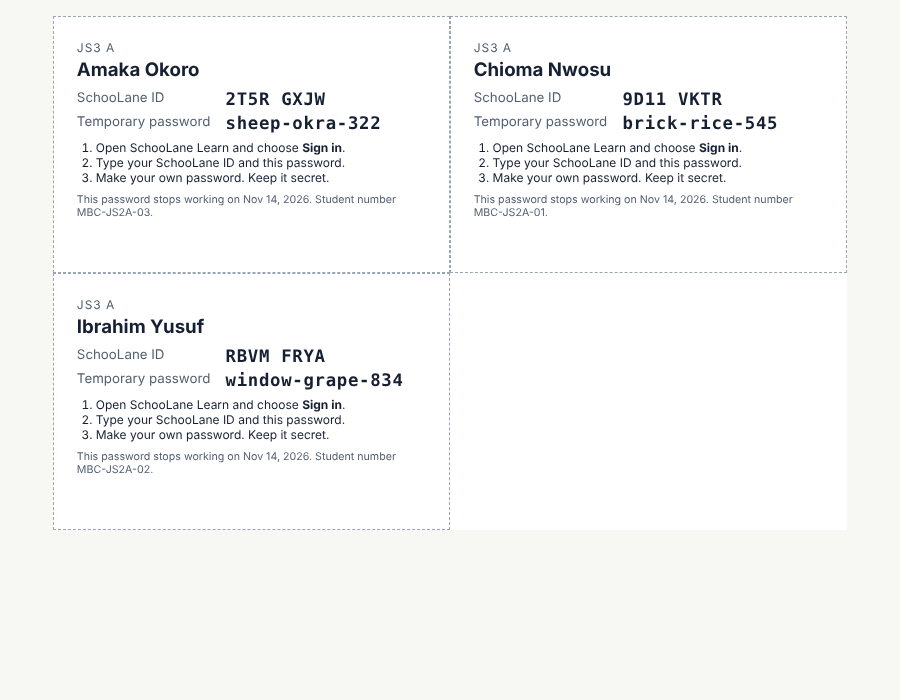
For one pupil, choose Issue password on their row, or Issue temporary password on the pupil's page, then Reset and issue. Print card prints that pupil's card.
Temporary passwords are two simple words and three numbers, such as mango-river-472, so a pupil can type them. They stop working after seven days. You must have signed in within the last 30 minutes to issue passwords; if asked, sign in again. Issuing another password for the same pupil is blocked for one minute.
On the pupil's page
The pupil's page has a SchooLane Learn card with their SchooLane ID, how many courses they have and their last day in Learn, their class's plan, and their Extras. Add an extra… gives this pupil a collection or course outside the class plan. Remove takes an extra away; their progress is kept. Issue temporary password resets their password.
To use an existing SchooLane account (for example an older pupil's own email account) instead of a school-made one, choose Use an existing SchooLane account instead and enter its email. A guardian's or staff member's account cannot become a learner account.
First sign-in and recovery
In SchooLane Learn, the pupil types their SchooLane ID and temporary password and chooses Sign in. Learn then asks them to Make your own password of at least eight characters; they choose Save and start learning to open learning.
School-managed pupils ask their school for password recovery. They do not use a parent's account, email codes or email password recovery. A guardian may help a younger pupil sign in, but each child's progress stays on their own learner account. Sign out when finished on a shared device.
When something goes wrong
Account setup and plan changes run in the background. Learn › History lists each one; choose it to see pupils that need attention, such as an email that already belongs to another account. Use Retry remaining pupils for a paused job; it never creates duplicate accounts or resets passwords.
If school Learn becomes inactive, new accounts and plan changes pause. Existing accounts keep working for account recovery while the pupil is enrolled.