Assessment templates
A template is the school’s reusable test shape. Teachers stop rebuilding the same midterm paper every term.
What you need first
- A school-admin sign-in
- An active academic year
- A clear picture of how you grade: marks, or a skill checklist
Steps
1. Open Assessment Templates
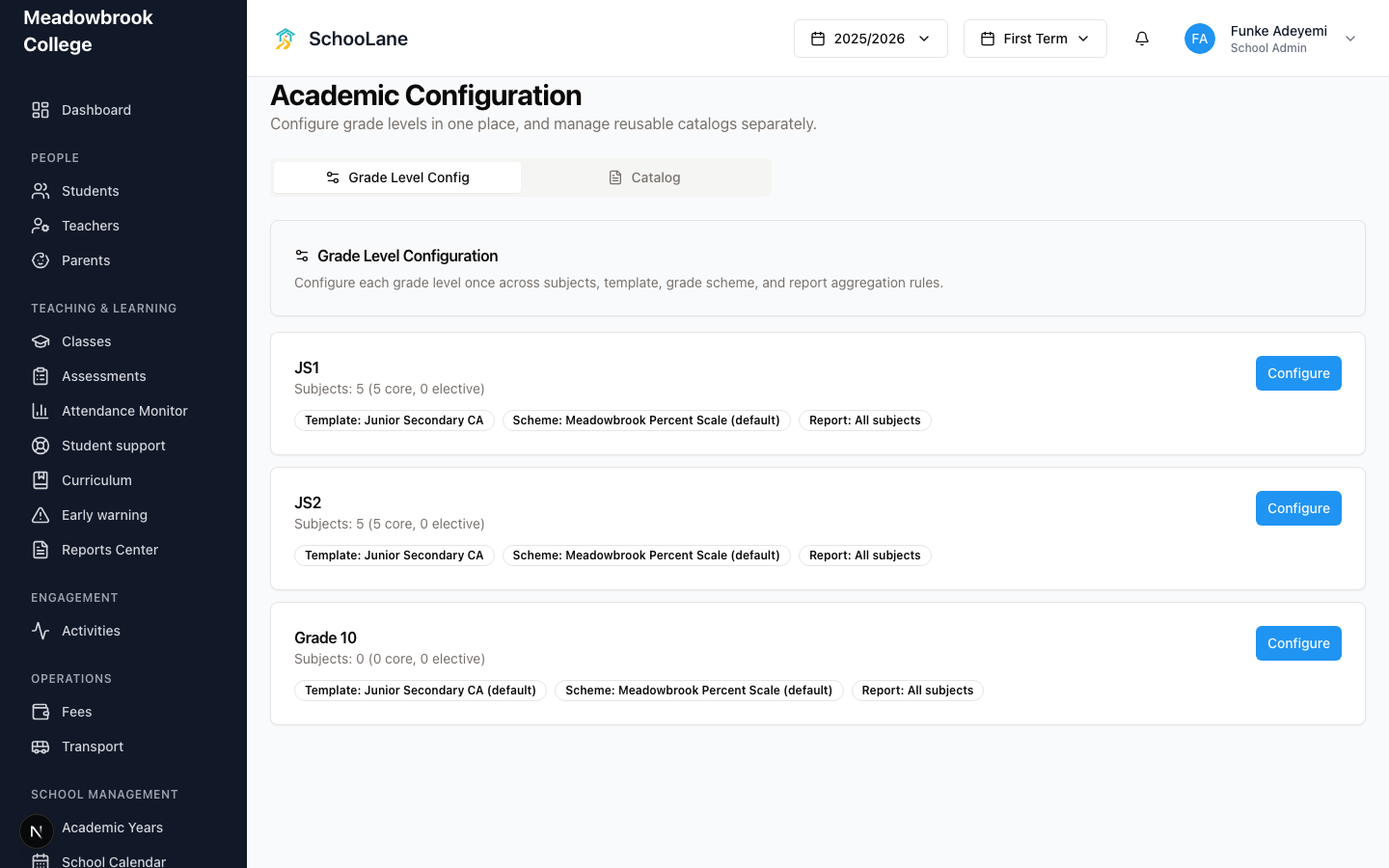
Under School management, press Assessment Templates. The page heading is Academic Configuration. Press Catalog, then Templates. Press Create Template.
2. Name it and pick how it grades
The dialog is Create Template. Fill Template Name. Under Assessment Model, pick Numeric Grade if teachers enter marks. Pick Developmental Scale if the class uses a skill checklist. Do not invent a forty-item structure on day one. Start with the papers Meadowbrook actually sets this term.
For marks, press Add Root Node and add a group (Continuous Assessment) or a direct assessment (a single exam). For a checklist, press Add Domain and hang skills under it.
3. Point grade levels at the template
Stay on Assessment Templates and open Grade Level Config. Assign the template to the levels that should use it. Classes in those levels inherit the structure. Skip this and New Assessment will say No assessment types available.
4. Use it when someone creates work
Teachers (and admins) press New Assessment. They pick Assessment Type from the template, then the Subject. Scores land in the same shape across classes. On a checklist class, New Assessment is hidden. You see Initialize Checklist instead. That is expected.
Common mistakes
- Building the template and never assigning it in Grade Level Config. Teachers then stare at an empty Assessment Type list.
- Cloning last year’s giant structure “to be safe.” Cut it down. Teachers skip rows they never mark.
- Treating a nursery checklist like a JSS exam. Those classes want Initialize Checklist, not New Assessment.