School calendar
School-wide dates teachers and parents should see next to the year: holidays, exam weeks, half days, staff days. At Meadowbrook we put Christmas break and the First Term exam week here before anyone asked.
What you need first
- An active academic year (2025/2026 at Meadowbrook)
- The holiday and exam dates you already promised parents
Steps
1. Open School Calendar
Under School management, press School Calendar. The page title is School Calendar. It follows the year in the top switcher, so check that you are on 2025/2026.
If you see Please select an academic year, pick one up there first. Nothing to edit until you do.
2. Add a date
Press Add Event. The dialog is Add Calendar Event.
Type an Event Name (Christmas Break, First Term examinations, Sports Day). Set Type: Holiday, Half Day, Professional Development, Examination, or Special Event. Fill Start Date and End Date. Notes can wait. Press Create Event.
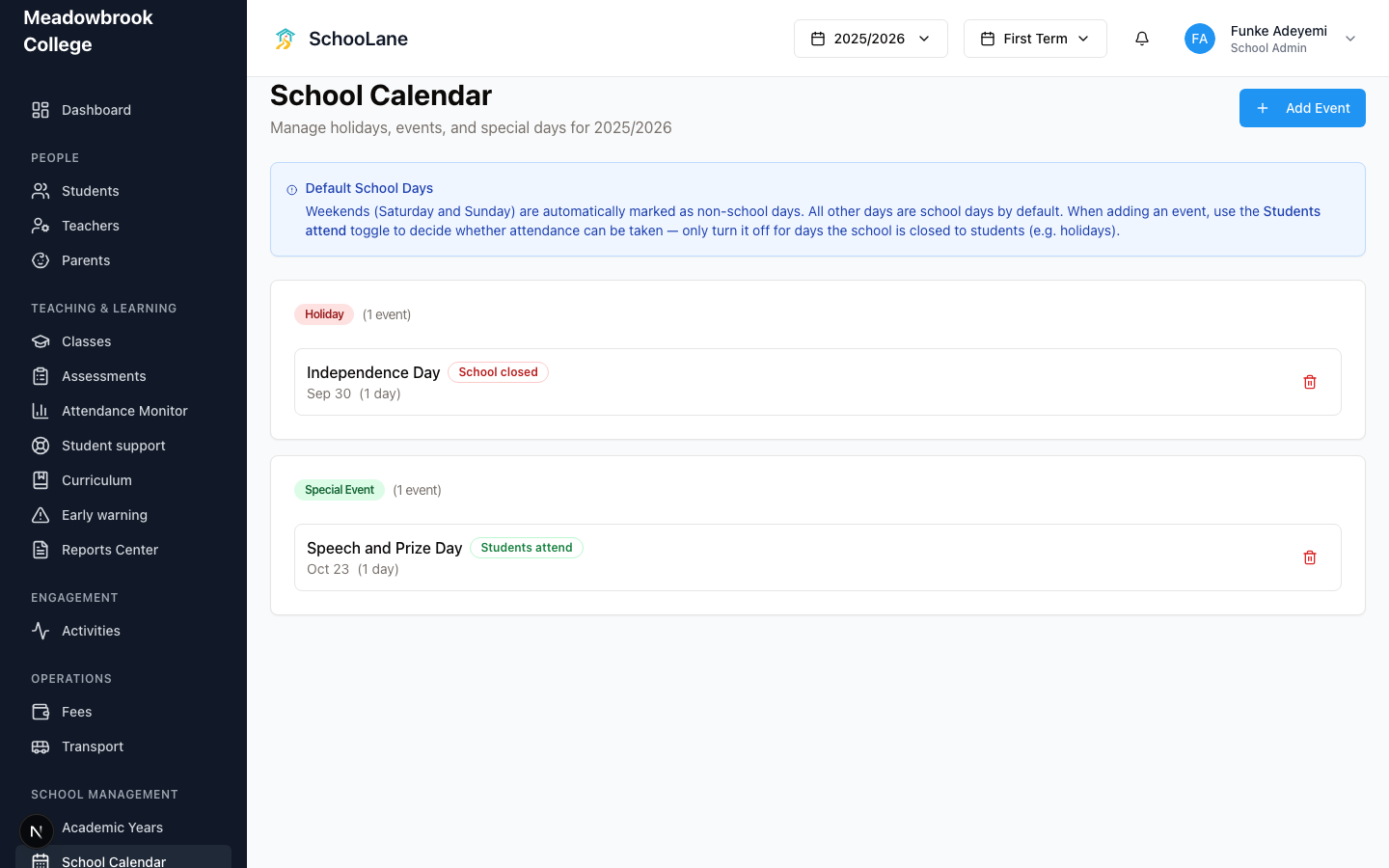
The blue note on the page is worth a slow read. Weekends are already non-school days. Use the Students attend (attendance taken) toggle when you add the event. Turn it off only when the school is closed to students. Holidays, usually. Leave it on for an exam week if children still come in.
3. Check you are on this year
A date you saved on last year’s calendar will not show for this term’s teachers. If the switcher says Past Year, switch back to 2025/2026 and add the date again.
What done looks like
- Events group by type. Holidays in one card, examinations in another.
- Each row shows School closed or Students attend.
- Teachers stop asking you whether Monday is a holiday.
- You can delete a range from the row if you typed Sports Day on the wrong week.
Common mistakes
- Adding Christmas Break and leaving Students attend on. Teachers then try to mark attendance on a closed day.
- Putting First Term exams on 2024/2025 because the switcher was still there from last login.
- Skipping the calendar and hoping the timetable will “just know.” It will not. Put the closed days here.