Curriculum (admin)
The term register: schemes, lesson plans, review, and delivery. Teachers write. You (and head teachers) approve.
At Meadowbrook I open this when Funke asks why JS2 English still has empty weeks. I do not open it to write Tunde’s lessons for him.
What you need first
- Curriculum turned on for the school
- An active term and classes with subjects
- Teachers assigned to those subjects
The page can look quiet while it loads. Two wide grey blocks, no table yet. Wait for Class curriculum register. If you still see nothing, check that the year and term in the header are the ones staff are teaching.
Steps
1. Open Curriculum
In Teaching & Learning, press Curriculum. You need a term selected. If none is selected you get Select an academic year and term to open the curriculum workspace.
The register heading is Class curriculum register. Counts across the top: Classes, Schemes, Plans, Attention.
2. Read the class register
The table is labelled Class register. Columns: Class, Subjects, Term schemes, Lesson plans, Delivery to date, Attention. Press a class that needs work.
You then see that class for the term, with Subject ledger. Each subject shows the teacher, scheme status, planned weeks, approved plans, and delivery.
3. Open a subject
Press the subject. The heading becomes the subject name, then term scheme. Buttons on that page:
- Edit term scheme
- Review (opens Review submitted schemes)
- Prepare weekly plans
- Delivery recorded (opens Delivery follow-up)
Approve or send a scheme back from Review. Head teachers can also use Review lesson plans on the teacher menu.
4. Watch delivery
After approval, teachers teach from Teach today. Recorded periods show on Delivery to date. Missed weeks sit under Attention. Open those first. Leave the green rows alone.
If Curriculum is off for the school, the page says Curriculum is not enabled for this school. That is a setting, not a missing menu item.
Objectives and the national curriculum
Press Objectives at the top of the Class curriculum register to open the school's objectives library. Schools in Ghana and Nigeria can start from their national curriculum instead of typing objectives.
Ghana: the NaCCA curriculum
The library offers three cards, one for each stage NaCCA publishes a curriculum for. Together they hold 4,597 objectives, and every objective keeps its NaCCA code, such as B7.1.1.1.1, with its strand, sub-strand and content standard.
- Ghana NaCCA curriculum: Kindergarten. 353 objectives for KG 1 (175) and KG 2 (178), from NaCCA's Kindergarten Curriculum. It is one integrated curriculum arranged by theme, so the objectives go to a single Kindergarten Curriculum subject.
- Ghana NaCCA curriculum: Basic 1–6. 2,765 objectives from the Standards-Based Curriculum: Mathematics, English Language, Science, Ghanaian Language, Our World and Our People and Creative Arts for Basic 1–6; French and Computing for Basic 4–6; and History, Physical Education and Religious and Moral Education for Basic 1–6.
- Ghana NaCCA curriculum: Basic 7–9. 1,479 objectives from the Common Core Programme (JHS 1–3): Mathematics, English Language, Science, Social Studies, Religious and Moral Education, Computing, Career Technology, Creative Arts and Design, Physical Education and Health, French, Ghanaian Language and Arabic.
Creche and Nursery have no NaCCA curriculum. A few printed indicators are left out because the NaCCA document is ambiguous about their codes; the source documents are linked from each card. The Kindergarten and Basic 1–6 documents are from 2019, the Common Core Programme documents from 2020, and the Social Studies document is the January 2024 revision.
Nigeria: the NERDC curriculum
Nigerian schools see one card, Nigeria NERDC curriculum: Primary 1 to JSS 3, with 5,750 objectives from the Nigerian Educational Research and Development Council (NERDC): English Studies, Mathematics, Basic Science and Technology, Pre-vocational Studies, Business Studies, Cultural and Creative Arts, History, Christian Religious Studies, Islamic Studies, French, Hausa, Yoruba and Igbo, for the stages each document covers.
NERDC prints no indicator codes, so these objectives have none. Each one is listed under its theme and topic, with the page of the NERDC document it comes from. The documents are NERDC's 9-Year Basic Education Curriculum; individual documents date from 2012 to 2020, and the card links to each one.
- Choose your language. A school teaches one Nigerian language, so the 1,001 Hausa, Yoruba and Igbo objectives are never added automatically. In the review window they start unticked and say Choose one. Tick the one your school teaches and it goes to your Nigerian Languages subject. To add a second language later, press Review on the card and tick it.
- Basic Science and Technology is one NERDC subject, but schools teach its parts separately. Basic Science goes to Basic Science (Primary 1–3), Basic Science and Technology (Primary 4–6) or Intermediate Science (JSS); its Physical and Health Education theme goes to Physical and Health Education; its Information Technology theme goes to Basic Digital Literacy (Primary 4–6) or Digital Technologies (JSS).
- Not included. Early years (Creche, Nursery and Kindergarten) have no NERDC document here. Social Studies and Civic Education are not published as separate documents. Arabic is not offered yet while it is checked by a reader of Arabic. JSS Pre-vocational Studies has no subject to go to, because the Nigeria setup pack teaches Pre-vocational Studies in Primary 4–6 only. A few objectives are left out where a statement is cut off, has no printed topic, or uses symbols the document does not encode readably.
Adopt a curriculum
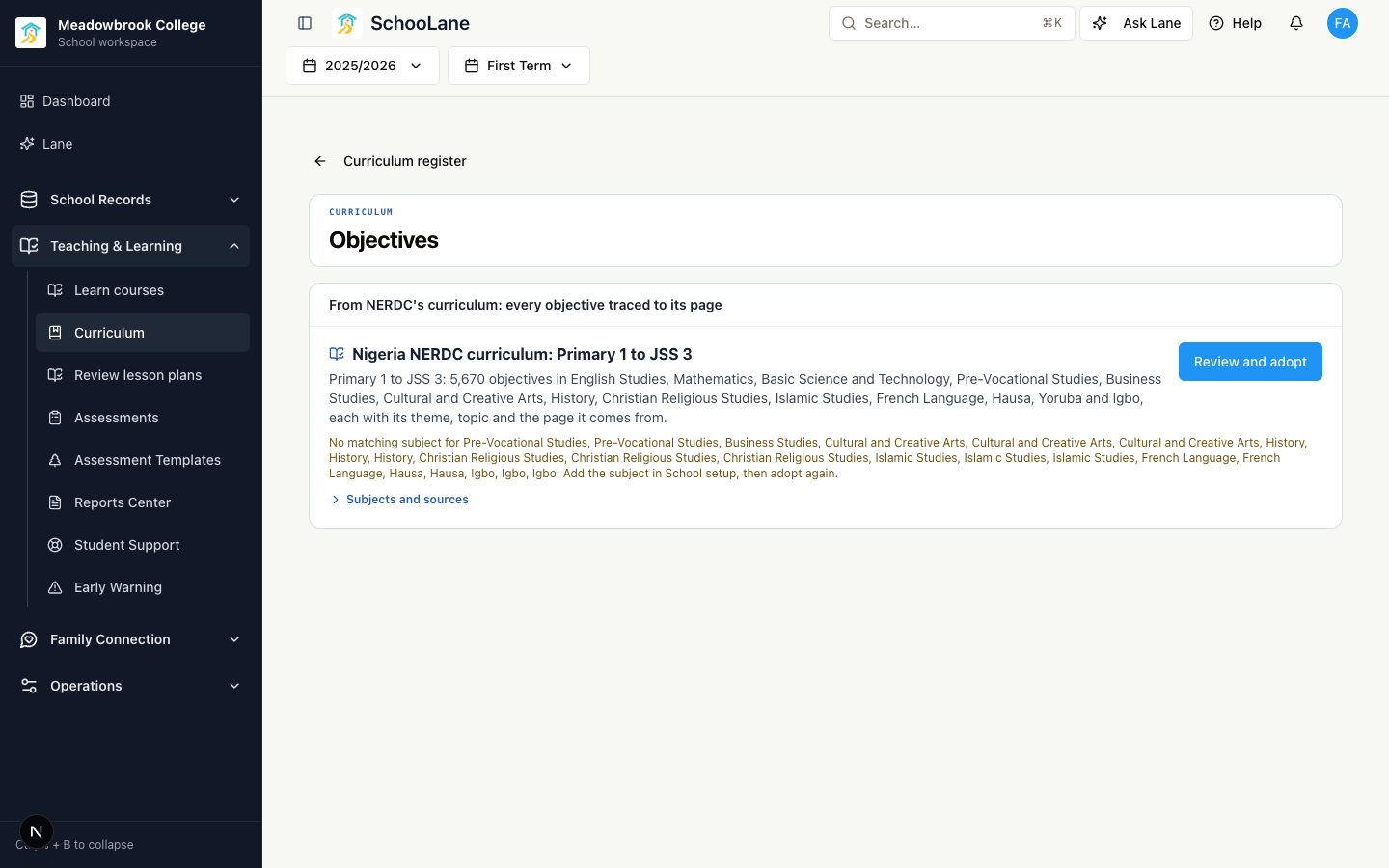
- Press Review and adopt on a card. A review window opens. Nothing is added yet.
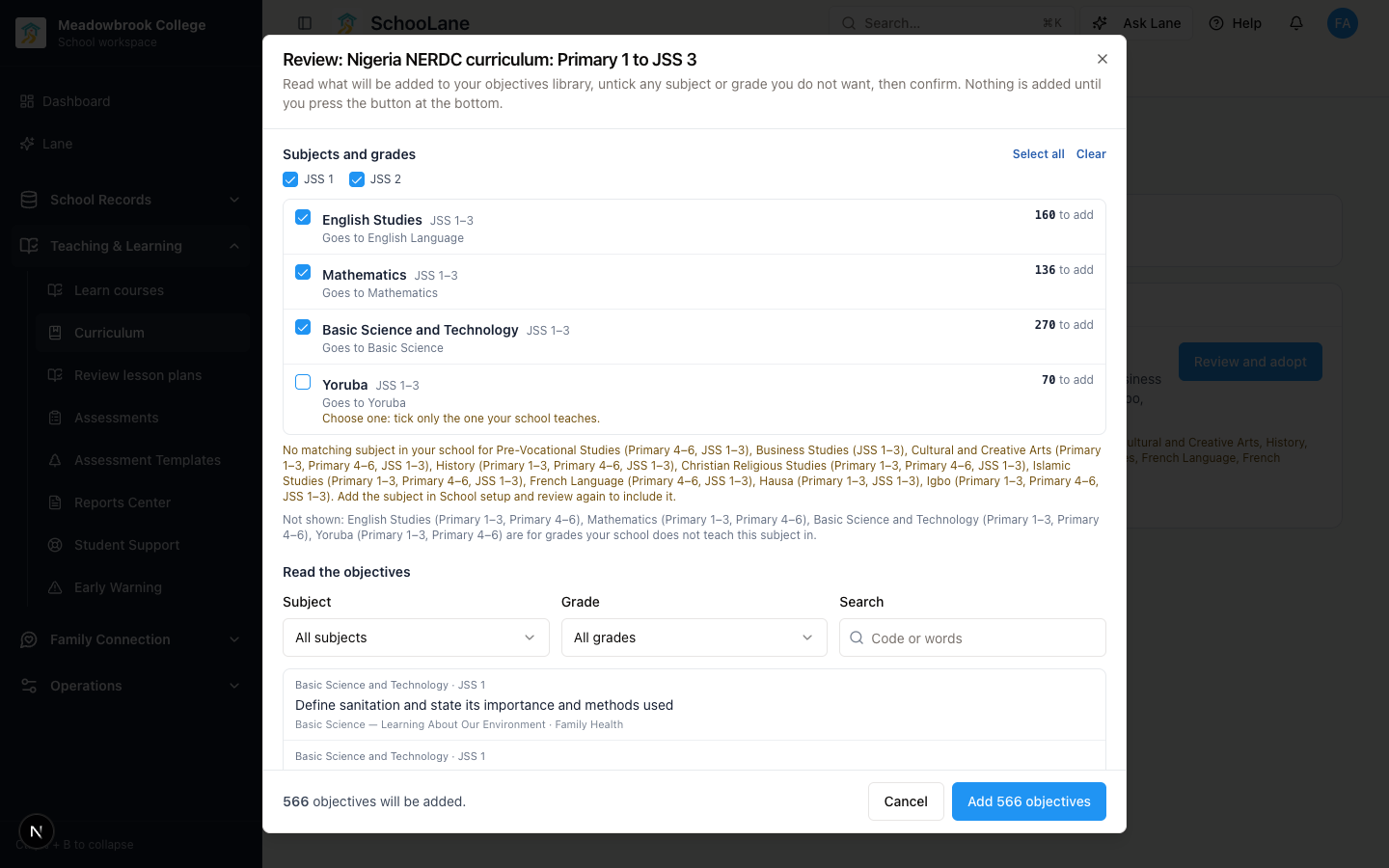
- Under Subjects and grades, each subject shows which of your subjects receives it, for example Mathematics → Mathematics, how many objectives it would add and how many you already have. A school set up before these subjects existed may have Numeracy instead; Numeracy receives Mathematics too. Untick any subject or grade you do not want.
- Under Read the objectives, choose a subject or grade, or type a code or words in Search, and page through the objectives. Ones you already have are marked Already added.
- Press Add … objectives at the bottom to adopt them, or Cancel to leave everything as it was. Objectives are added only for the grades each subject is set up for.
- Once a card has been adopted, choose Stage, Grade and Subject, then use Search to find an objective by its code or words. Objectives are grouped by strand and sub-strand (or theme); open a group to read it.
The objectives belong to your school, so you can reword them. Adopting again never repeats or overwrites them. The button changes to Review … missing objectives when new subjects or grades have been set up since, and to Review when there is nothing new; Review still opens the window, so you can read the curriculum or add what you skipped. If the window says No matching subject in your school for a subject, add that subject in school setup and review again.
Schools set up from the Ghana or Nigeria setup pack get the subjects each curriculum needs, so every card finds them. Schools set up earlier keep the subjects they have, and the window says which have no matching subject.
When curriculum is read-only
If your school's subscription has ended, Curriculum can stay open read-only for a while. You can still open the register, schemes, lesson plans and delivery. Edit term scheme, Approve for planning, Request changes and the save, submit and AI buttons are hidden. Prepare weekly plans opens the plans read-only, and lesson plans can be read but not approved. Ask whoever manages your SchooLane subscription to renew it.
If your access group only views Curriculum, the page looks the same: you can read everything, and those buttons are hidden.
Common mistakes
- Expecting teachers to invent a scheme with no subject assignment. Assign the teacher on the class first.
- Reviewing last term’s register because the header still shows it.
- Writing the weekly plan as the admin. Prepare weekly plans is for cover. Day-to-day writing belongs with the teacher.
- Looking for Approve for planning while Curriculum is read-only. It comes back when the subscription is renewed.
- Adopting a NaCCA curriculum before the subjects it maps onto exist. Set up subjects first, or press the button again after adding them.
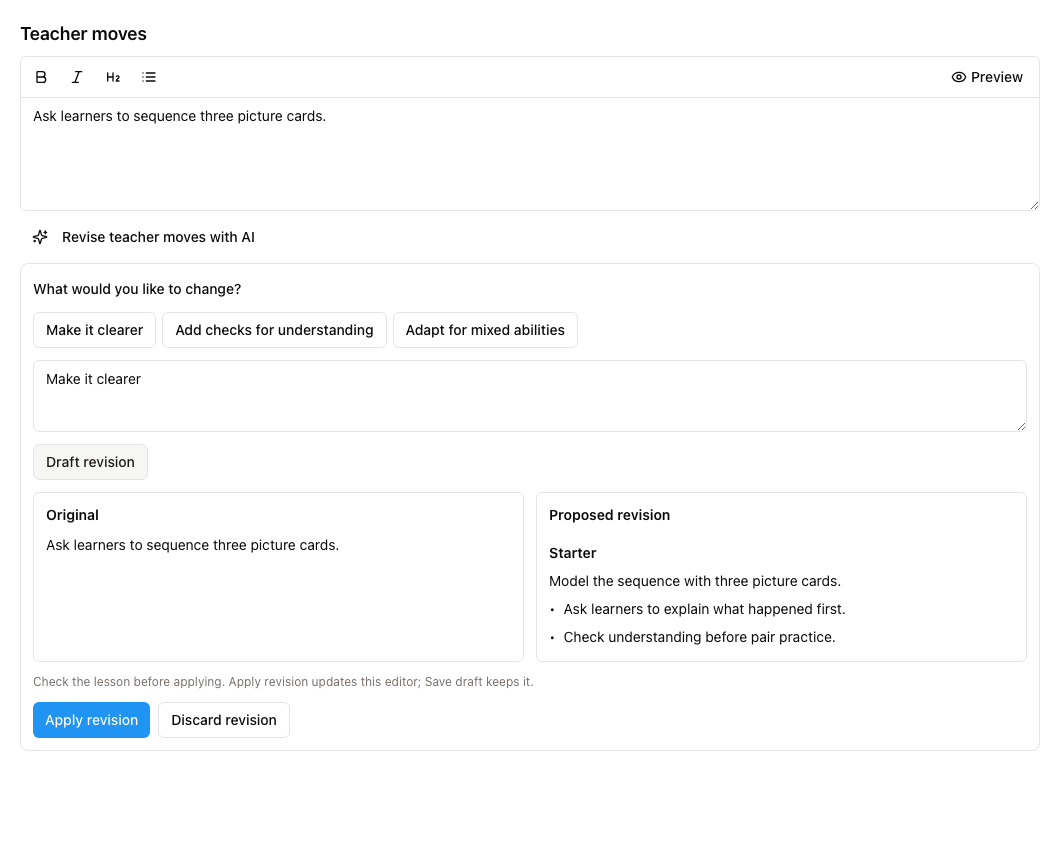
Revise lesson sections
When preparing a teacher’s lesson plan, use the formatting buttons in Teacher actions and Learner activities, then Preview to read the notes. If AI lesson drafting is enabled, Revise teacher moves with AI or Revise learner moves with AI opens a section revision. Describe the change, press Draft revision, compare Original and Proposed revision, then choose Apply revision or Discard revision. Save the draft after applying; revision drafting does not submit a lesson for review.