Attendance monitor
School-wide roll call. Teachers mark the day. You watch who finished and who did not.
Funke sits on this page at Meadowbrook around 9. She is not marking JS2 A. She is watching whether the class teachers did.
What you need first
- An active year and classes with rosters
- Late time and the edit window saved in School Settings
Steps
1. Open Attendance Monitor
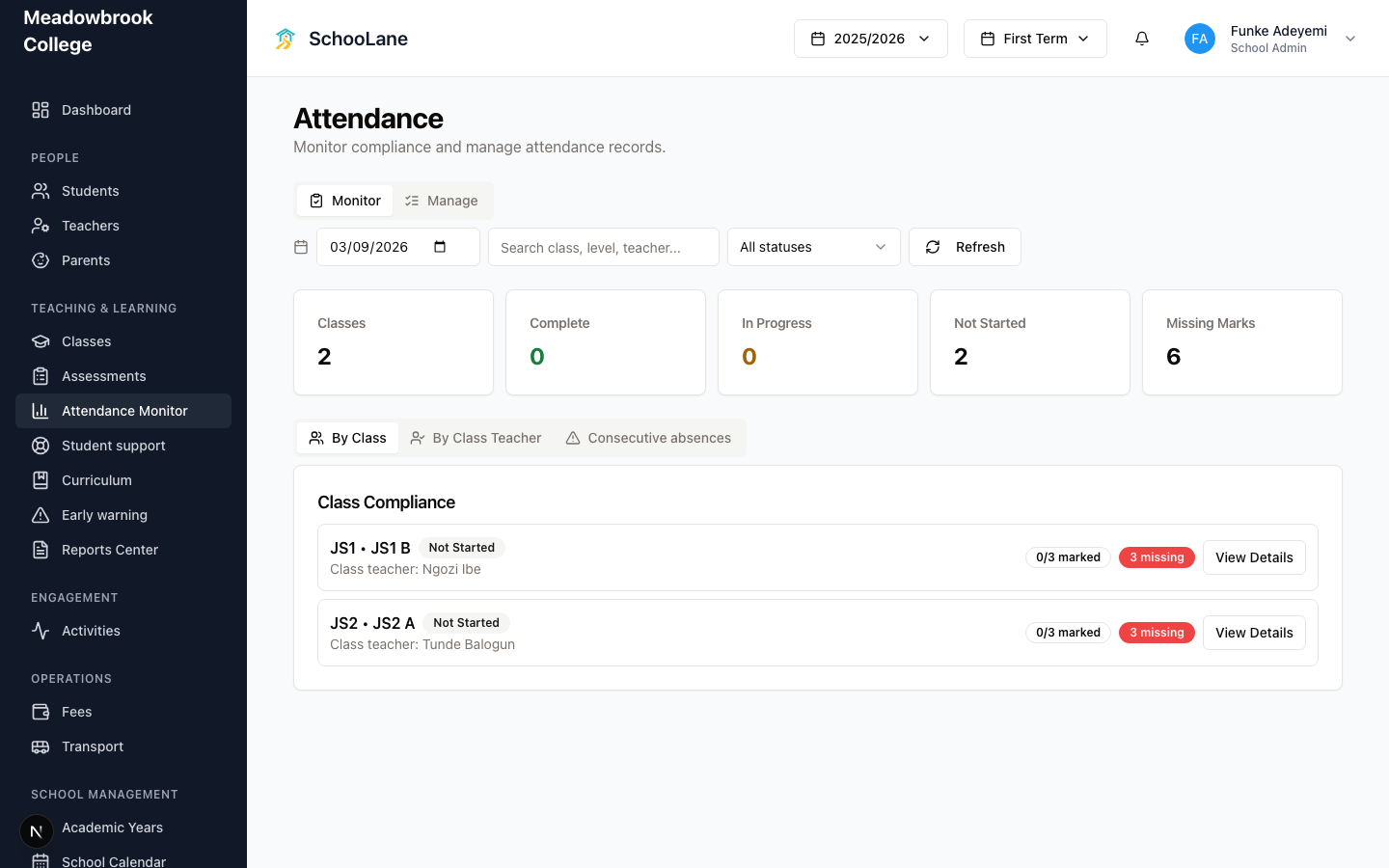
In Teaching & learning, press Attendance Monitor. The page heading is Attendance. The line under it says Monitor compliance and manage attendance records.
Two tabs: Monitor and Manage. Stay on Monitor unless you are fixing a record yourself.
2. Set the date, then look at the cards
Pick the date. Search with Search class, level, teacher... if the list is long. Filter with All statuses, Not started, In progress, or Complete. Press Refresh after a teacher says they just saved.
The cards are Classes, Complete, In Progress, Not Started, and Missing Marks. Funke cares about Not Started first. A green Complete count that matches the class count is a quiet morning.
3. Read Class Compliance
Under the cards: By Class, By Class Teacher, and Consecutive absences.
By Class opens Class Compliance. Each row shows the class, a Complete / In Progress / Not Started badge, the class teacher, marked out of expected, and missing if anyone is blank. Press View Details to open that class day.
By Class Teacher groups the same work by person. Use it when one teacher owns two classes and only one is done.
4. Chase the unmarked class
If JS2 A is Not Started at mid-morning, write Tunde. Do not sit on the page hoping the numbers move.
A date that is not a school day shows No compliance required. That is the calendar talking. Leave it.
Teachers mark the roll from Attendance on the class, or from the staff app. See Teacher attendance.
Common mistakes
- Treating Manage as the daily view. Marking lives with the teacher. You watch Monitor.
- Ignoring Missing Marks because some classes look complete. A class can be In Progress with names still blank.
- Opening this page with no active year. You get No active academic year and a button to Academic Years.