Learn learning plans
Every class has a learning plan: the collections and courses its pupils can open in SchooLane Learn. A pupil who joins the class gets the plan within a few minutes. A pupil who moves class gets the new class's plan. A pupil with no class today, for example between terms, stays on their last class's plan until they have a new class. Changes to that class's plan still reach them. Pupils need a Learn account; with automatic accounts on, new pupils get one by themselves.
Open Teaching & Learning → Learn. The page has four tabs: Classes, Library, Pupils and History.
Classes
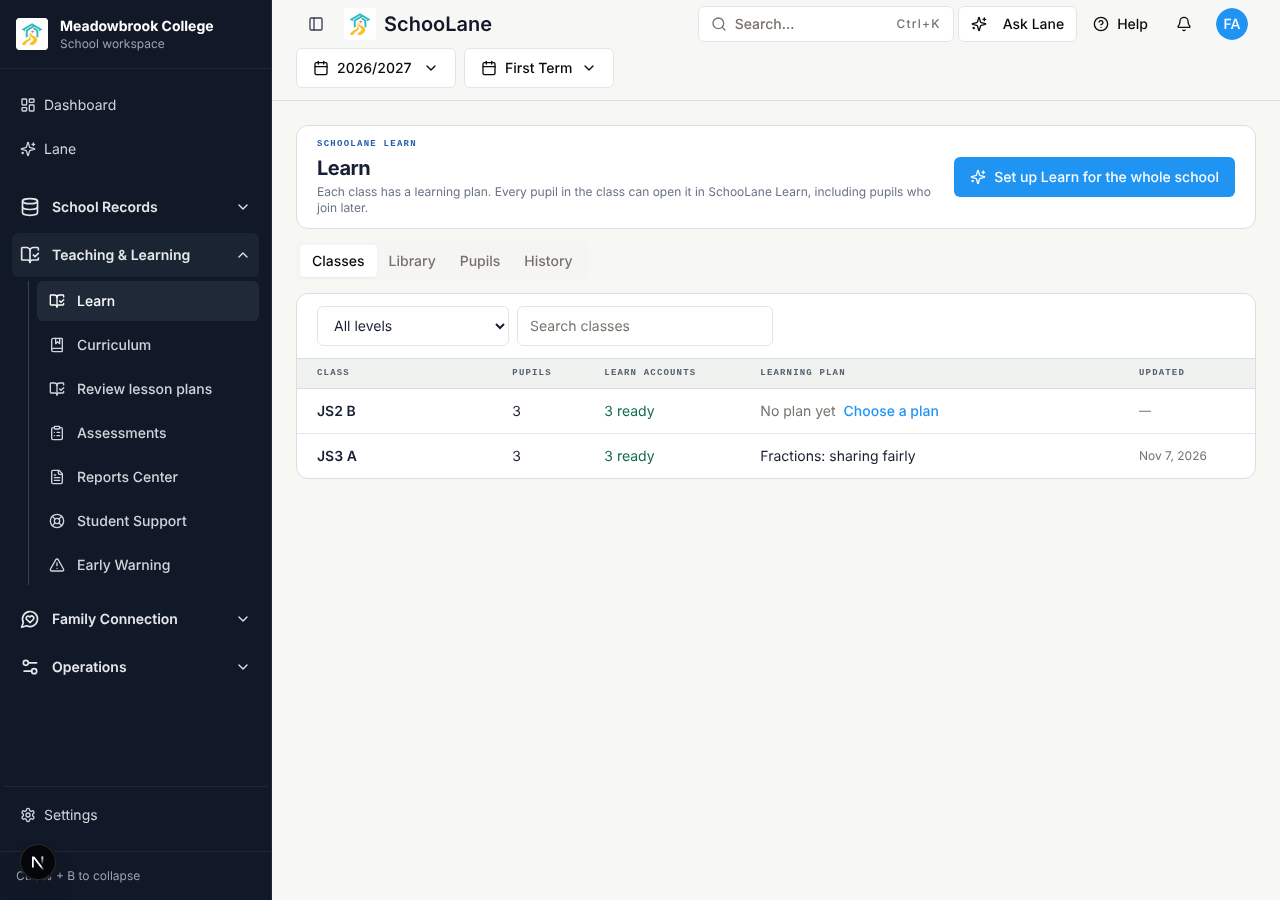
Classes lists every class with pupils enrolled today: its Pupils, its Learn accounts (for example 30 ready, or 25 ready · 4 without), its Learning plan and when the plan was last Updated. Narrow the list with Level and Search classes. A class with No plan yet has a Choose a plan link. Updating access… means pupils are getting a change you just made. Choose a class name to open its SchooLane Learn section on the class page.
Library
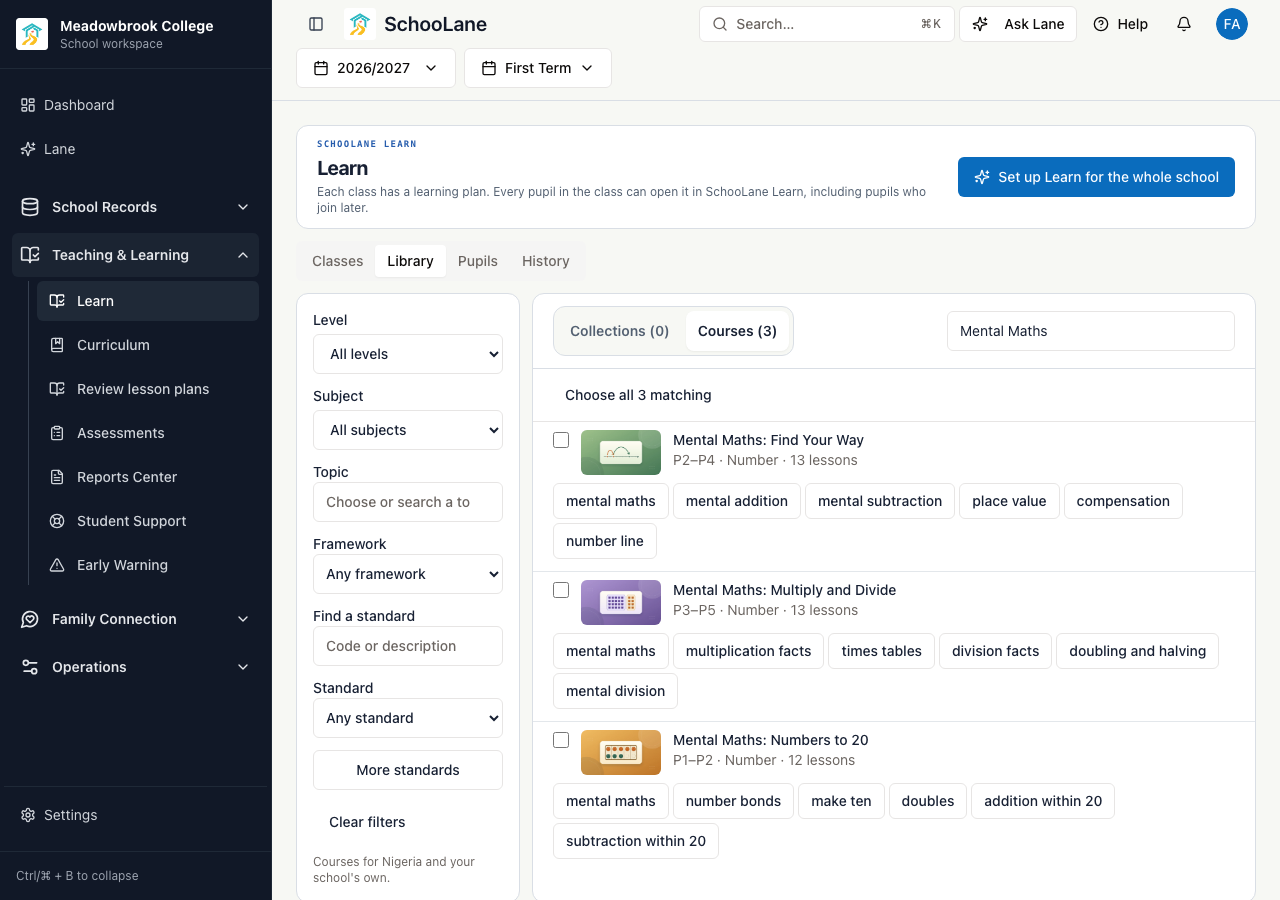
Library shows the SchooLane Library for your school's country, plus courses your school published. Filter by Level and Subject. Collections come first: a collection is a ready-made set of courses in teaching order, such as a term of mathematics or exam practice. Each collection shows its kind, number of courses, level and subject, and which classes already use it, for example Used by B4 Blue, B4 Gold, or Not used yet. Search collection titles with Search collections. Choose a collection's title to see every course in it in order.
Choose Courses to work with single courses. Search titles, topics and standard codes with Course, topic or standard. Narrow by Topic, choose a Framework, or use Find a standard and select a Standard. More standards loads another page. A framework may be from a different country than your school. Topic suggests tags used by listed platform courses; it matches a selected tag exactly. Open Framework edition and source to check the recorded edition, source document and whether identifiers come from the publisher or SchooLane. A linked standard is an editorial relationship, not certification of coverage. Topic buttons below a course show other courses with that tag. Clear filters resets the browse filters; your chosen courses stay selected. Choose all 118 matching chooses every course the filters match, up to 500; above that, choose a collection instead.
Tick the collections or courses you want. The bar at the bottom says what you chose, for example 2 collections chosen · 82 courses. Choose Give to classes…. Clear empties the choice.
Give to classes
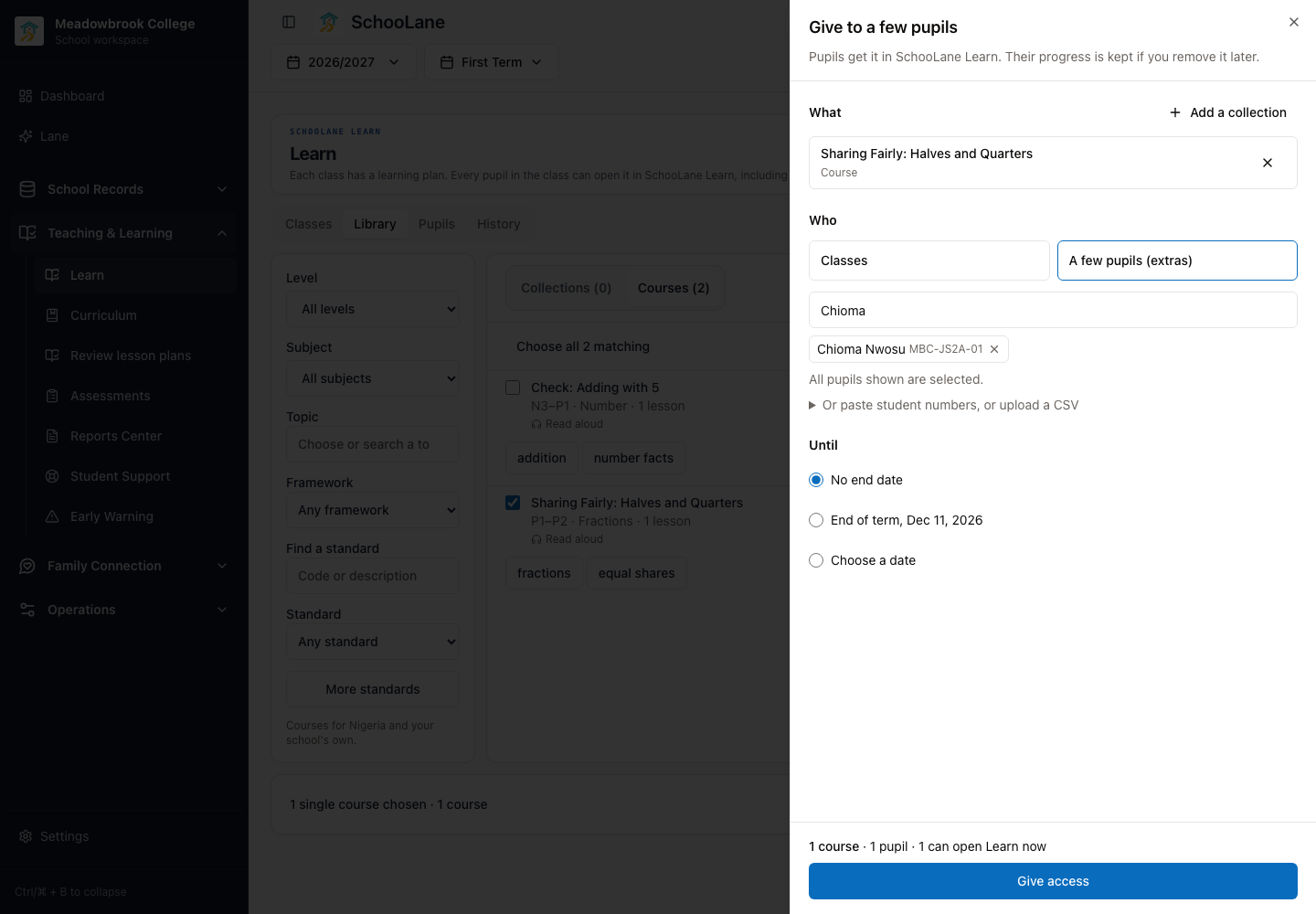
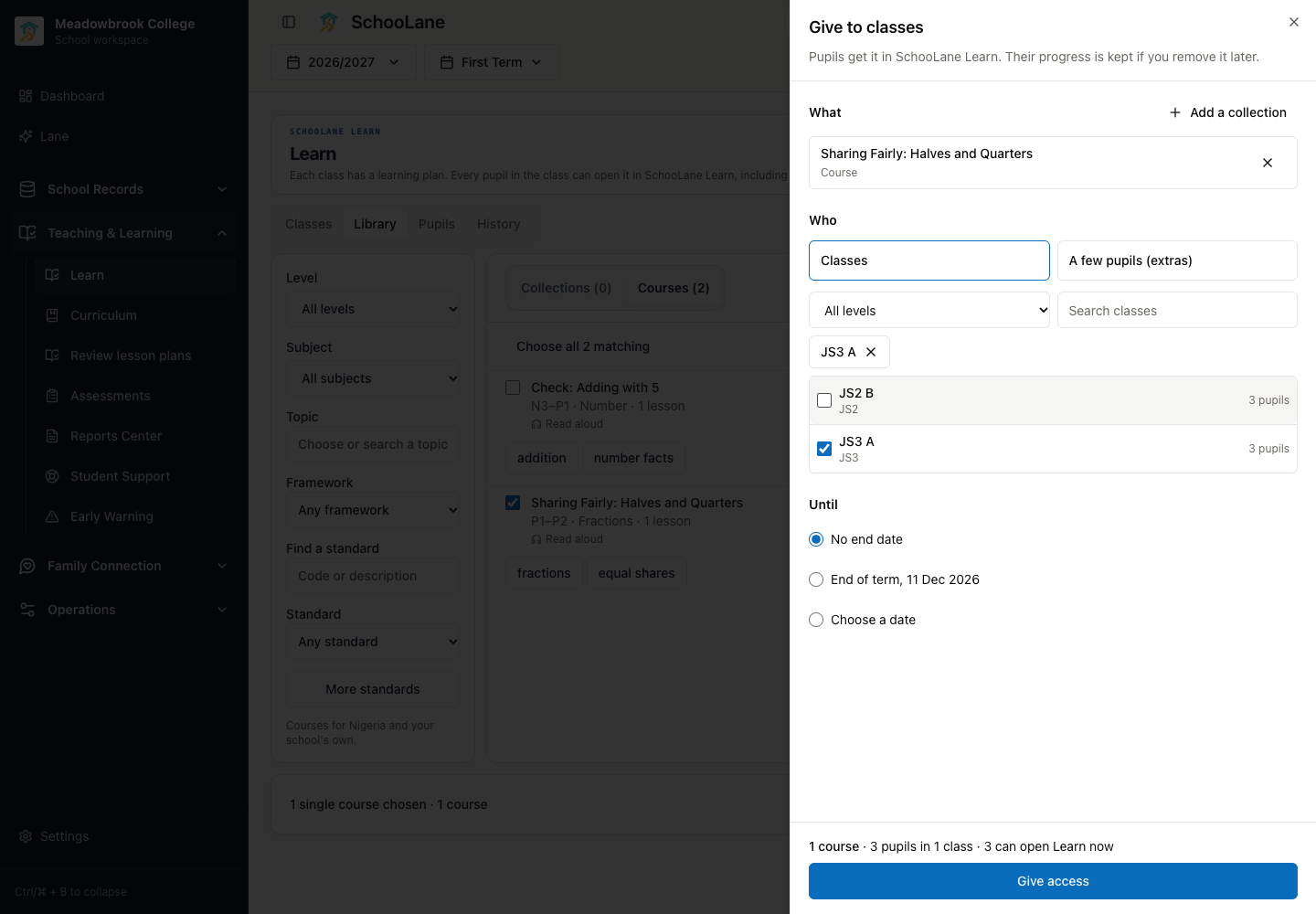
The Give to classes panel has three parts.
- What lists your choice. Use Add a collection to search for more, or the cross to leave one out.
- Who: choose Classes, then tick the classes. Search by class name or choose a Level. Use Load more classes to see more results. When all results for a level are loaded, use Select matching classes to tick them together. Your selections stay visible when you change the search. Choose A few pupils (extras) to give it to single pupils instead: type a name or student number in Search pupils and choose each pupil; chosen pupils appear as chips. Use Load more pupils when there are more matches. Open Or paste student numbers, or upload a CSV to paste Student numbers, one per line or upload a CSV with a
studentIdcolumn. Numbers that match no pupil are listed under Not found. Searching needs the Admissions and enrolment permission; pasting does not. - Until: No end date, End of term (the current term's last day) or Choose a date. Pupils lose access at the end of that day. Their progress is kept.
The line above the button says who it reaches, for example 59 pupils in 2 classes · 55 can open Learn now · 4 accounts will be created first. When automatic accounts are off it says how many get it once their account is set up. If any student numbers are listed under Not found, correct or remove them. Choose Give access once the recipients are confirmed. The panel closes and a message confirms, for example Gave B4 Mathematics, Term 1 to B4 Blue and B4 Gold. Pupils can open it within a minute or two.
Giving a class something it already has only changes its end date.
A class's SchooLane Learn section
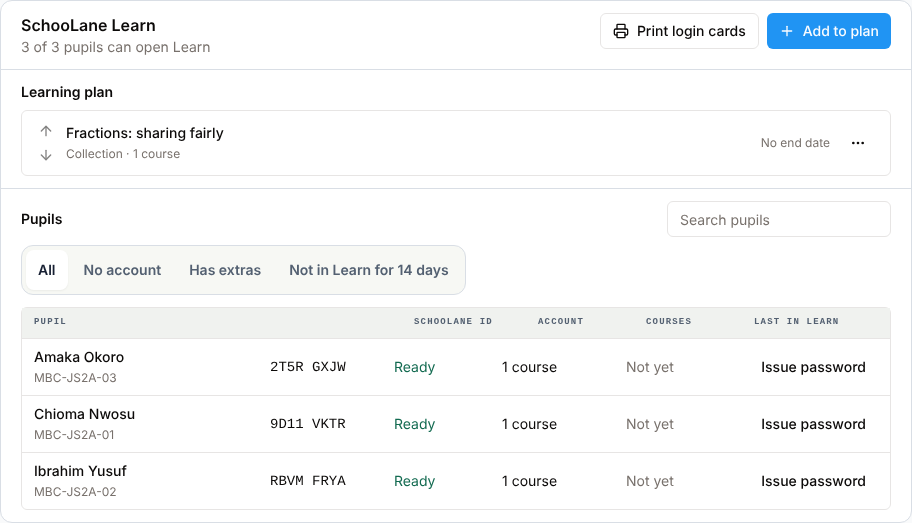
Open a class from Classes or from School Records → Classes. The SchooLane Learn section says how many pupils can open Learn, for example 28 of 30 pupils can open Learn.
Learning plan lists the class's collections and courses in the order pupils see them, each with its end date. Use the up and down arrows to change the order. Open the ⋯ menu on an entry for Set end date or Remove from plan. Removing asks first and says what pupils lose, for example 28 pupils lose 42 courses unless an extra still gives it to them; their progress is kept. Add to plan opens the same panel with the class already chosen.
Pupils lists each pupil's SchooLane ID, Account (Ready, No account or Revoked), Courses (with extras counted separately) and Last in Learn. Filter by All, No account, Has extras or Not in Learn for 14 days, or search by name or student number. Issue password gives one pupil a new temporary password. Create account sets up a Learn account for a pupil without one. Print login cards prints the class's login cards; see Learn accounts.
Pupils
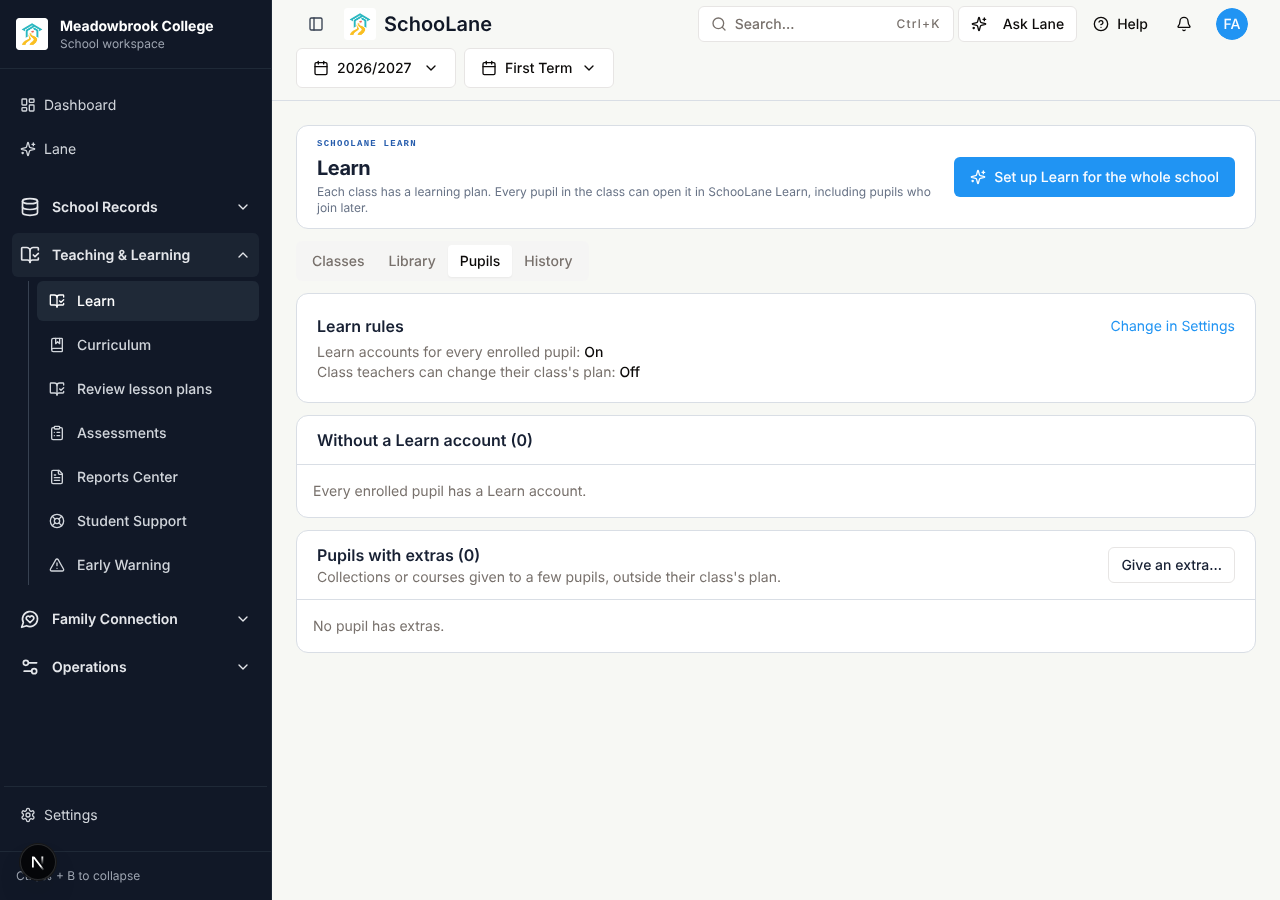
Pupils shows the school's Learn rules and two lists. With automatic accounts on, Without a Learn account says that accounts are created automatically within a few minutes.
- Learn rules says whether Learn accounts for every enrolled pupil and Class teachers can change their class's plan are On or Off. Choose Change in Settings to open Settings → SchooLane Learn, where a full school administrator turns them on or off. Everyone else sees them read-only.
- Without a Learn account lists enrolled pupils who have none. Create all sets them all up.
- Pupils with extras lists pupils who have collections or courses outside their class's plan, with their end dates. Use the cross to remove an extra. Give an extra… opens the panel for single pupils.
History
History lists everything that changed who can open what: plans given or removed, pupils who moved class or joined, ended entries, and account setup. Each row says what happened, when, whether it is Done, Working or Paused, and how many pupils it covered. Choose a row to see the pupils that need attention. Use Retry remaining pupils for a paused job; pupils already done are not changed again. Use Newer and Older for more.
First day with Learn
While any class has no plan, Set up Learn for the whole school appears at the top of the page. It has three steps:
- Accounts: create Learn accounts for every enrolled pupil without one, or Skip.
- Plans: for each level, tick the collections its classes should have, then Give plans.
- Login cards: open each class to print its cards.
What changed from Learn courses
Schools that gave courses before learning plans existed keep everything. On the first day, each class's plan was built from what most of its pupils already had, and anything a pupil had beyond that became that pupil's extra. A note at the top of Learn gives the date. Nothing was taken away.
Who can do what
School administrators manage Learn. Access groups need the SchooLane Learn permission: View to look, Manage to give plans and extras and to print login cards. Creating Learn accounts and changing Learn settings stay with full administrators.
Teachers see the Learn tab on their class page: the plan and each pupil's account, courses and last day in Learn. When Class teachers can change their class's learning plan is on, the class teacher can also use Add to plan, change end dates, reorder and remove entries for their own class.
Teachers set specific lessons and deadlines through Classwork. A learning plan gives pupils courses to study; a Classwork task is work their teacher expects back.
Courses and collections may include readiness criteria. Authors select the required goals, checks, scores and evidence conditions. Required collection components remain visible as gaps when a learner lacks access; missing courses are never counted as completed. Readiness is a criterion-based learning summary, not a calibrated exam forecast.