Grading schemes
Letter bands and the scheme each grade level uses. Reports read these rules. Teachers do not set them.
At Meadowbrook I want one story for what an A means. If JS2 and SS1 use different floors, say so here. Do not leave Tunde guessing at report time.
What you need first
- School-admin sign-in
- The school’s official bands (for example A starts at 80)
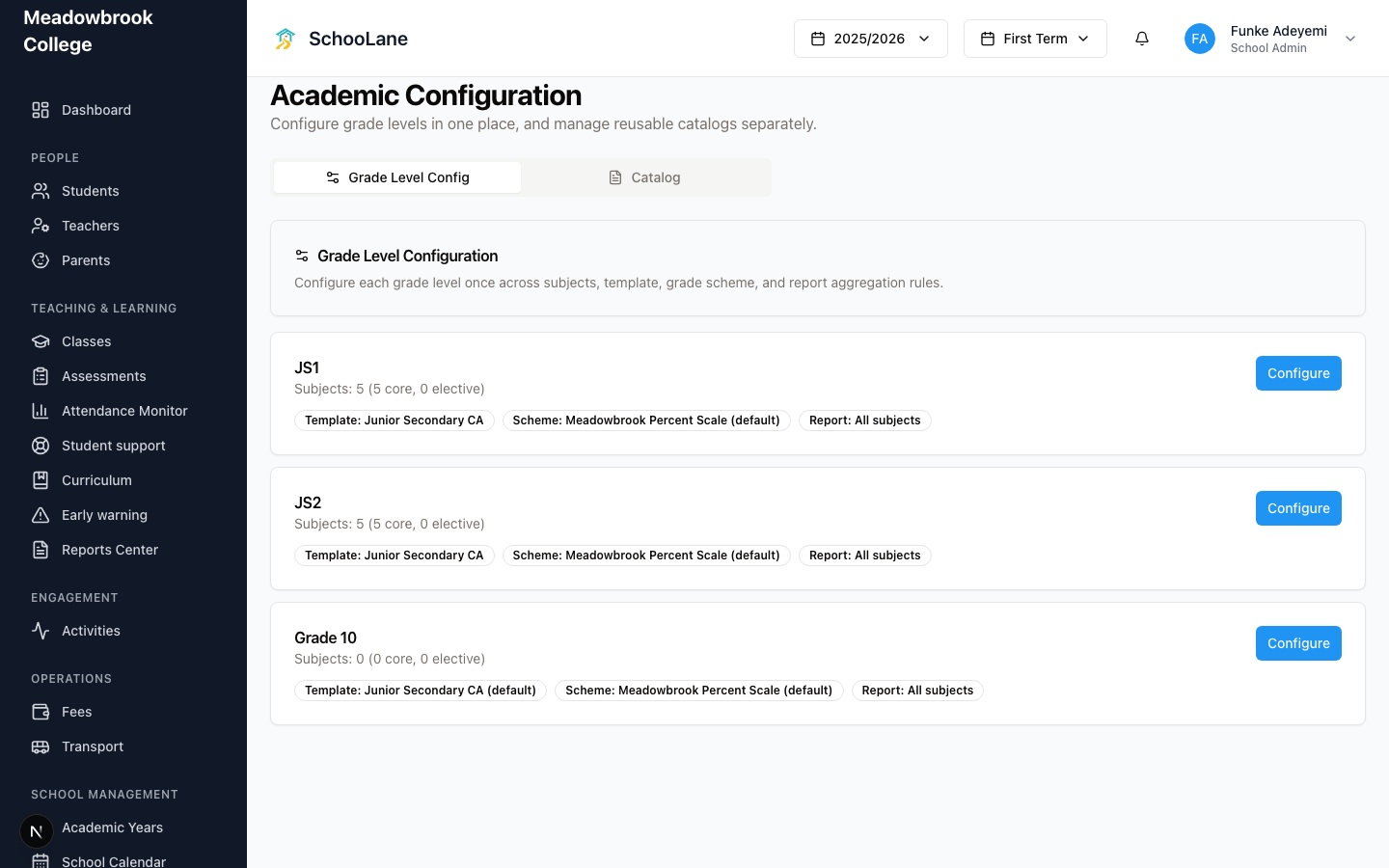
The shot is Academic Configuration, not a lone schemes list. The page subtitle is Configure grade levels in one place, and manage reusable catalogs separately. Two tabs sit under that: Grade Level Config and Catalog. If the school has no levels yet, the first tab says No grade levels available. That is the empty office, not a broken page.
Steps
1. Open Assessment Templates
Under School management, press Assessment Templates. You land on Academic Configuration.
2. Build the scheme in Catalog
Open Catalog, then Grade Schemes. Press New Scheme. The dialog is Create Grade Scheme.
Enter Scheme Name. Tick Set as default grade scheme if this is the school-wide one. Scale Mode is Percentage for mark bands, or Discrete for checklist values.
On a percentage scheme, each row is a letter, a colour, and Min-Max. Keep the bands next to each other. An A that starts at 80 and a B that ends at 82 will fight.
Press save. Use Set Default later if you picked the wrong one.
3. Attach it to a grade level
Back on Grade Level Config, open a level. Card 3) Grade Scheme has Grade Scheme Assignment. Pick the scheme, or Use default grade scheme. Press Save Grade Scheme.
JS2 can keep a tougher band than Primary 4. Say so on the level. Do not hope the report “just knows.”
4. Check a real report
After Tunde has scores in JS2 A, open Reports Center. The letter on a student report should match the band you typed.
Common mistakes
- Changing bands after reports went out. Recalculate, then tell parents.
- Overlapping letters. One score, one letter. Always.
- Stopping on Grade Level Config and never opening Catalog. The letters live under Grade Schemes.