Create and publish a Learn course
SchooLane Learn Studio is a separate space for preparing short lessons and practice activities. It uses your SchooLane sign-in. Access is granted to Learn authors; school staff access alone does not automatically grant permission to publish platform courses.
Enter your email address and choose Continue, then choose Email code or Password. If you choose email code, enter the six-digit code sent to that address. Use Change to correct the address, Choose another way to switch methods, or Resend code if the first code does not arrive.
Under Continue, Studio can also show Continue with Google once SchooLane has switched it on. It signs in the SchooLane account that uses the same email as your Google account, and returns you to Studio. It never creates an account or grants Studio access: if no SchooLane account uses that email, Studio says No SchooLane account uses this Google email. Sign in with the email your SchooLane account uses instead.
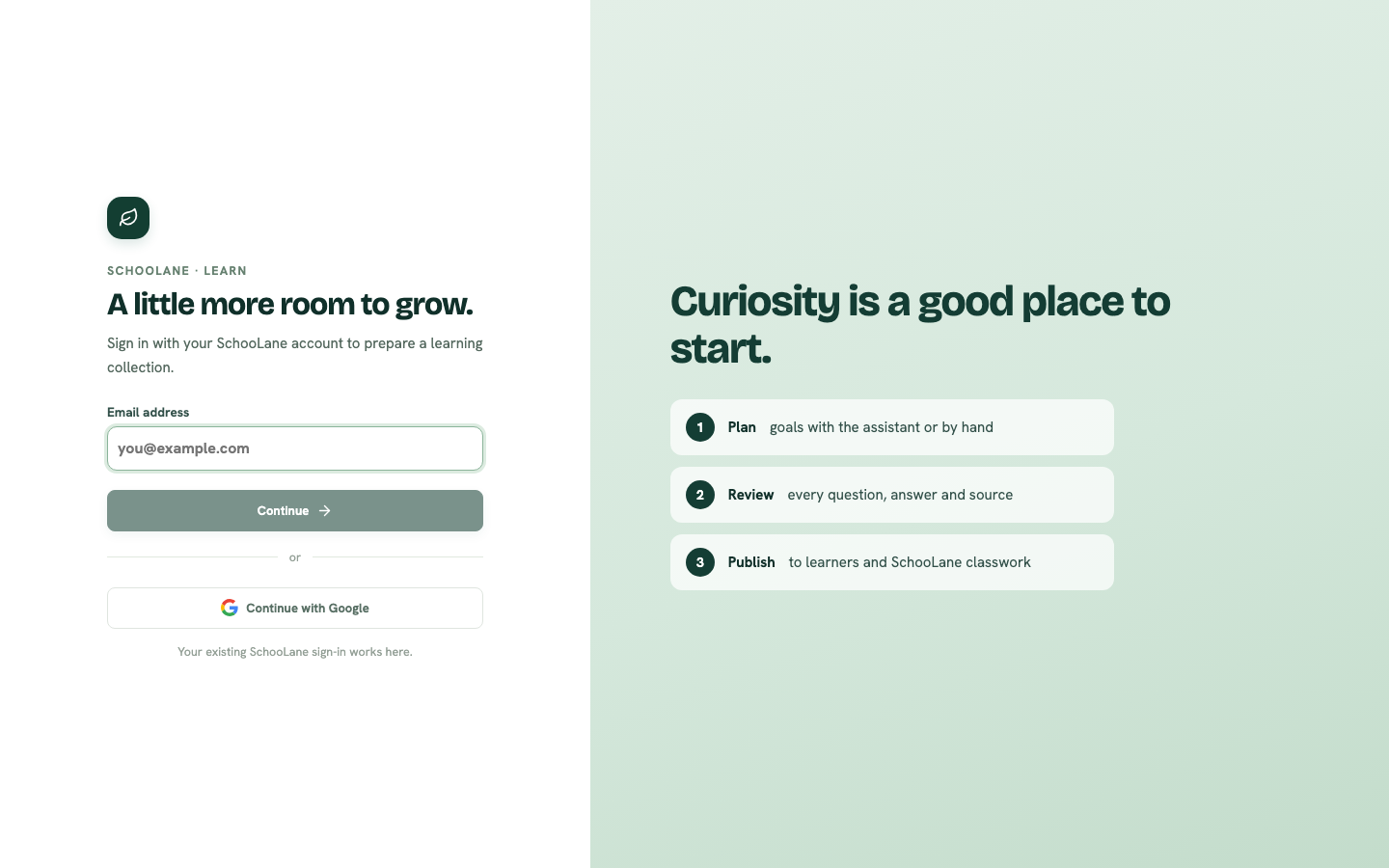
If you chose password and need to change it, choose Forgot password?, enter your email, and follow the reset link. The link returns to Learn Studio to set the new password.
Start a course
Choose New draft in Learn Studio and write a brief under What would you like to create?. Before creating the course, complete Library details: choose an audience, subject, at least one topic and, for school or early-years learning, a grade range. These details are required for platform courses and cannot be cleared on later saves. Standards links remain optional and should only be added when the content supports them. Studio shows a Quick suggestion based on your brief. Choose Create and plan to ask the assistant to check that format. If it agrees, Studio creates the draft in one step; if it strongly recommends a different format, choose Use assistant suggestion or Keep quick suggestion before creation. You can also choose Learning path, Practice quiz, Flashcard deck, or Check understanding yourself to skip that recommendation. If it is unavailable, your brief remains in place and you can choose a format manually. If you want a cited first plan, choose Attach reference (optional) and select a reviewed reference; choose Load more references if an older one is not shown. Add or review material opens the upload and extraction review in the same entry, where you can choose Use this reference on an older reviewed source. Studio saves the draft and opens Assistant to propose a plan. If that first assistant request cannot be confirmed, choose Retry assistant request to check the same request. You can also leave the brief empty and choose Create blank draft to edit by hand. A brief-created learning path starts with a saved learning goal and no authored lesson content. The summary shows No lesson content yet and no duration estimate until lessons are added. This planning placeholder cannot be released; accepting a complete path proposal replaces it only if it is unchanged. Other choices start with a focused fractions example you can replace. Edit the name, description, and activities to fit your learners. If creating the draft fails, your brief stays in the field so you can retry.
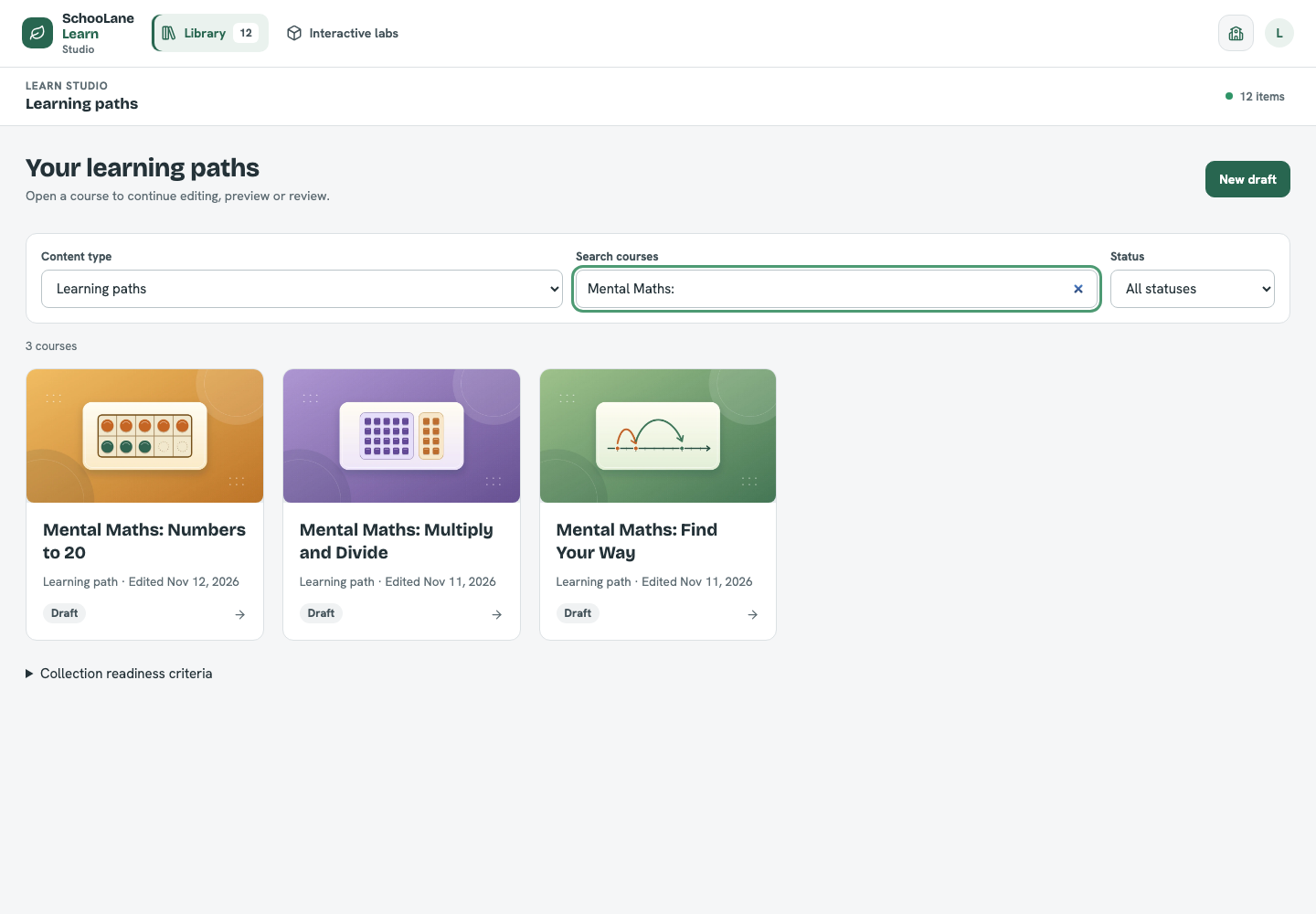
In Library, use Content type to filter All content types, Learning paths, Practice quizzes, Flashcard decks or Check understanding. These are filters on your course list. Interactive labs remains a separate workspace in the top navigation; authors with administration access also see Platform administration. Each course shows its cover, type, status and last edit date. Use Search courses to find a name and Status to show drafts or published courses. Filters search the courses already loaded; use Load more courses to include older work.
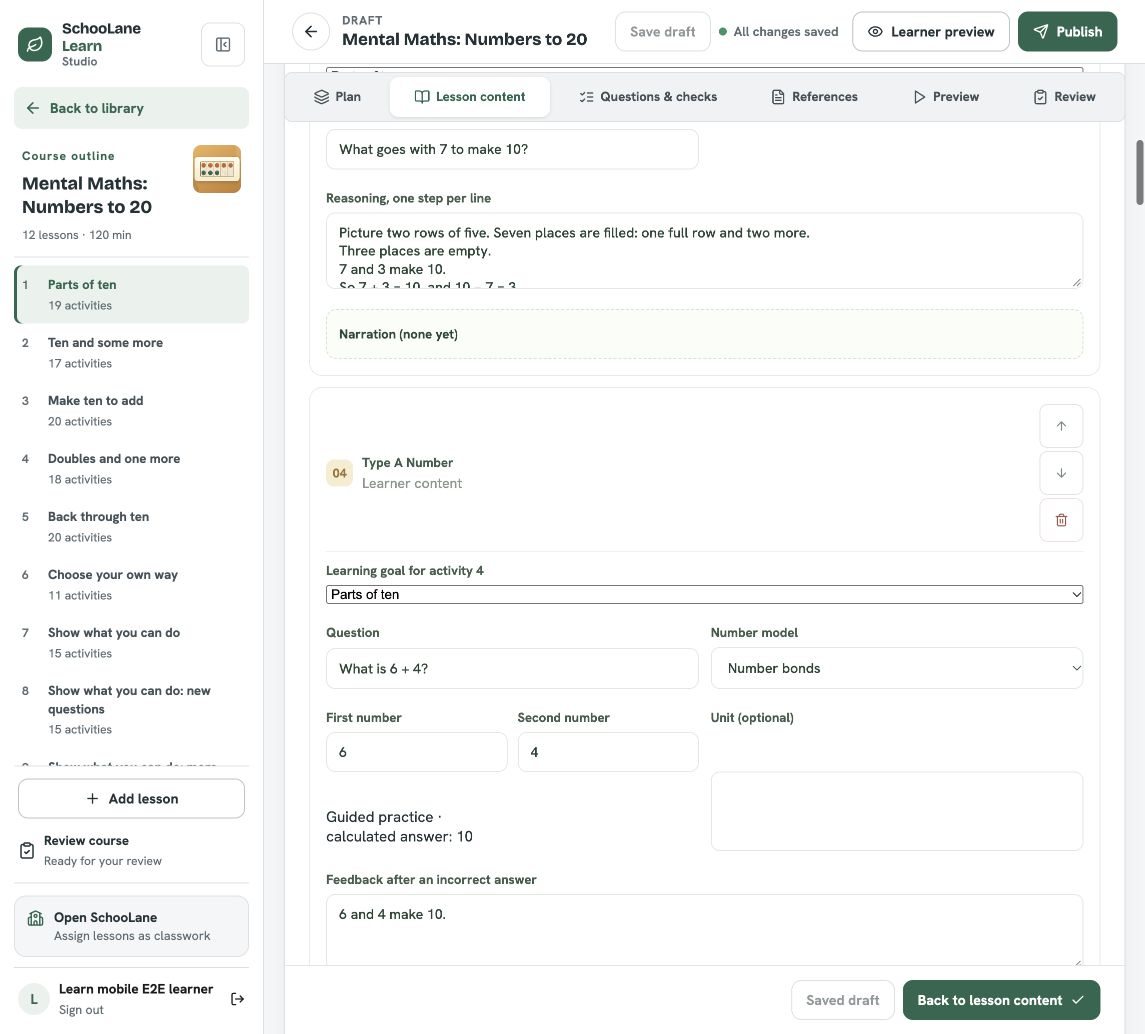
Opening a course replaces the library navigation with its Course outline sidebar. Select a lesson from the ordered list to edit it. On narrower screens, use the Lesson menu. Back to library restores your content type, search and status filters. Questions, checks and references remain in their existing course sections. Use Add lesson to extend the course with activities of its format. Use the remove control in Lesson content to remove an unwanted lesson.
Until you have a course, Studio shows the brief and the required library details. If a workspace has nothing yet, choose Start a draft to move to the brief field. The course is created only after you choose Create and plan or Create blank draft.
In a flashcard deck, open Cards and choose Add card set to add two editable recall cards mapped to the first goal. Edit the prompts and answers, then save the draft. The Add a card menu offers only flashcards in a deck. A card set can be removed from the draft before publishing.
Choose New draft in the library to open the brief. From a course, choose Back to library first. With no draft open, the header reads Your courses. While a draft is open, the header shows its title, its status, Save draft, whether it is saved, Learner preview and the publish button; choose the back arrow beside the title to return to your course list with its previous format, search and status filter. The status is Draft or Published, and it reads Published · newer edits not published when the draft has changed since the last publish, including after you reload. Beside it, Unsaved changes means you have edits to save, and All changes saved means the draft is saved. The publish button reads Publish for a course that has never been published, Publish changes when the draft has edits learners do not have yet, and Published (unavailable) when learners already have the latest version. Open SchooLane at the bottom of the sidebar opens the SchooLane web app, where teachers assign published lessons as classwork.
Studio confirms what happened in a message at the bottom right of the screen, for example after you save or publish. Confirmations close by themselves after a few seconds. Errors, and messages that offer a next step, stay until you act on them or choose Close message.
The sidebar stays in place at the height of your window while the course page scrolls. In a short window, scroll the lesson list; Back to library, Add lesson, Review course and the account controls stay in place. The selected lesson has a green marker as well as a highlighted background. Use Collapse sidebar to give the editor more room; choose Expand sidebar to restore the navigation. Studio remembers this choice on the device. Choose Assistant or Edit course above the workspace to switch between the conversation and the editor; on a narrow screen, the course outline becomes a Lesson menu above the editor.
You can use the keyboard to move through the sidebar, brief, reference controls, and draft list. Press Tab or Shift+Tab to move between controls, then Enter or Space to activate the focused button. Collapsing the course sidebar shows lesson numbers and keeps lesson names available to assistive technology.
Choose Start learning plan to name the goals for the course. The draft format is set when you create it and stays fixed while you edit. For each goal, write what success would look like and choose the thinking task. Use Move goal up and Move goal down to set their order. Open Map activities to goals to give each activity a primary goal and purpose. Studio points out goals without teaching or independent check opportunities. You can revise the plan and activity order before saving the draft. A flashcard self-rating is practice; it is not an independent scored check.
The Desired interaction style is a design brief for a future revision. Open Change design brief to choose a requested level from 1 to 10 and a target session length. Saving this brief does not change the activities or learner experience by itself. Studio shows whether the current learner app supports the requested level. Review the actual activities before publishing.
Remembering sets how Learn helps pupils keep what they learn. Choose a preset: Course default follows the audience (Young readers for pre-reader courses and courses that end at level 3 or below, Standard for the rest), or choose Exam ready, Standard or Young readers. Each technique can follow the preset or be set to On or Off: Missed questions come back, Ask how sure before checking, Show difficulty, Pre-test before teaching, Mixed practice, My mistakes list and Re-take unmastered checks. The panel shows what pupils get. Once you choose anything here, release checks apply: a pre-test needs teaching and then at least two practice questions in each practice lesson, and Exam ready needs a worked solution on every question in check and test lessons. In a lesson, each scored question has a Difficulty of None, Foundation, Core or Stretch.
Choose Assistant when you want help with the selected course. The course outline stays available while you work. You can ask about the selected course while reviewing its lessons and learning plan. Save your own edits before asking the assistant to change the draft. The assistant can inspect the current plan, its teaching, practice, and check coverage, and the teaching references available to your account. For proposed learning goals, edit each goal, select the goals you want to keep, then choose Add selected goals to draft; cited goals keep their reviewed passage. Supported introduction and level edits are saved to the draft and shown in the conversation. Choose Edit course to return to manual editing.
The editor keeps one section open at a time. Learning paths show Plan, Lesson content, Questions & checks, References, Preview, and Review. Practice quizzes use Questions, understanding checks use Checks, and flashcard decks use Cards in place of sections that do not apply. The Course outline shows the current lesson order and counts. Choose Plan to change course details and learning goals. If the course cites a reviewed source, expand Cited reference excerpt there to read its saved passage. A learning path with content opens on Lesson content; a new plan opens on Plan. A quiz or check opens on its questions; a deck opens on its cards. Choose Review course in the outline to check what needs attention before publication. Preview shows the saved draft through the same learner-safe content projection used by the app. It can display concept cards, worked examples, choice and reading questions, fraction responses, teach-back, reflections, flashcards, matching, ordering, and fraction models. Offline tasks show their instructions and materials; activities without a Studio player show a message directing you back to their content. Selecting a lesson in the outline opens its saved content in Preview. Number questions can also be rehearsed, including changing the split in a guided number model. Try the saved activities there; Learn evaluates rehearsal responses without creating a learner attempt, points, or progress. Save any pending edits before using it to inspect the latest version.
You can describe a topic and audience without choosing a reference, then ask the assistant to plan learning goals. Review and edit the proposed goals, select which ones to keep, then choose Add selected goals to draft. For an existing goal, ask it to build a teaching scene or choose Build a scene for a goal. The proposed explanation, worked example, guided practice and independent check remain editable before you add them. These are model drafts without passage citations; check the facts, answer keys and feedback yourself. Choosing a reviewed reference instead makes the proposal cite the exact passages used.
To plan cited goals from a reference, choose it under Use reference and ask the assistant to plan learning goals. It shows the proposed goals, success criteria and cited passages before changing the draft. You can edit each goal's title, strand, success criteria and thinking demand in the proposal. The cited passage stays attached to its original goal. Choose Add these goals to draft after reviewing them. The goals appear in Plan what learners should show after saving; reload to confirm them.
When a supported goal, teaching scene, or practice quiz is ready, the canvas shows Saved before beside Proposed after using the last saved draft and the assistant's suggestion. The comparison follows the edits and goal selection you made in the assistant, including after you reload. It is for review; it does not add the suggestion. Edit and accept it in the assistant conversation. If the saved draft changed after the suggestion, the canvas lists the changed fields when it has the earlier saved version; otherwise it tells you those fields are unavailable. Choose Revise this suggestion to describe a change to one ready proposal; the assistant returns a separate suggestion and leaves the saved draft as it is. Save your own draft edits before asking for another suggestion. For a complete path proposal, the canvas comparison shows the saved lessons beside each proposed stage and its goal, teaching, practice, and check. Expand a stage in the assistant conversation to inspect its details and cited passages. Choose Revise this suggestion before accepting if you want changes; after acceptance, edit the saved goals and activities in the draft canvas. To add a new reference while writing an assistant message, choose Add or review reference beside the message. Your message stays in place while you upload or paste material, review the extracted passages, and choose Use this reference. Studio returns to the section you were editing and selects that reference for the next assistant request. You can also choose No reference under Use reference for a model draft without citations.
To build content for a cited goal, choose its reviewed reference and ask the assistant to build a teaching scene, or choose Build a scene for a goal to fill the request. Review the proposed explanation, worked example, guided practice, independent check, answer keys, and cited passages. Open Edit this proposal before adding to change its text, choices, answer keys, or feedback while retaining the selected citations. Choose Add scene to draft or Add edited scene to draft to add four mapped activities to the selected lesson. Open the lesson on the course side to edit any activity yourself. The review panel shows remaining plan gaps. The assistant cannot publish a course.
To propose a complete path from a brief or reviewed reference, ask the assistant to create a complete learning path. Expand each of its two or three ordered stages to review the goal, teaching material, guided practice, independent check, answer keys, and any cited passage. For a model draft without a reference, check its facts and answers. Select I reviewed the goals, teaching material, practice and independent checks before choosing Add reviewed path to draft. The proposal stays separate from the saved draft until you accept it. Acceptance adds each goal and its teaching, practice, and check as a lesson stage; a new brief path replaces only the untouched placeholder. If you edited the placeholder, it stays in the draft. Choose Revise this suggestion to change it before adding; after acceptance, edit saved goals and activities in the draft canvas. The assistant cannot publish a course.
For a practice quiz, ask the assistant to create guided questions for a saved goal. It proposes three to five multiple-choice questions without changing the draft. Review each prompt, answer and wrong-answer feedback; when you used a reference, check each pinned passage. Choose Add reviewed quiz to draft to append the questions to the lesson. The focused quiz draft starts with two example questions, so review or remove those examples if they do not fit your new quiz. You can undo the unchanged assistant addition from the conversation; later manual edits to its questions are protected from that undo.
For a flashcard deck, ask the assistant to create flashcards for a saved goal. Edit each card's Front and Back, and read its cited passage when a reviewed reference is selected. Choose Add reviewed cards to draft to add the cards. For an independent check, ask the assistant to create an independent check for a saved goal. Edit every question, answer choice, correct answer, and feedback; read the cited passage when shown. Choose Add reviewed check to draft after checking each answer. In both proposals, choose Discard proposal to remove the suggestion without changing the draft, or Revise this suggestion to ask for another version. The canvas shows the reviewed fields beside the saved lesson; the proposal is added only when you choose its accept button.
After adding proposed goals, a teaching scene, or a practice quiz, choose Undo this addition in the conversation to remove only that accepted addition from the draft. Other saved edits stay in place. Save any current manual edits first. If you have since edited the added goals, scene, or quiz questions, or mapped activities to an added goal, Studio stops the undo and explains what needs manual review. The undo does not change a published revision.
Before accepting a proposed goal map or scene, choose Discard proposal if you do not want it. This closes the suggestion without changing the saved draft. You can ask the assistant again with a clearer brief.
While the assistant is working, choose Stop request to prevent its response from changing the draft. The stopped request remains in the conversation so you can see what happened. You can send a new request afterward.
If the saved draft has changed since a suggestion was prepared, Studio shows both draft version numbers and keeps the older suggestion from being added. Check the current draft, then choose Revise request to ask for a fresh suggestion.
Feedback after an incorrect answer should help the learner try again. If a proposed question praises a wrong answer, Studio asks you to edit that feedback before adding the scene. The same check runs before publishing a draft.
Say who the course is for
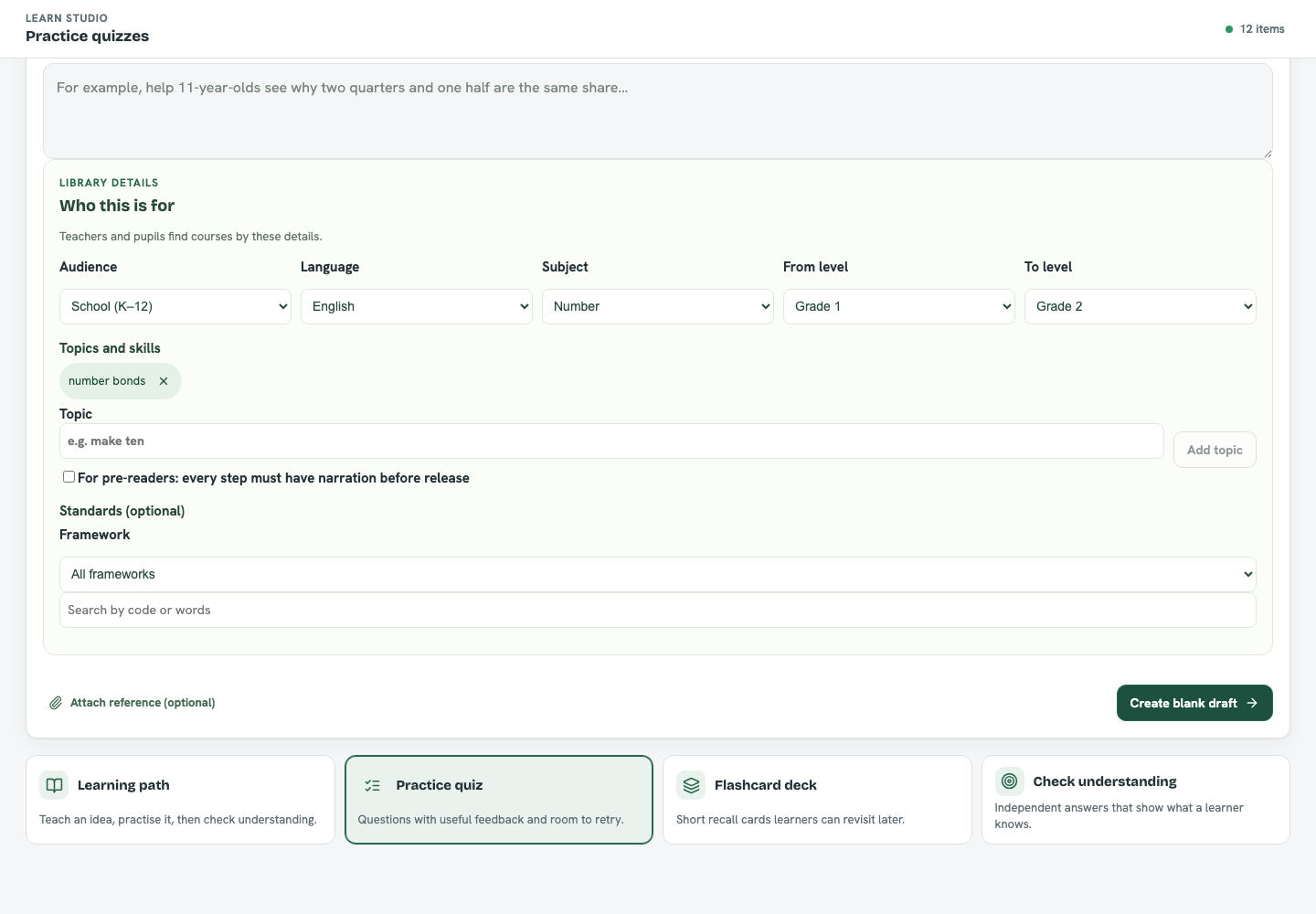
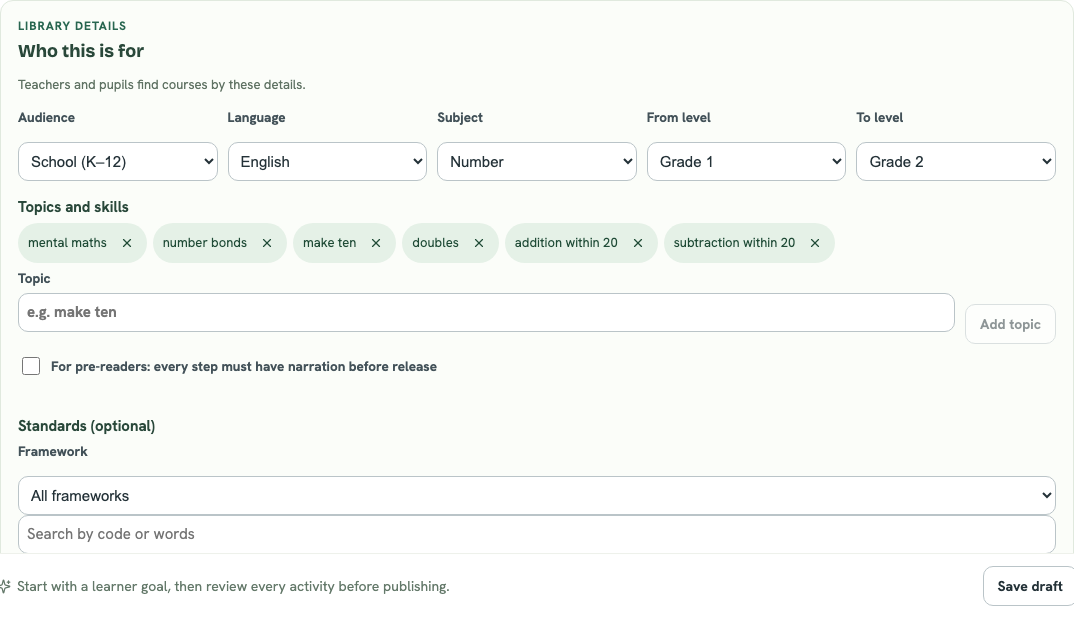
On Plan, Library details (Who this is for) decides how teachers and pupils find the course. Choose Audience: School (K–12), Early years or General learning. Audience, subject and at least one topic are required for platform courses. School and early-years courses require an explicit grade range; general learning has no grade range. Choose Language and Subject.
Choose a grade range for school or early-years courses. Your school’s catalogue shows the grade names used in its school system. Tick For pre-readers when every step needs narration before release.
Under Topics and skills, type a topic such as “make ten” and choose Add topic or press Enter. Use the same topic names across related courses so educators can filter by them. Remove a topic with its × button.
Standards (optional) links the course to records in the standards library. Choose Framework independently of the course's country, then search by code or description and choose Link. Next standards opens another page; First page returns to the beginning. Linked standards show their codes and descriptions, and their × buttons remove the links. A link indicates a relationship to that standard; it does not certify full coverage or mastery. Enrichment courses can have no linked standards. Check the framework edition and source shown with the library details; SchooLane-generated references are identified separately from publisher codes. If the options cannot load, use Retry options. Provisional standards must be replaced or removed before publication.
After the course is published, Language and regional versions appears below Library details. A draft that has never been published does not show it, because a version starts from published content. Open it to make another version. It opens by itself when the course already has other versions, and lists each one by language and market, with Open now beside the one you are editing. Choose a language and Create language version, or choose a region and Create regional version. Only languages and regions without a version are offered. A regional version fills in local names, foods and money for that country and drops standards from another country's curriculum, so link the right ones. Studio opens the new version and confirms it is a draft until you publish it. Each version is its own draft in the same family; review and publish it separately. Save the draft first, because a new version starts from the saved draft; until then, Studio says so and the create buttons are unavailable.
Each activity has a Narration panel. In a pre-reader course it is open and reads Narration (required for pre-readers). Say whether the recording reads the step aloud or gives Spoken instructions, and type What the recording says (transcript). Upload recording is available once the transcript has text. When the course has versions in other languages, choose the Recording language first. If an upload fails, the chosen file stays ready; choose Upload with the file name to try again.
To add a video, sound or picture in a learning path, describe a picture or video under What the picture or video shows, then use Add a video, sound or picture. A sound needs no description. Add a transcript for sound and video, and add WebVTT captions to a video before publishing.
Add a course cover
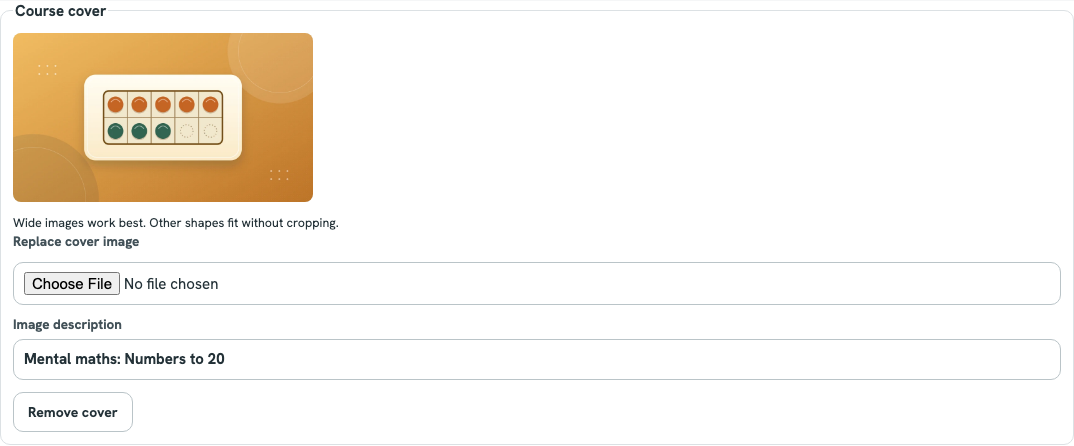
In Plan, find Course cover. Choose a PNG, JPEG or WebP image, add an Image description, then choose Upload cover. Wide images fill the frame. Other shapes are centred with padding so the whole picture stays visible. Studio makes a smaller copy for fast loading. Choose Save draft to keep it, or Remove cover to take it off the draft. The new cover appears on learner cards after the reviewed draft is published.
Save a draft
Choose Save draft as you work. Draft edits remain in Studio and do not change what a learner sees. The learner app only receives a published, reviewed revision. If you sign out with unsaved changes, Studio asks before discarding them. If the course list cannot be loaded, Studio keeps your session so you can retry.
If you open another course while edits are unsaved, Studio asks whether to discard them. Save first if you want to keep your changes.
Add teaching references
Open Teaching references, then paste a passage or choose a text-based PDF or plain-text file. Add a title and confirm that you have permission to use the material. PDFs must be no larger than 10 MB, contain no more than 20 pages, and have selectable text; scanned pages need to be pasted as text because Learn does not run OCR. Check the displayed passage and page references, especially equations and diagrams, then choose Use this reference. This makes the exact extraction available for cited AI authoring; it is your check of the extracted text, not a school endorsement or a guarantee that generated content is correct. An unreviewed draft reference can be removed; a ready reference is retained for review history.
Draft questions from a source
Open Questions & checks in a learning path, Questions in a practice quiz, or Checks in an understanding check to see the questions already in the draft. Choose Edit beside one to change its fields directly in the canvas. To ask AI for more, expand Make practice from a source or Make a check from a source, then choose a reviewed Reference for the lesson. Studio does not select one for you. Choose + Add a reference to open Teaching references if you need to upload and review one. You can choose another lesson or reference, and edit What should learners practise?. Open Question type and learning goal to change the available format or mapped goal. Choose Draft questions; if the course has unsaved changes, Studio saves them first. Learn prepares three to five suggested questions from the reviewed text, using the selected goal and success criterion as context.
Read the cited source passage beneath each question. Edit the wording, choices and explanation, and select the correct answer. Open Question type and learning goal to choose an available format. Flashcards put each prompt on the front and its correct answer and explanation on the back. Matching uses the prompts and correct answers as pairs; prompts and answers must be distinct. Choose the matching Add as … button when the content is accurate. Practice questions and flashcards are mapped as guided practice. Questions added to Check understanding are mapped as independent checks, whose first response can contribute evidence. Open the activity to check it alongside the rest of the package, then use the usual review and publish flow. If the plan or draft changed after generation, generate again against the current plan.
Review and publish
Check the lesson order, activity instructions, correct answers, feedback and any illustration descriptions. Edit each choice in its own field and use Add choice or Remove to change the list; the selected correct answer stays attached to its choice while you edit. In a deck, choose Add recall card to insert a card directly. In a quiz or understanding check, choose Add multiple-choice question or Add multiple-choice check, Fraction question, or Matching question; More formats offers the other supported choices. The editor focuses the new item so you can write immediately. A new multiple-choice item starts with its first option marked correct; select a different answer if needed. For an independent check, verify the answer and the help shown after a wrong first response. Choose Publish (or Publish changes for a course you published before) in the header when the course is ready. If publication succeeds but library indexing fails, Studio says so; review and publish the saved revision again to retry indexing. Publishing creates a new revision; learners already practising a lesson continue on the revision with which they started.
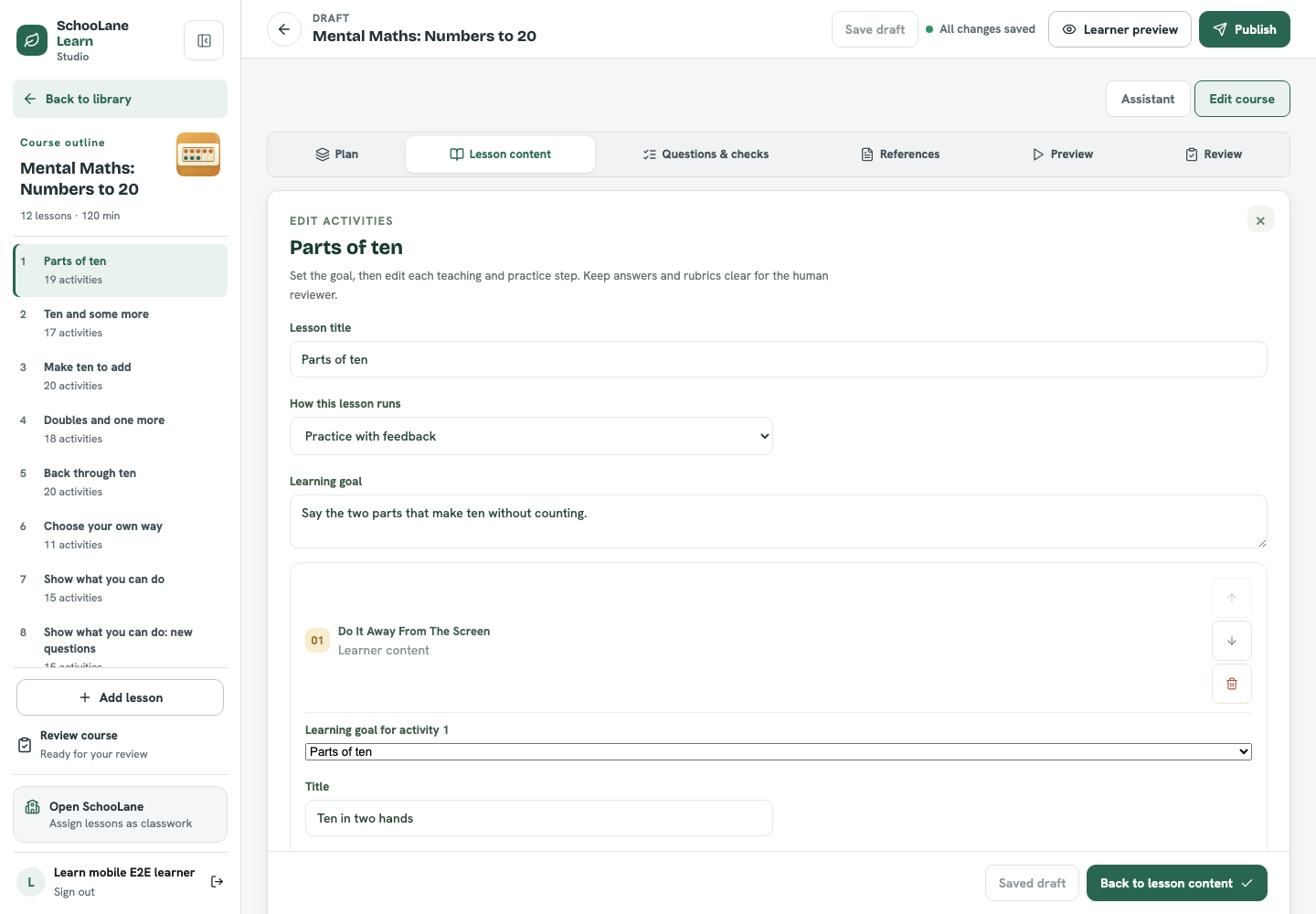
Select a lesson in Course outline, or open Lesson content and choose its edit arrow, to manage activities in the draft canvas. Use Add an activity to choose an explanation card, worked example, multiple-choice question, fraction response, match pairs, ordered steps, fraction model, scenario, teach-back, flashcard, reading check or reflection. Matching activities keep each pair together in the answer key while the learner sees the right-side choices shuffled. For ordered steps, edit the expected order with the up and down controls. A fraction model lets learners choose an allowed number of equal parts and shade the model; equivalent fractions are accepted when the chosen part count is allowed. Open Preview within a matching, ordering or model activity to try the buttons and check a sample response; this author preview does not save learner progress. Each format has fields for its own instructions and answer guidance. Use the up and down controls to change activity order. Remove activity deletes that item from the draft; a lesson always keeps at least two activities. Choose Save draft in the canvas, then Back to lesson content when finished.
For a concept card, an illustration is optional. If you add one, enter an Image description (required for an illustration), then choose Add illustration (optional) to upload a PNG, JPEG or WebP image up to 5 MB. The editor shows a preview, and you can replace or remove the image. A concept card without an illustration needs no image description. If the upload fails, a message beside the upload field explains what to change; choose a valid file to retry. You can continue editing the lesson while an image uploads. Wait for the upload to finish, choose Save draft, then Back to lesson content. If another field prevents saving, the message names its lesson, activity and field.
The review dialog opens on its heading. Its first line sums up who the course reaches: markets, levels, language and the number of linked standards. It shows the saved draft version you are reviewing, each activity's learner-facing prompt, choices, answer guidance and illustration description where present. It checks that answer keys point to an available choice, checks cited source passages against your reviewed references, and shows their exact text and page. It lists specific release gaps, such as an unavailable cited passage, a practice quiz with a non-question activity, a missing independent check, answer guidance that praises a wrong answer, or an interaction the learner app cannot yet play. While any are listed under Fix before publishing, the dialog offers only Keep editing; fix them, then open review again. When nothing needs fixing, confirm that you reviewed the content, then choose Publish this revision. Press Esc or choose Keep editing to close the dialog without publishing. Studio saves unsaved edits before opening review and publishes that exact saved version without another draft save. If another session changes the draft, the dialog explains the conflict and leaves your edits in place so you can resolve it before publishing. The assistant can prepare drafts but cannot publish them. A tool connected through Learn MCP also only prepares drafts, unless you approved it with the separate publishing permission when you connected it. With that permission it can publish drafts you created, but only after being told that a person reviewed the revision, and it is refused in the same way as Studio when something is still listed under Fix before publishing. Approve the publishing permission only for a tool you trust.
Add, find and edit a question
Lesson content holds the complete lesson sequence: explanations, examples, media, practical tasks, labs, cards and questions. Use it to add activities, arrange their order, change the lesson goal and choose how the lesson runs. Flashcard decks continue to use Cards.
Questions & checks lists questions and learner responses across the draft. Choose a Lesson, Question type or Search questions to narrow the list. All lessons searches the whole course. Selecting a lesson in the sidebar while this section is open shows that lesson’s questions. Explanations, examples, media, offline tasks, labs and flashcards remain available in Lesson content rather than appearing as questions.
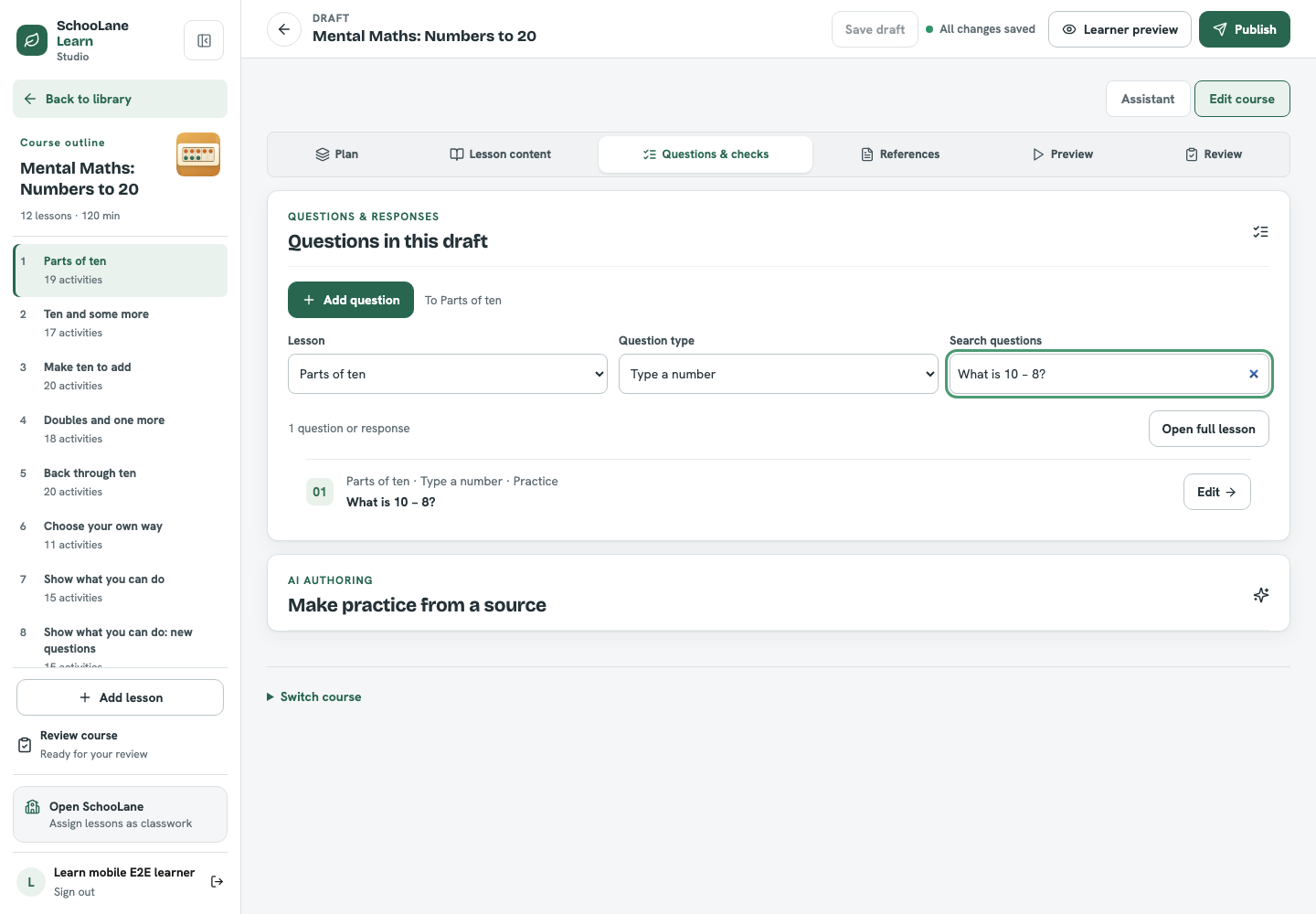
To write a new question, select its Lesson, then choose Add question. The destination lesson appears beside the button. Choose New question type, then Add to lesson to open the new question directly with its answer and feedback fields. Cancel closes the chooser without creating anything. When All lessons is selected, choose a destination lesson first. Lessons support up to 30 activities. Practice quizzes and checks offer only their supported scored question types.
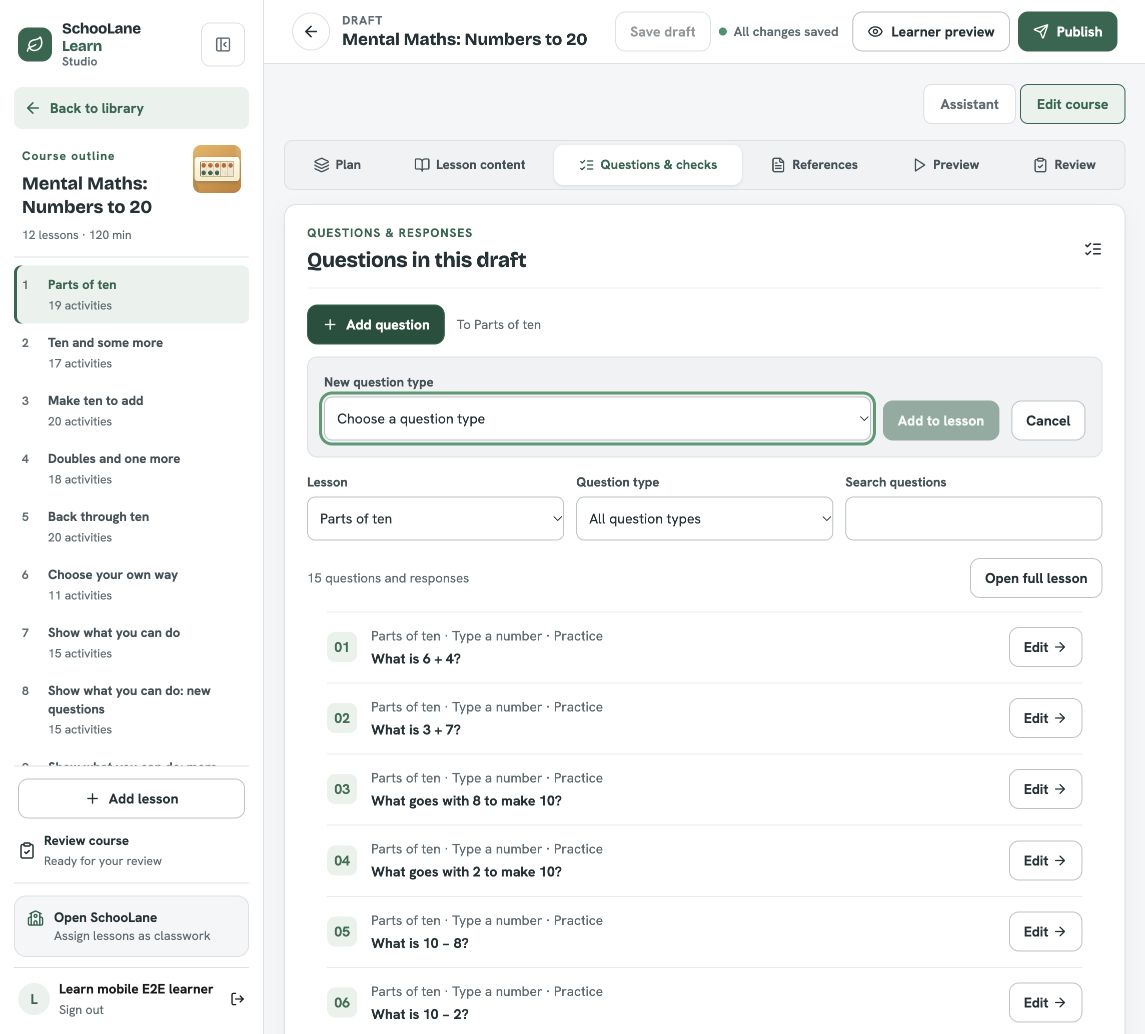
New questions are appended to the selected lesson and inherit its learning goal when that goal is unambiguous. Review the question, answer and feedback, then choose Save draft. Back to questions clears the previous search and shows the added question’s type so you can find it in the list.
Choose Edit on a question to open only that activity. Its heading identifies the lesson and its position in the full lesson. The same answer, feedback, rubric, goal mapping, worked solution, difficulty, media and narration controls remain available where the activity supports them. Up/down controls move the activity within the full lesson; remove still keeps at least two activities in a lesson. Open full lesson shows the complete sequence and lesson settings. Back to questions returns to the list with its filters and search intact. Switching views keeps your unsaved edits; choose Save draft to persist them.
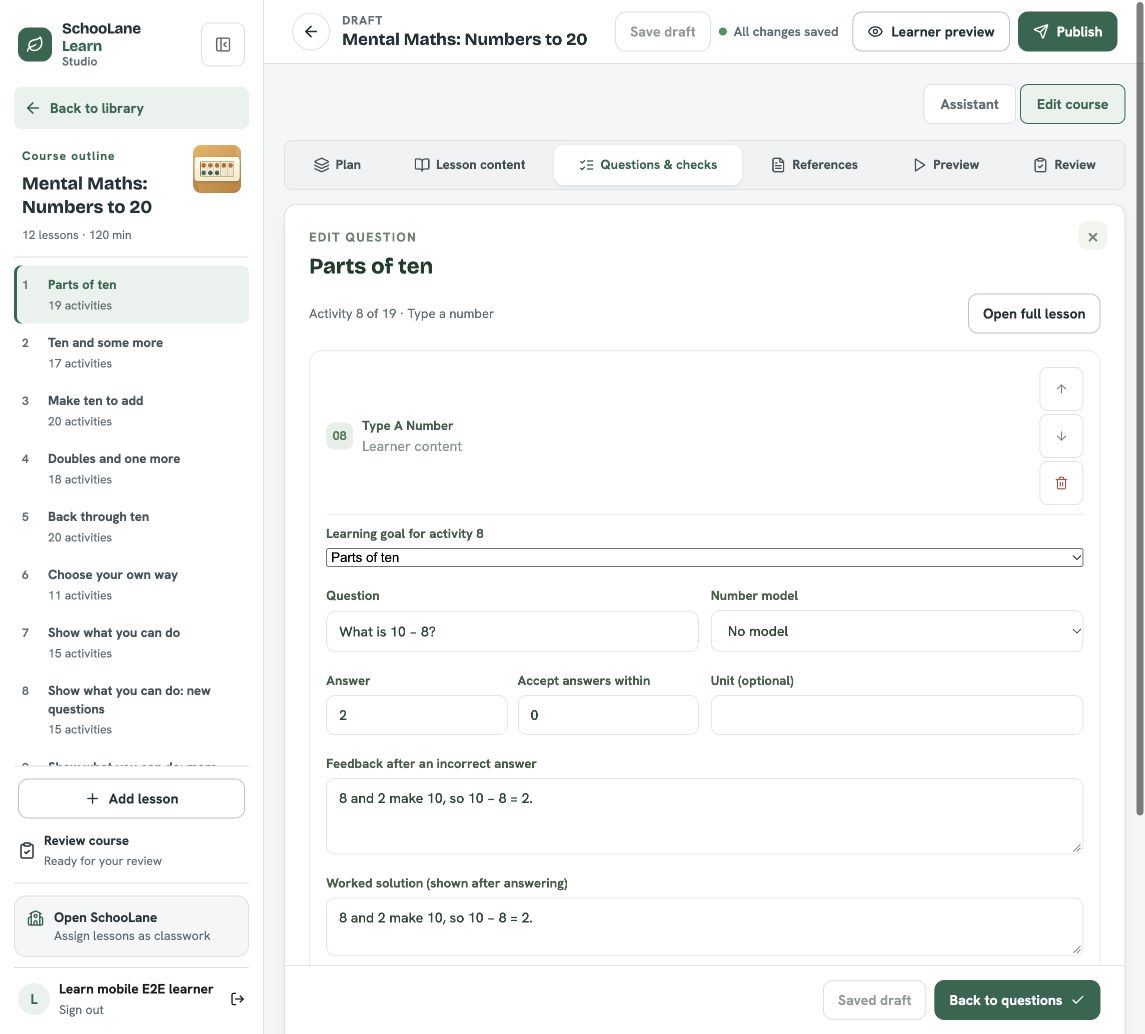
Practice quizzes use Questions, and independent checks use Checks. Their lists also open individual questions. Choose Open question set for the full set, its title and goal, add-question controls, and How this lesson runs. Checks retain their pass count and timed-exam settings; practice quizzes retain practice with feedback. Add question set creates a separate set. Reference-assisted question drafting stays below the question list, and References remains available as its own section.
Add a written response
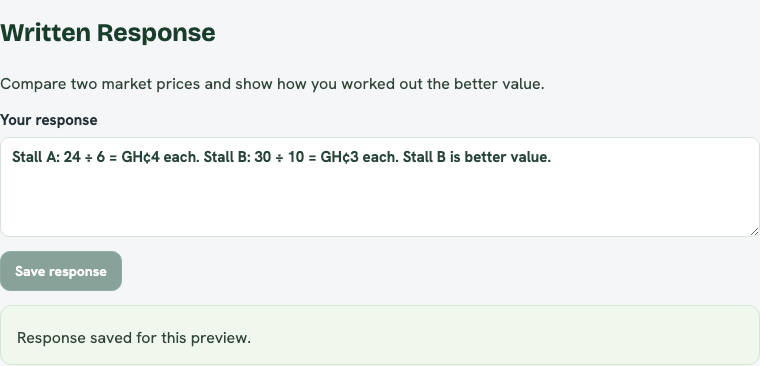
In a learning path, choose Written response from Add an activity in Lesson content or from New question type in Questions & checks. Write the Writing prompt, then choose Essay, Show your working, or Label a diagram under Response format. To attach a diagram, fill in Diagram description (required for a diagram) and choose Add diagram (optional). Save the draft and open Preview to try typing and saving a response. Responses entered in Studio preview do not create pupil submissions.
See the learner experience
When Learner preview is available, choose it to open the Learn mobile experience. Published courses appear in the learning path. Learners can work through the activity one step at a time, get prepared feedback, explain an idea in their own words and rate a flashcard for a later review. When the card is due, Review cards appears on learner home and opens a short recall session.
For learner guidance, see Learn and review a lesson. Learners can turn lesson sounds and vibration on or off from the lesson header; these choices are saved on their device.
Independent practice is separate from official assessments and term grades. When a teacher assigns a published Learn lesson through Classwork, completion supplies review evidence. Only teacher approval updates the linked assessment mark.
Interactive lab trial authoring
The interactive lab trial has a separate MCP authoring surface for Learn authors. A connected authoring client can use learn_labs_list, learn_lab_get_draft, learn_lab_create_draft, learn_lab_save_draft, learn_lab_validate, and learn_lab_get_preview. Read-only clients cannot create or save drafts.
Choose one of the bundled activity types: crank motion, gears, a simple circuit, or fraction balancing. Author the title, instructions, question, answer choices, and feedback. Mechanics also use a fitting tool and a fastener order. Fraction balancing can set a target of up to one whole. These templates do not accept scripts or arbitrary new game mechanics.
The motorcycle template uses kind: motorcycle-course, schemaVersion: 2 and profile: single-cylinder-teaching-v1. Authors can edit its title, subtitle, five stage titles/instructions/narration transcripts, four questions and their feedback, nine part notes, and model explanations. The five stages stay in their supported order and the assembly connections, tools and fault scenario are defined by the player. All required part notes must be present. A revised narration transcript is shown as text unless it matches the bundled recording.
Validate the configuration, create the draft, and read it back. When editing, supply the saved version; if another edit has changed it, read the new version before trying again. Request a preview of the exact saved version, save the returned JSON object, and choose Import activity JSON in the browser trial player. Introductory activities export schoolane-lab-preview-v1; motorcycle courses export schoolane-lab-preview-v2. The preview contains the practice answer key. Completing it does not award course points or publish a course.
To put a lab the app ships in your own words, such as the engine lab Fix Kofi's okada, use kind: mission-lab, schemaVersion: 1, its labId (engine-missions, shop-lights or market-shares), a title and text: a map from each line's path to your words, for example coach/runIntro or parts/head.module/note. Keep any slot such as {part}, which the lab fills in. Lines you leave out keep the lab's words. These drafts export schoolane-lab-preview-v3.
See Interactive labs for the player controls and trial limitations.
A 3D lab in a lesson
In the lesson editor, add a 3D lab step. Choose the lab, tick the missions the step asks for, and write the title pupils see and a short summary of what they will do. The step is finished when the pupil completes every ticked mission; it is not marked right or wrong. Phones that cannot show 3D labs show the summary, with the step's picture if you add one, so the lesson still works.
Put ordinary questions after the lab step to check what pupils learned, such as Multiple choice with picture answers or Tap the picture. Those questions are marked, and any a pupil misses come back for review on later days, like every other question. 3D labs are still a trial: only builds with the lab trial switched on open them, and other apps show the summary.
Readiness criteria
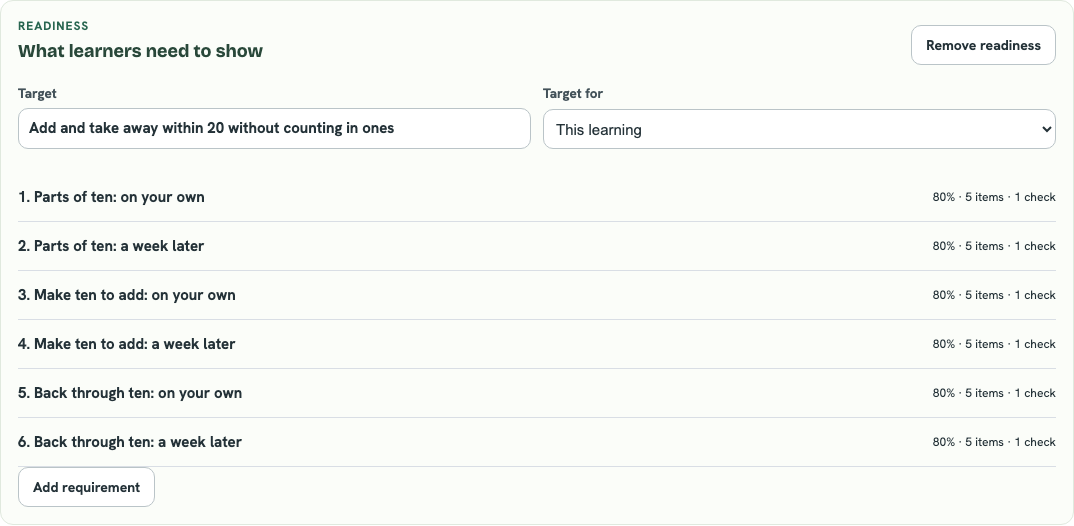
Choose Check understanding when starting an independent check. In its question editor, How this lesson runs lets you choose an independent check or a timed exam. A Practice quiz uses practice with feedback. Timed exams require a Time limit (minutes). Set Correct answers needed when the check has a fixed pass count; the readiness preset inherits the exact pass ratio as its starting threshold. Use Add question set in Checks for a separate later check.
Open a course's learning plan and choose Readiness criteria. Add an Assessment threshold, Skills demonstrated, or Exam preparation preset, then edit its target and requirements. The suggested scores remain editable. Score checks hide answers and feedback until submission; they cannot verify help received outside Learn. Teacher rubrics can record observed unassisted work. Each requirement selects a check or a teacher-reviewed response and the amount of evidence needed.
For a written response, choose Teacher rubric under How it is assessed, select the written-response lesson under Evidence lesson, and choose Set marking levels. Use a lesson with one reviewable response, or select the goal mapped to the written response to narrow the evidence. Give each criterion a name and describe what earns each mark, starting with 0 and 1. Add mark level adds the next mark. Add criterion adds another part of the rubric. Pupils can see criterion names. Marking instructions and correct answers stay private to the marking workflow.
Expand Evidence conditions for repeated checks, recorded question exposure, a time limit, a later check, or a recheck date. You can select a practice lesson to offer after a below-target check. Allowing zero earlier exposures makes a static check first-attempt-only; after it is used, provide a new check. Exposure records cover signed-in Learn attempts across courses. Anonymous teacher-preview links and learning outside Learn cannot establish a learner's exposure history. Later checks use elapsed hours after the selected earlier check. If both requirements use the same lesson, the later attempt is checked against the prerequisite evidence that existed before it started. Save the draft as usual; correct any readiness gaps before publishing. Courses without readiness criteria continue to work normally.
In the library, open Collection readiness criteria to select a collection you can edit and its source courses. Publish collection criteria makes those requirements available together. Every required component remains part of the target, including a course a learner cannot currently open. A collection rubric must match an assessable rubric in its source course.
Readiness describes the published requirements. It is not a prediction of an external exam result.
Activity goals and revision solutions
Use Learning goal for activity in the lesson editor to check or change each activity’s goal. New activities inherit the lesson’s single goal when it is unambiguous. In a lesson covering several goals, choose the goal explicitly. The learning plan recognises every automatically scored question format.
For revision questions, open the activity settings and write a Worked solution. Intensive revision requires these solutions before publication so pupils can understand mistakes. The course editor uses Course name; collections group separate courses.
Guided number models
In a number question, choose Number model: Number bonds, Make a friendly ten, Subtract and adjust, Split an array or Divide in chunks. Set First number and Second number. Changing either number or the model updates the question and calculated answer; you can then edit Question to add your own context. Check that your question, feedback and worked solution still match.
Number bonds use totals up to 20; friendly-ten addition uses totals up to 200. Subtraction must have a non-negative answer. Arrays use 2–12 rows and 1–12 columns. Division uses a divisor of 1–12 with an exact answer of 2–100. Save rejects values outside these ranges.
Use models in guided practice. Checks, exams and independent or delayed-check activities cannot contain them. Choose No model for an ordinary number question. Older learner apps need an update before opening a lesson with models. For school assignments, the teacher's response view includes the pupil's number and chosen split, labelled with model; this records supported work, not a verified mental method.
Show a useful split in the pupil's workbench suggests a split that suits the numbers. When a pupil uses it, the response view adds split suggested by the app, so you can tell a pupil's own split from a suggested one.
The Mental Maths courses
These courses are in pilot. They appear in your library once SchooLane lists them. Mental maths is three courses, so a class is given the one that fits what its pupils can already do. The grade ranges are recommendations, not tested norms; the first line of each course's teacher notes says what a pupil needs before starting.
| Course | Recommended grades | A pupil is ready when they can |
|---|---|---|
| Mental Maths: Numbers to 20 | 1–2, or older pupils rebuilding facts | Count 20 objects and recognise five without counting |
| Mental Maths: Find Your Way | 2–4 | Add and take away within 20 without counting in ones |
| Mental Maths: Multiply and Divide | 3–5 | Say what 3 × 4 means, use the 2, 5 and 10 times tables, and add two-digit numbers in their head |
Find Your Way and Multiply and Divide open with a short lesson called Facts you need. A pupil who finds it hard should start with the course before.
Each course has teaching lessons, a mixed lesson called Choose your own way, a first check called Show what you can do and a later check called What stayed with you?. Each check has three forms with different questions.
- A goal is met with four of five correct answers on a form the pupil has not taken before, without the workbench. This is a pilot criterion, not a tested norm, and it allows one slip.
- If a first check is below the target, the pupil is pointed to that goal's lesson. A new form opens 20 hours later. The app does not check that the practice was done, so ask. Repeating a form the pupil has already taken never counts.
- A form opened before its time is used up and does not count.
- The later check is due seven days after a first check that met the target. A new later form opens seven days after a later check that was below the target.
- When all three forms have been used, the pupil sees Ask your teacher for a new check. Check the goal yourself with numbers you choose.
In Find Your Way, and for doubling, tens and chunk questions in Multiply and Divide, every form uses numbers that no lesson and no other form has used. Numbers to 20 and the times-table goal cover a small, fixed set of facts, so their checks ask facts the lessons taught, in new questions and a new order. A pass there shows the pupil can give those facts unaided on another day; it does not show new numbers.
Review each goal's result, then ask the pupil how they worked one answer out. The check records answers, not methods.