Assign classwork and review submissions
Find classwork
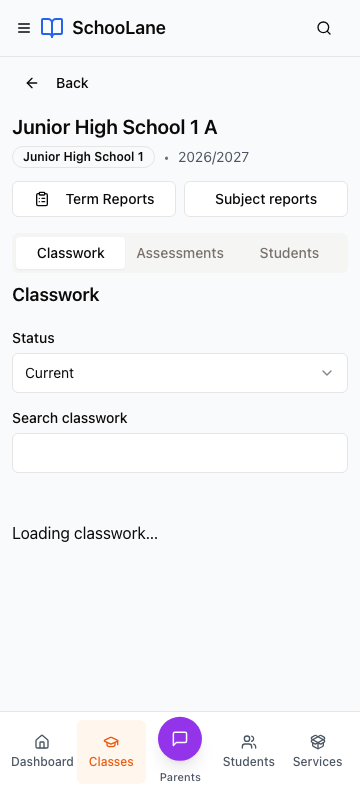
Open your class. Its tabs are Classwork, Assessments, Students and, with SchooLane Learn, Learn. Under Classwork, use Status for Current, Drafts, Awaiting work, To review or Cancelled, plus Subject and Search classwork to narrow the list. Subject reports stays available in the class header.
Set written work or share study material
Choose Create work → Set a task for homework. A new task starts due tonight at 20:00 school time; change Due date if you need another time. Enter the title and instructions, then choose Written response, Photos or PDF, or Written response or files under Response required. For material pupils should read without submitting an answer, choose No response required. Attach supporting files if needed, choose pupils and a deadline, then review before publishing.
Use Save draft if the work is not ready. Account setup and course access remain school-administrator jobs; teachers use this class workflow to decide what pupils should do.
Set a Learn lesson in four clicks
Open the class's Classwork tab and choose Create work → Learn lesson. Choose a Learn lesson opens with your class level and subject already set. Choose a lesson, then choose Publish in the box that opens. The box shows the lesson's name, the number of learners, Due and Response, which is Complete in Learn. Due is already filled in: tonight at 20:00 in your school's time, or tomorrow at 20:00 once it is past 20:00. Change it in the box if you need another time. Notify families is on when your school lets families see classwork; clear it to keep the notice back. A line such as 28 of 30 pupils can open Learn · ask your school admin means some pupils have no Learn account yet. The Subject is filled in from the lesson, or from the subject you set last for this class. If the class has several subjects and none fits, choose one of the Subject buttons first; the box remembers it for next time.
At the top of Choose a Learn lesson, Recent lists the last lessons you set for classes at the same level, newest first. Choose one there to set it again without searching; it keeps the subject you set it under.
Nothing is saved until you choose Publish, so closing the box leaves no draft. Choose Edit details instead to save a draft and open the full task editor for instructions, files, an assessment or a different group of pupils. The task then appears in the class's list with its due date.
Assign a timed BECE Mathematics mock
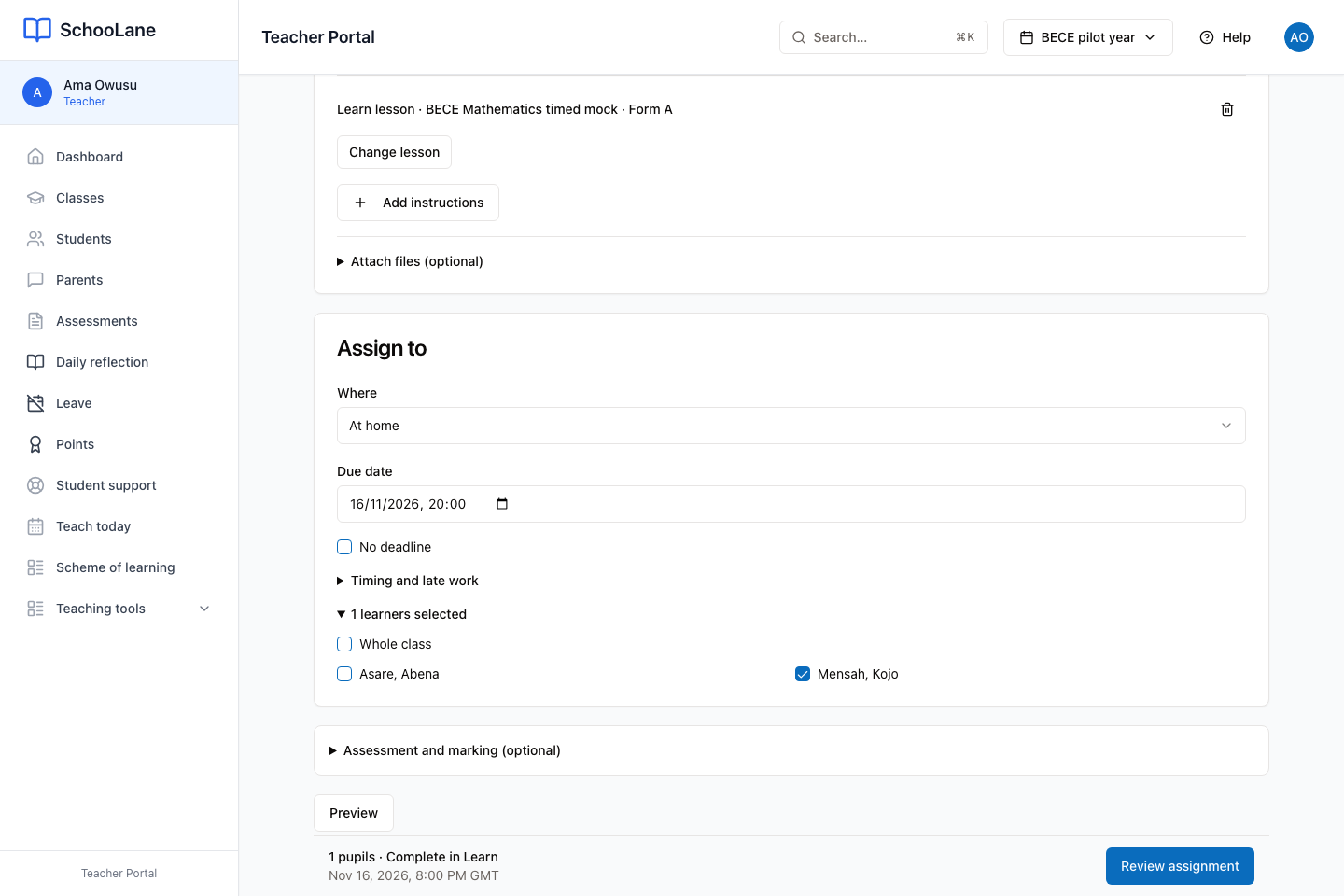
In a Ghana Basic 9 Mathematics class, open Classwork → Create work → Learn lesson and search for BECE Mathematics timed mock. Choose Form A or Form B, then choose Choose pupils. Select the pupils in Assign to, set the due date and review the assignment before publishing. Pupils open the mock from their assigned work in Learn. Paper 2 comes first, followed by Paper 1. Allow two hours and tell pupils how to hand in any graph or construction they make on paper. The timed forms are available from Classwork for eligible classes.
When the pupil hands in both papers, open Responses and select the pupil. Check Paper 1 and the pupil’s written work, including any work they handed in on paper. Enter marks under Mark and review and choose Save rubric review. Choose Release review when you are ready for the pupil to see both scores in Learn. The released rubric remains visible in Responses with its marks locked.
Assign a published lesson with other settings
Open a class's Classwork tab, choose Create work, then Set a task. Enter the title and instructions. Choose Add Learn lesson to open Choose a Learn lesson, then select a published lesson or practice activity. If the title is still empty, it becomes the lesson's name. The task shows Learn lesson with the lesson name; choose Try it to play it again in a new tab, or Change lesson to choose a different lesson in its place. The response becomes Complete in Learn. Add Learn lesson is not offered once the task has a written question. A new task starts due tonight at 20:00 school time; choose another date or No deadline. Check the assigned pupils, then choose Review assignment. Review the pupil count, due date, response and assessment before choosing Publish. You can change Due in this box too. For Complete in Learn, a line such as 28 of 30 pupils can open Learn · ask your school admin means some pupils do not have a Learn account yet. You can still publish; ask your school administrator to set up their accounts. Until then, those pupils show No Learn account in the task's responses instead of Not started. Use Save draft to come back later. Preview shows the pupil-facing content.
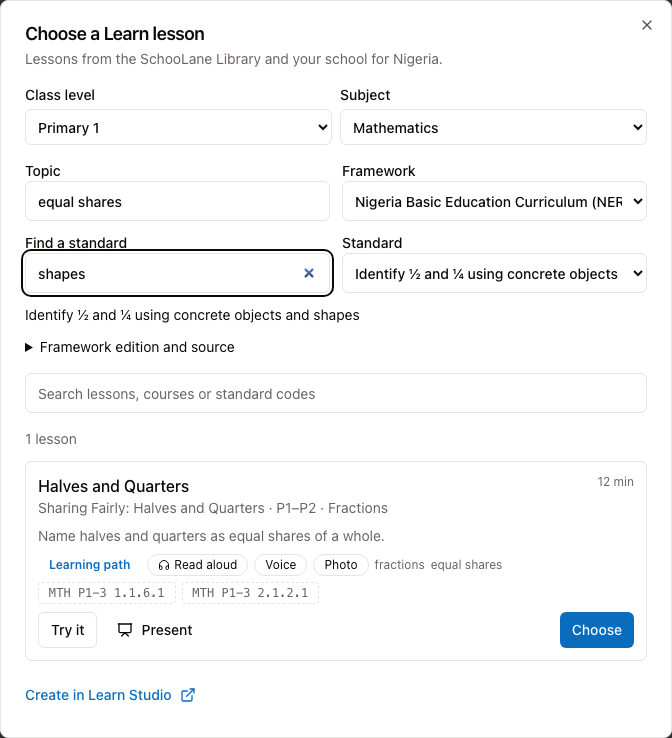
In Choose a Learn lesson, lessons come from the SchooLane Library for your school's country and from courses your school published. Class level and Subject start from the class and subject you are setting work for; change them to look wider. Use Topic for a specific topic tag. Choose a Framework, use Find a standard to search its codes or descriptions, then select a Standard to see linked lessons. Each option shows the description with its code in brackets. More standards loads another page. Standards whose official codes are still unconfirmed are excluded from the filter. Framework choices are independent of your school's country. Type in Search lessons, courses or standard codes to search titles, topics and codes. With no search, Collections shows ready-made sets such as a term of number facts or exam practice; choose one to see its lessons in order, and Show all lessons to go back.
Each lesson shows its course, its level and subject when they differ from the filters, its format (Learning path, Practice quiz, Flashcard deck or Check understanding), the expected time in minutes and the start of its objective. Read aloud means the lesson has narration. Photo, Drawing or Voice means pupils send a photo of their exercise book, a drawing or a recording for you to review. Choose Try it to play the lesson yourself in a new tab; nothing is saved. Choose Present to show it to the class on a projector. Choose Choose, the last button, to add the lesson to the task. Point at or tab to a standard code on a lesson to read its description. Use Load more lessons to see more. If nothing matches, choose Search all levels to keep your other filters across every level, or Clear filters to go back to the class's level and subject. If the lesson you need does not exist yet, Create in Learn Studio opens Learn Studio in a new tab; only approved authors can prepare and publish there.
Your class's Learn tab shows its learning plan and which pupils can open Learn. Your school needs active Learn access and each pupil needs their own school learner account; with automatic accounts on, new pupils get one within minutes. When your school lets class teachers change their class's plan, the class teacher can use Add to plan there. See Learn learning plans. Selecting published lessons does not require Learn Studio author access. Studio is used by approved authors to prepare and publish new content.
Each task uses the lesson version selected when you prepared it. Later edits in Learn Studio do not change that task. Assign one Learn lesson per task; use another task for another lesson or for written questions.
Use Attach files (optional) for supporting files. Optional time-zone, availability and late-work controls are under Timing and late work. Assign to shows the deadline and selected pupils.
See who started and finished
In Classwork, a Learn task shows 18 finished · 4 started in place of the received count. Open the task: the header shows Finished with the same numbers, and each pupil in Responses has one of these labels:
| Label | Meaning |
|---|---|
| Not started | The pupil has not opened the lesson |
| Started | The pupil opened the lesson and has not finished it |
| Submitted | The pupil finished; it waits for you to review |
| Reviewed | You have reviewed it |
| Overdue | The due time has passed and the pupil has not finished, even if they started |
| No Learn account | The pupil cannot open Learn yet |
Use the filter above the list to show Not started or Started pupils.
See which questions tripped the class
Open Details → Questions to see how many pupils got each scored question wrong the first time, most missed first, for example Q4 · Which fraction is bigger? · 9 of 24 wrong first time. Up to three of the most missed questions are marked Tripped the class, when at least two pupils missed them and they were at least a quarter of the pupils who answered it. Only a pupil's first answer counts, because Learn lets pupils retry in practice. Show all lists every question. Choose Try it to play the lesson yourself. A line such as 3 finished before question results were recorded counts pupils who finished before this list existed. Those pupils and any you excused are left out of the numbers.
The morning after the due date, at about 7:00 school time, you get one notification on your phone from the staff app, for example 24 of 30 finished. Question 4 tripped 9 pupils. The second sentence is left out when no question was missed by two or more pupils. Choose it to open the task. See Homework in the staff app.
Link an assessment
Open Assessment and marking (optional), then choose Add assessment if this task should support an existing class assessment. The assessment supplies its grading model and maximum mark. You may also publish a task without an assessment and give feedback only.
Review and approve
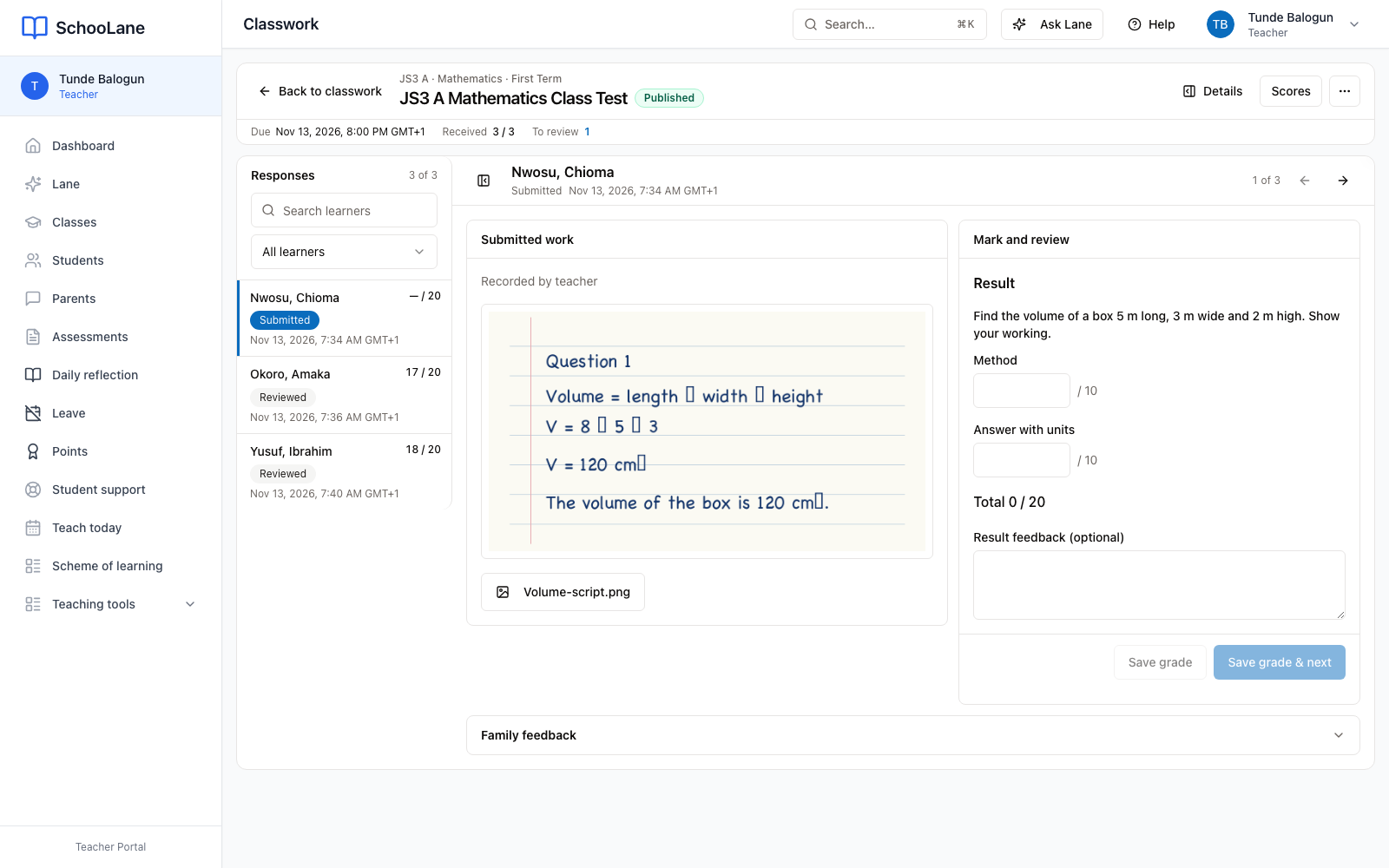
Open the task and choose a pupil under Responses. The task header shows its class, subject and term above the title. Use Search learners or Filter responses to find work. On desktop, use Collapse roster to give the submission more room, then Show roster to bring the list back. On a phone, choose Responses to return to the list, or use Previous learner and Next learner to stay in review. View work and Go to marks take you to those sections on a narrow screen.
Open Details to see the assignment. Its Marking scheme is staff only. For Learn work, Questions and Class readiness are also in Details when available. The pupil stays selected when you close Details.
Completed in Learn identifies the learner's own work. Work to review comes first when the lesson asked for one (see below). Pupil photos and drawings show large enough to read; select one to open it full size. The review shows independent checks separately from guided practice, whose counts include retries. Guided practice appears only when the pupil answered practice questions. Some older lessons have no independent-check score, so only their practice counts appear. Flashcards rated appears when the pupil rated flashcards. A lesson with a mastery check shows Mastery check with the number correct and whether the pupil Mastered it. Missed first time lists the questions the pupil got wrong on their first answer, for example Q2, Q4, or None; it is left out for work finished before question results were recorded.
When the lesson asked for a Photo of work, a Drawing or a Voice recording, Work to review shows each response with its question so you can mark it. Select a photo or drawing to open it full size in a new tab. Photos are checked and cleaned before anyone sees them. Pupil responses are kept for about 13 months.
Choose marks using the linked assessment’s scale. Use Result feedback (optional) for comments that go with the grade, then choose Save grade or Save grade & next. For a separate message or a request to revise, open Family feedback.
Record work for a pupil
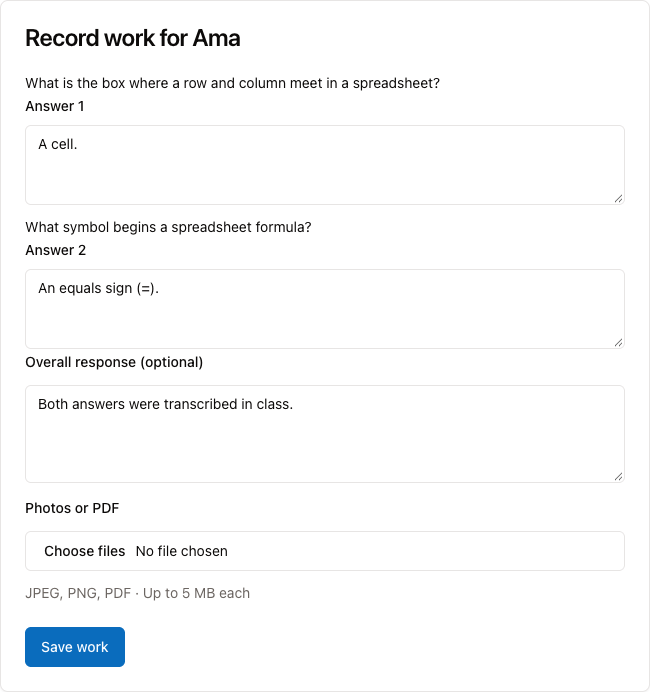
Open a pupil in Responses and find Record work for that pupil. For a task with written questions, enter the pupil’s work in Answer 1, Answer 2 and the remaining question fields. Use Overall response (optional) for a response that applies to the whole task. Attach the original script in Photos or PDF when the task accepts files, then choose Save work.
Review suggested marks
For a linked assessment, add the question prompts and Question marks (optional) before publishing. Use Add marking criterion to give each marking point a label and maximum. The maxima must add up to the assessment’s maximum. After publishing, open Details → Marking scheme, choose Add marking scheme, and enter guidance for what earns each mark. Select Ready for grading and Save marking scheme.
Open a pupil’s submission, then choose Suggest marks if your school has enabled AI grading. Compare the suggested marks with the original response. Select the script to enlarge it or move through its pages. Choose Use suggested marks to fill the editable marks. Adjust any point and choose Save grade or Save grade & next. If the suggestion needs manual review, use the original response to enter marks yourself. For an unreadable script, review the original or capture a clearer copy where the task allows it.
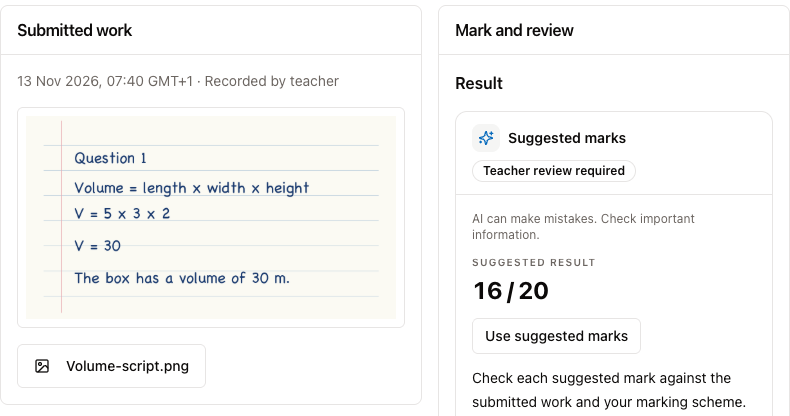
If the marking scheme or grade changes while you review suggested marks, choose Keep marks and review again. Check your entries against the current work and marking scheme, then choose Save grade.
Approval updates the linked assessment through the same grading workflow used for other Classwork. Practice points and quiz completion never approve a school mark automatically.
Share the result with the family
After saving the grade, choose Release to family. In Release result to family?, choose Score only, Score and feedback, or Score, feedback and script when evidence is available. Check the result, then choose Release to family to confirm. Saving a grade does not share it with the family. Publishing a linked assessment is a separate assessment action; check that assessment before finalizing term marks.
In an assessed task, open Family feedback and choose Request revision when the pupil should try again. If resubmission is enabled, the pupil opens Revise lesson and completes a new attempt. The earlier submission remains in the review history.
A saved Learn lesson may show Sending to your teacher while delivery is retried. It becomes a school submission only after the teacher's system acknowledges it. Closing or cancelling work prevents further activity. A pupil who already completed within an authorised window retains that completion when delivery arrives later.
Related
Class readiness
For Learn tasks with authored criteria, open Details → Class readiness. Each pupil's row shows the requirements they have demonstrated and the evidence still needed. Open a pupil or a requirement cell to inspect the supporting submission. On a phone, choose one requirement and read the roster vertically.
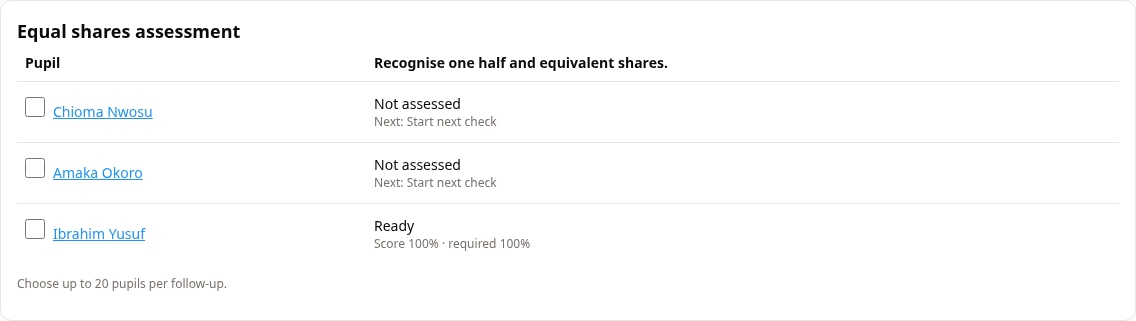
Select pupils, choose Prepare follow-up, then check the prepared activity and choose Publish follow-up. You can open a pupil’s response and return to Details → Class readiness to continue with the same selection and prepared activity. Class, subject and selected pupils carry into the new task. Its publication remains separate from preparing the draft.
Teacher rubric judgements are saved privately from the submitted response. Choose Release review when the learner and family may see them. This does not create an official assessment mark or replace report approval.
Each pupil’s readiness row shows the next suggested activity. Select pupils who need the same activity for one follow-up. If their next steps differ, prepare separate groups; pupils waiting for a later check, access or teacher judgement need those steps first. Changing the selection clears a prepared follow-up so you can prepare the correct group again.
Rubric controls apply to the submitted lesson. Saving a rubric refreshes the class readiness grid; releasing it also refreshes the shared evidence summary.
Mark Paper 2 practice
Open the pupil’s submission and read their written work. Under Mark and review, enter a mark for each Paper 2 rubric criterion. If your school enables review suggestions, choose Suggest marks. It can fill a blank criterion with a mark or show a possible range beside the blank field. Check each suggestion against the pupil’s answer and the marking levels. Change suggested marks as needed and choose a mark for each blank before saving.
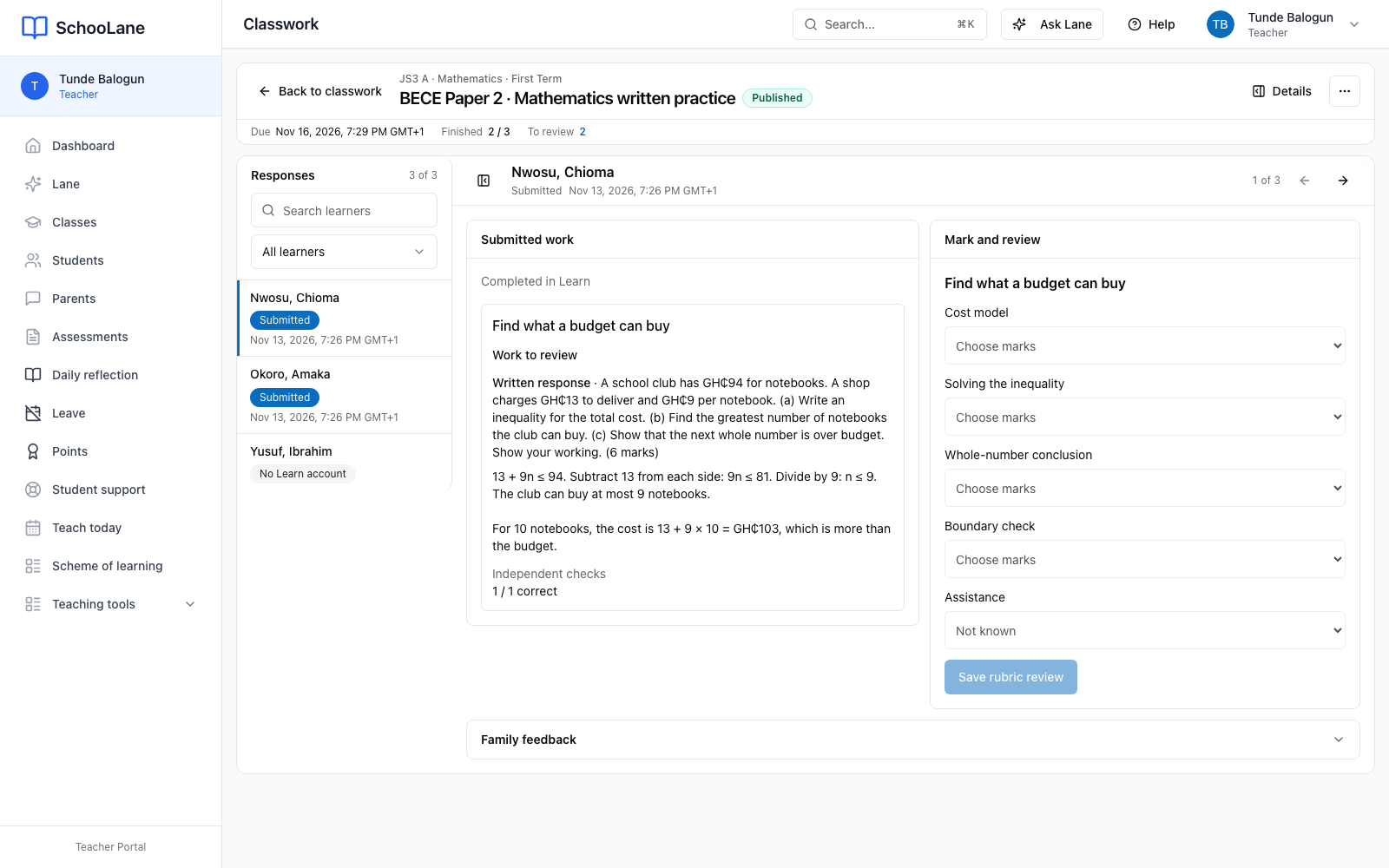
Choose Save rubric review to save your marks privately. If you try to switch pupils with unsaved marks, save your review or choose Discard changes. If a navigation link asks whether to discard unsaved marks, cancel to keep editing or confirm to leave. When you are ready to share the saved rubric, choose Release review. The pupil can open it from their submitted school work in Learn. To send a separate message or request a revision, open Family feedback beneath the review.
Rubric reviews cannot be saved or released after the academic term is locked or its academic year becomes inactive.