Reports Center
Term reports for a class or a student. Finalize the scores first. Then download when the class is ready.
I do not publish Meadowbrook reports because Friday is on the calendar. I publish when JS2 A is actually finished. Tunde’s papers have to be finalized. The signature has to be sitting in School Settings. Otherwise you print a pretty blank.
What you need first
- An active term with graded, finalized assessments
- A saved head-teacher signature in School Settings
- The class roster for the year you are reporting
Steps
1. Open Reports Center
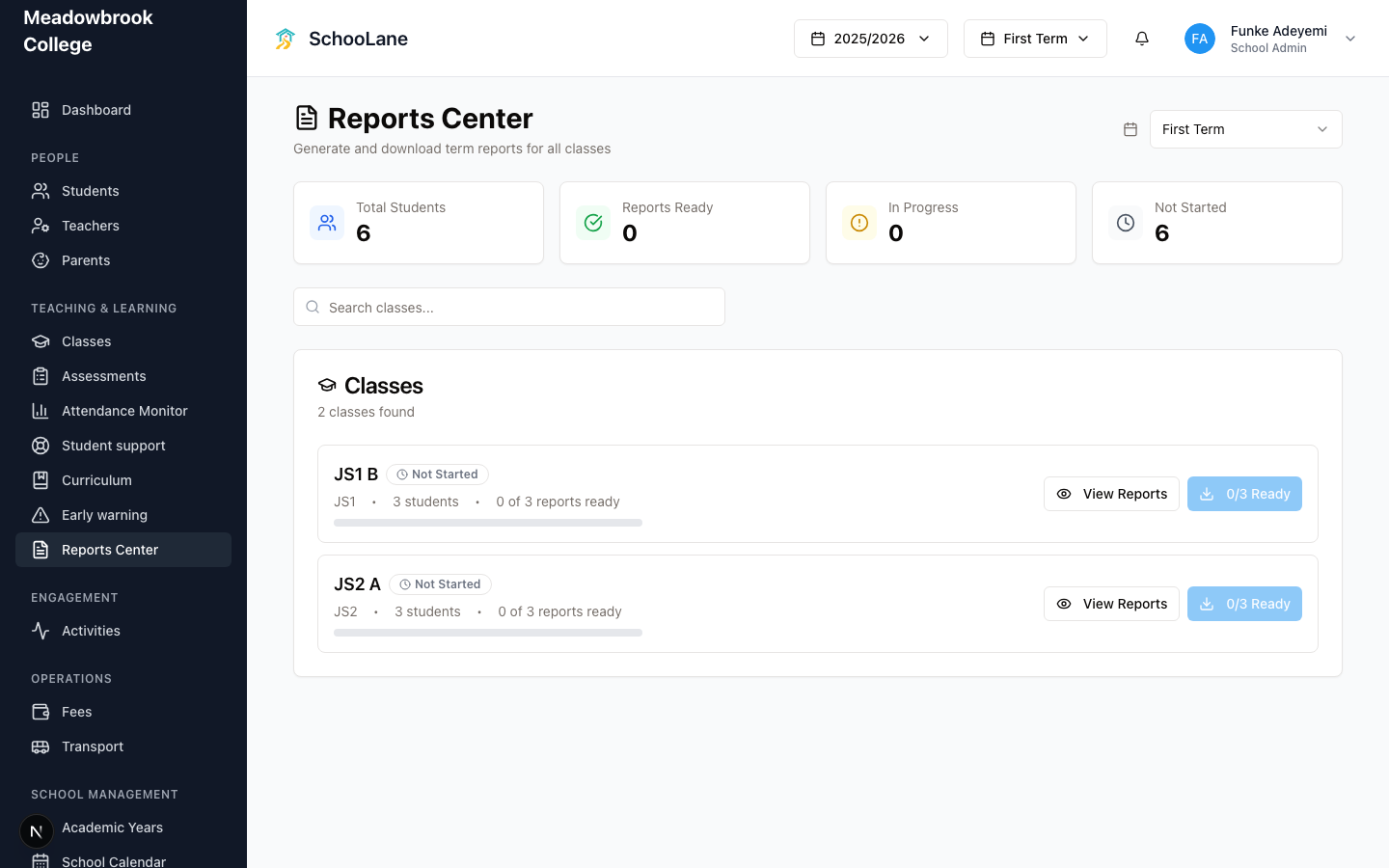
In Teaching & learning, press Reports Center. The heading is Reports Center. The line under it says Generate and download term reports for all classes.
2. Pick the term
Use the term menu on the right of the heading. Confirm the academic year in the header matches the year you mean. Then search with Search classes... if you have a long list.
Four cards sit above the list: Total Students, Reports Ready, In Progress, Not Started.
3. Open a class
The Classes card lists each class with a status. All Ready means every report is finalized or published. Not Started means nobody has a report yet. A yellow count such as 3/28 Ready means stay out of the printer.
Press View Reports to open the class. Read totals, position, and comments on one student before you touch the whole set.
Download All PDFs stays locked until every report in that class is ready. While you wait, the button shows something like 0/5 Ready. That is not a download. That is a warning.
If you finalized too soon, Unfinalize puts those reports back to draft. Use it. Do not ship a wrong comment because you are tired.
4. After promotion
If students already moved to next year’s class, this term’s reports still live on the old class. The banner says Promoted classes still show reports. A class can also show Includes promoted. Open the class they sat in for this term. The new roster is the wrong list.
Common mistakes
- Downloading before every subject is finalized. The button will not help you.
- Hunting a promoted student only in their new class.
- Printing without a signature. Set it under School Settings first.